
Use the Period View tab in the Registration module to view and update registration records outside of a registration time. This tab is also useful if you want to view record details such as notes and reasons for absence.
To use the Period View tab, follow the steps below:
Open the Registration module and select the Period View tab:

Registration records are listed by registration status. This makes it clear to see those students who have been marked absent or have yet to be registered in a registration period.The Period View tab can be set up to suit your school and it may appear different to the example shown.
- Select the date and registration period that you want to work with:

The registrations you choose to display are saved to display as a default for the next time you open the Period View tab. Use the filters available to select the group of students that you want to work with:

Fewer records on display reduces the time it takes to update any changes made to them.
Use the Records drop down list in the top right of the screen to control the number of records displayed for each status on each page. This is optional.
- Click
 next to a registration status to expand the part of the registration you want to display.
 - Sort the records displayed to suit you. Either:
- Click in the header bar to sort records by name, form, tutor or boarding house:

or - Sort records which are 'Not Yet Registered' by applying the registration rule for the period you are working in:
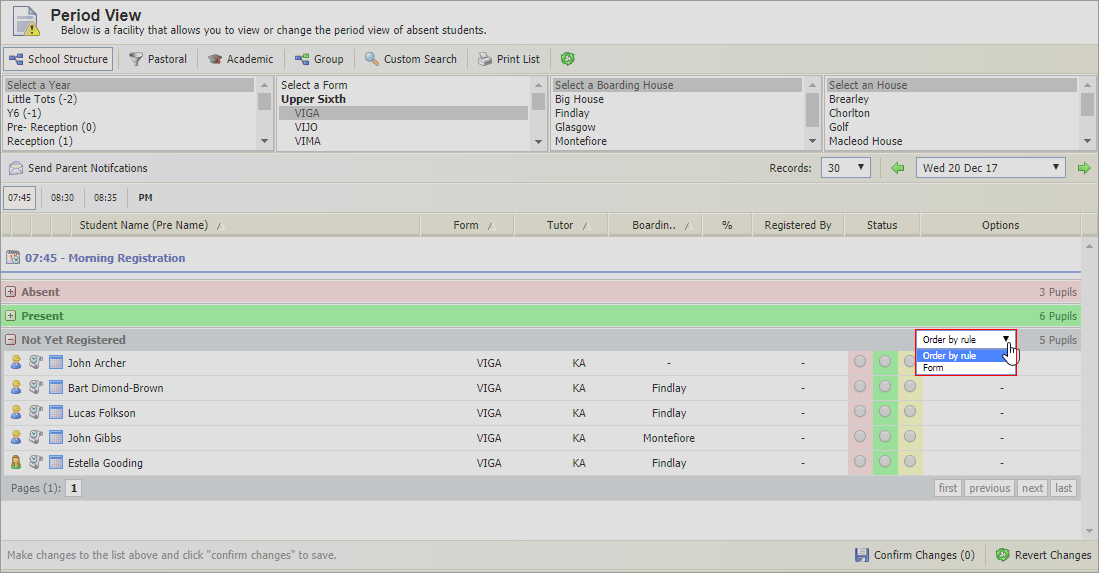
- Click in the header bar to sort records by name, form, tutor or boarding house:
- Use the navigation tools to find the record that you want to work with:
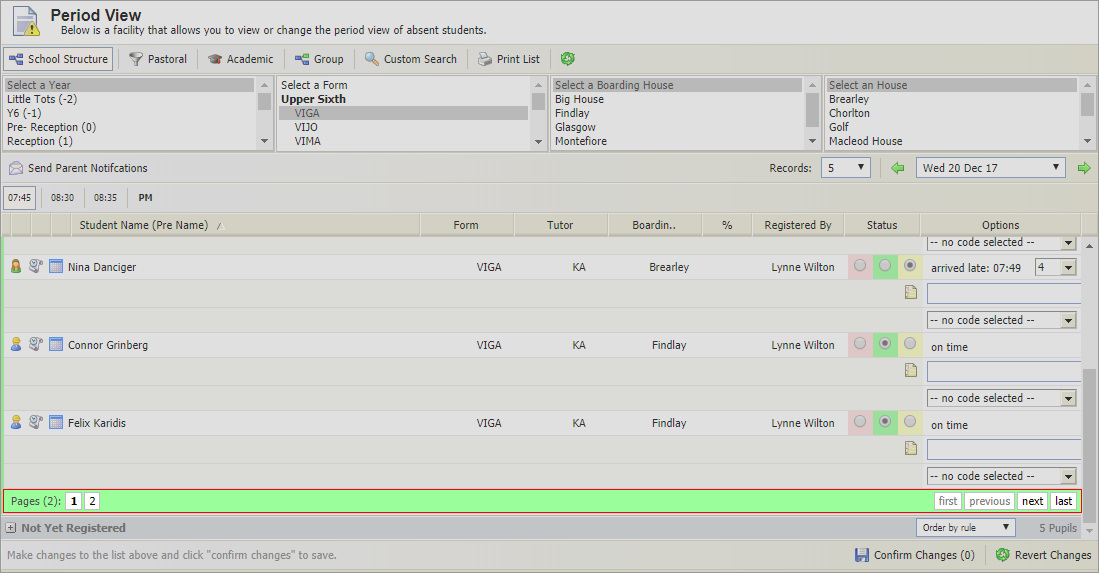
Choose to:
- Locate the record you want to change and click on the relevant marker button to register the status of the student:

Hover over a marker button to display a reminder of the status it refers to. The colours used are set up in the Configuration tab, in this example:- Absent = pink.
- Present = green.
- Late = yellow.
Students marked absent in the Out of School tab are highlighted purple. You cannot change this status.
- Use the drop down list to select the reason for absence/presence:

- Enter a note in the field provided, this is optional:

Notes can be viewed by anyone with access to the register. A note will only display in the register it has been added to. Use this function to communicate to other users, for example the reason why a student is late for registration. This is different to a Registration Note.
The registration record will be highlighted orange until it has been saved. - Either:
- Click Revert Changes. This resets any changes made to registration periods before they have been saved.
or - Click Confirm Changes. The number shown indicates the number of changes you have made to registration records.
- Click Revert Changes. This resets any changes made to registration periods before they have been saved.
- Enter a note for the student in the register:
- Click Confirm Changes in the bottom right of the screen.
Notes can be viewed by anyone with access to the register. A note will only display in the register it has been added to. Use this function to communicate to other users, for example the reason why a student is late for registration. This is different to a Registration Note.
Click to view a student's registration history. This provides a useful log of all the student's registrations.
Click
 to display a student's timetable. This is a convenient way to see what lessons the student will be absent from.
- Locate the record you want to change and click on the relevant marker button to register the status of the student:
Once you have finished working with individual records, choose to:
Click
 Send Parent Notifications on the left of the screen to send parents a notification, by e-mail or SMS, of a student's registration status.
This feature must be enabled in the Parent Portal Manager, allowing parents to opt-in to receive notifications about their child's attendance. You are able to review the information before sending notifications. Notifications should only be sent once all the registration information provided is complete and up to date.
Click
 Print List at the top of the screen to print the registration records listed.