
Use the Group View tab in your selected child activity module to create a schedule for your activity. This is useful for scheduling regular training sessions, etc into the timetable.
Preferences may have been set that make the Create New Schedule wizard differ from the example shown below.
To create a schedule:
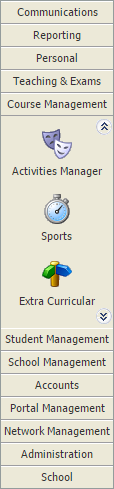
- Select a child activity module from the module bar:
- Select the Group View tab:

Categories are identified by the icon in the tree menu on the left. Groups are listed underneath categories in the tree.
 - Click Manage Timetable in the Manage Features panel.
Schedules for the group are displayed:
- Click Create Schedule in the header bar.
Step 1 of the Create New Schedule wizard is displayed: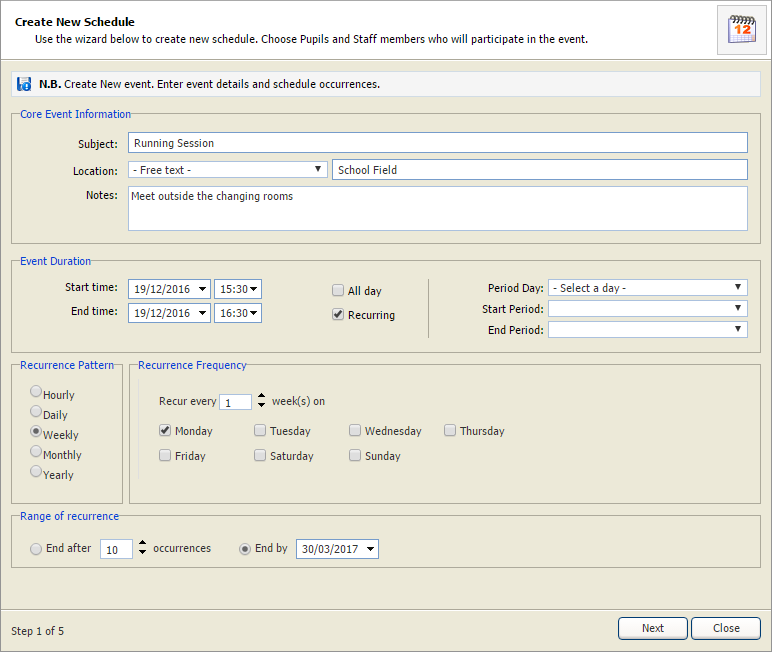
Complete the fields displayed:
Section Fields Core Event Information - Subject. Enter a clear and concise name for the schedule.
- Location. Select either:
- 'Free Text' and enter your own location in the blank field shown.
or - Select a location at your school from the drop-down list.
- 'Free Text' and enter your own location in the blank field shown.
- Notes. Enter any relevant location notes here, such as where to meet for training.
Event Duration - Set the time of the schedule. Either:
- Use the time pickers to set a time for the schedule.
- Use the period day/period drop-downs to adjust the times displayed.
or - Check All day.
- Check Recurring if the schedule is to repeat at another time. The Recurrence sections are made available. Recurring schedules are identified by the
 icon when listed.
Recurrence Pattern This section is only displayed when Recurring is checked in the Event Duration section. Recurrence Frequency This section is only displayed when Recurring is checked in the Event Duration section. Range of recurrence - A number of recurrences.
or - A date when the schedule should stop recurring.
Breaks in the schedule, such as half term, cannot be built into the schedule. Either:
- Create a schedule either side of half term.
or - Create a Registration Code you can use to log pupil absence for the half term in the register.
Click Next to move to step 2 of the wizard (this step may be skipped depending on Preference settings).
A list of Available Staff Members and Event Participants is displayed: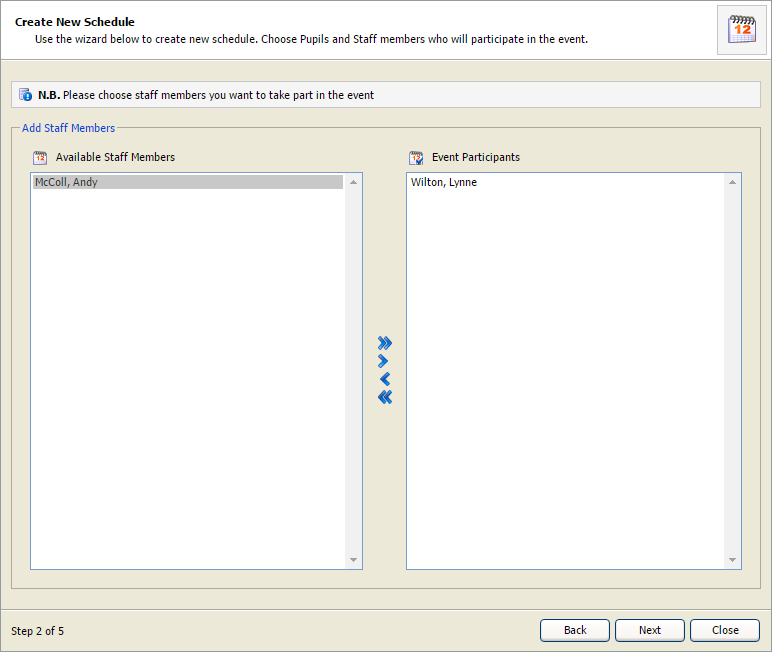
- Scroll through the staff members in the Available Staff Members and Event Participants panels and click on a name to select it. Hold Ctrl to select multiple names.
- Use the arrows available to move your selected staff members between the two panels.
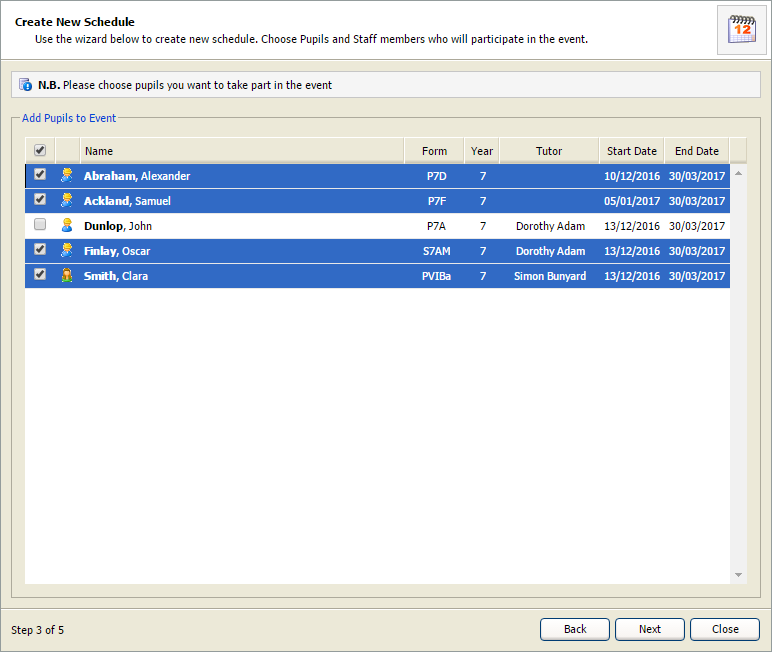


All of the scheduled activities are listed.- Click Close.
- The activity schedule is listed.
- The schedule is also shown in pupil and staff timetables if Timetable Features have been enabled.
- Registers are automatically created for each schedule.
- Choose to contact pupils about the new schedule.