
Use the Group View tab in your selected child activity module to set default fields when creating activity schedules. The defaults are used in both the:
For example, set a default name of 'Training Session' and set default times. This saves time when adding all sporting activity training sessions for the term. The preferences that you set only apply to the group that you are working with.
To set activity schedule preferences:
- Select a child activity module from the module bar:
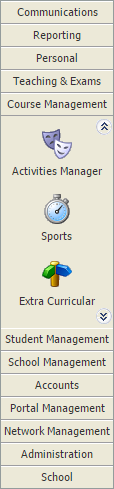
- Select the Group View tab:

Categories are identified by the icon in the tree menu on the left. Groups are listed underneath categories in the tree.
 - Click Manage Timetable in the Manage Features panel.
Schedules for the group are displayed:
- Click Preferences in the header bar.
The Scheduler Preferences window is displayed:
Select the Default Fields tab and complete the fields that you want to set as defaults:
Field Explanation Default Subject Enter a clear and concise default name for the schedule. Event Details Select either: - 'Free Text' and enter your own location in the blank field shown.
or - Select a location at your school from the drop-down list.
Default Notes Enter any relevant location notes here, such as where to meet for training. - 'Free Text' and enter your own location in the blank field shown.
Select the Wizard Preferences tab and complete the fields that you want to set as defaults:

Field Explanation Default Start Time Select a default start time for the schedule. Default Event Duration Set the default duration for the schedule. You can override your selection from the picker if required. 'All day' checked Check the box for the 'All day' checkbox to be checked by default. Pupil & Teacher Selection Use the checkboxes to determine whether the teacher and pupil selection pages are displayed in the Create New Schedule wizard (these selections are not applied when using Quick Appointment). Choose to: - Automatically select all teachers assigned to the group. The teacher selection page (step 2 of the wizard) is not displayed when using the Create New Schedule wizard.
- Automatically select all pupils assigned to the group. The pupil selection page (step 3 of the wizard) is not displayed when using the Create New Schedule wizard.
- The teacher selection page (step 2 of the wizard) is only displayed if more than one teacher is assigned to the group you are working with.
- The pupil selection page (step 3 of the wizard) is only displayed if more than one teacher is assigned to the group you are working with.
Click Save & Close.
Your preferences are set and are ready to use: