
Use the Re-Install Module option in the Timetable Manager module to delete or reset part or all of the module.
- Use the Re-Install Module button with caution as re-installing the module will delete all current content and settings.
- All of these options must be used with caution as using them causes permanent changes to the module.
To use the Re-Install Module option:
- Open the Timetable Manager module and select the Configuration tab.
- Select Re-Install Module from the right hand menu:
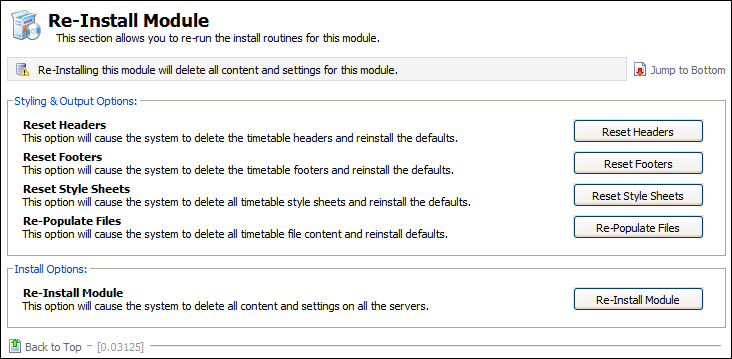
Select the option that you want to work with:
Option
Use to delete and reset...
Reset Headers
Timetable Header Options. This refers to the header in printed versions of timetables. Any changes you have made to this option are deleted and reset to their original settings.
Reset Footers
Timetable Footer Options. This refers to the footer in any printed versions of timetables. Any changes you have made to this option are deleted and reset to their original settings.
Reset Style Sheets
These are used to setup the display style of timetables used through iSAMS. Selecting Reset Style Sheets resets all of the following options to their original settings:
- Wizard Timetable Style. Timetables generated through the wizard bar.
- Desktop Timetable Style. The timetable displayed for teachers in the Desktop view.
- On Screen Timetable Style. The edit timetable window.
- Print Timetable Style. The print timetable window.
Re-Install Module
All content and settings in the entire Timetable Manager module. Only use this if you want to completely change the structure of your timetable. Once this option is selected you need to setup the module as you would when you use it for the first time.
You are prompted, before confirming your selection. For example, select Reset Headers and you are prompted. Are you sure you want to reset the timetable manager header?
- Select Yes to confirm your selection.
Your changes are made to the module.