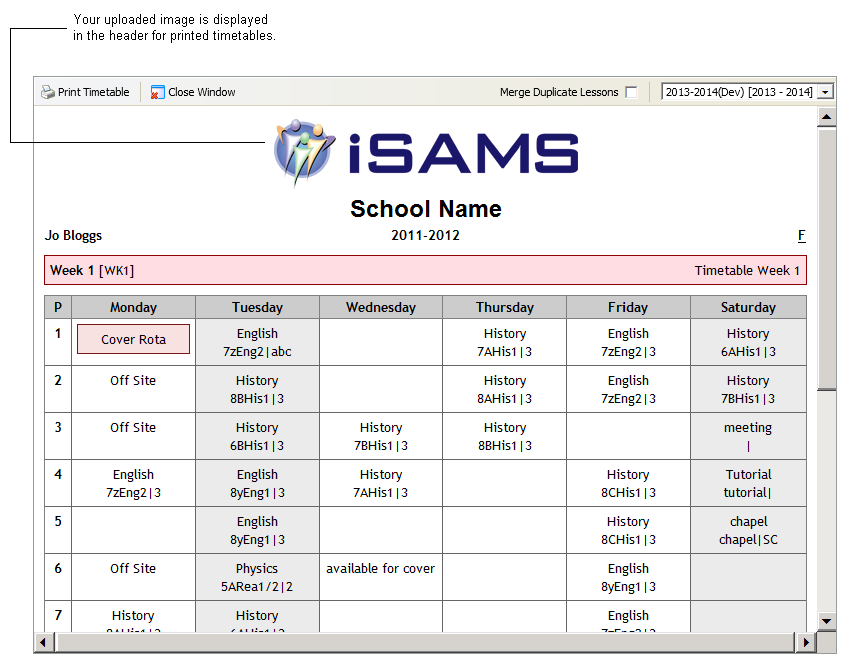
Use Timetable Header Options in the Timetable Manager module to change the style of the timetable header when viewing a printed timetable. For example, you can upload an image of your school crest and name.
- Open the Timetable Manager module and select the Configuration tab.
- Select Timetable Header Options and open the Header Template tab:
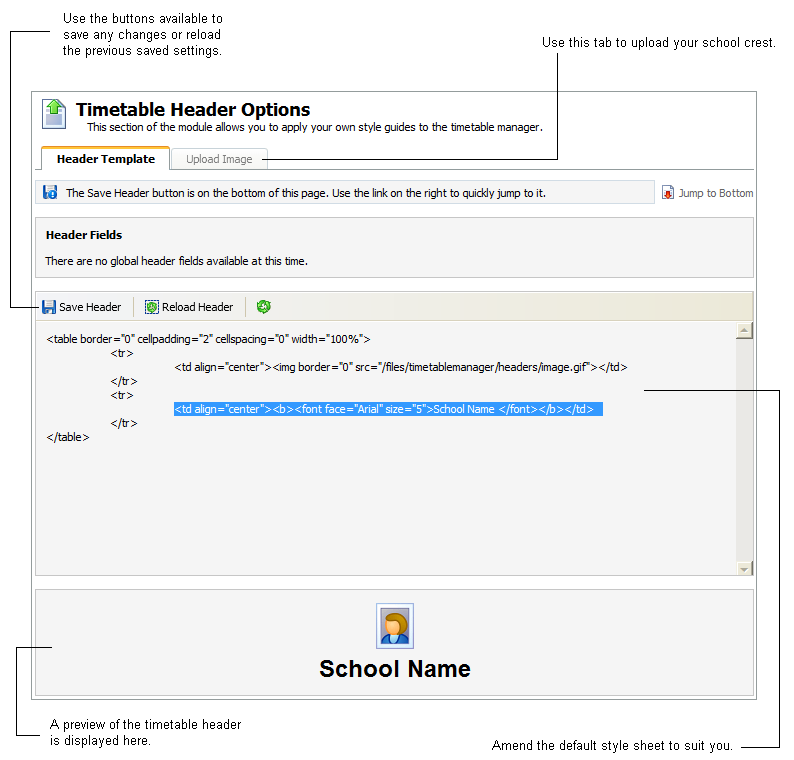
- Change the default style sheet to suit you. For example, add your school name and change the font size, an example is shown below:
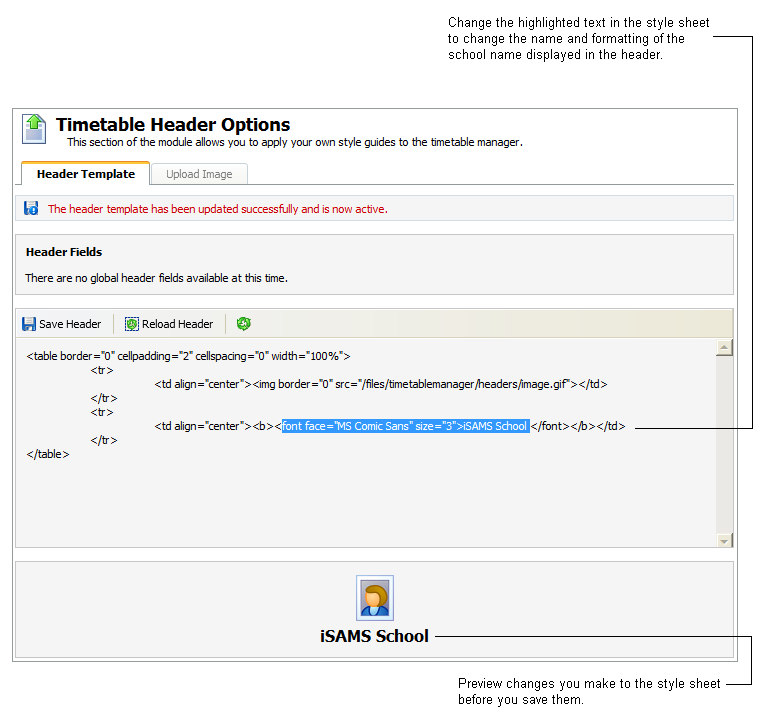
You may prefer to keep the information displayed in the header to a minimum to save space. - Click the Upload Image tab to add your own image to the timetable header.
An example of the Upload Image tab is shown below: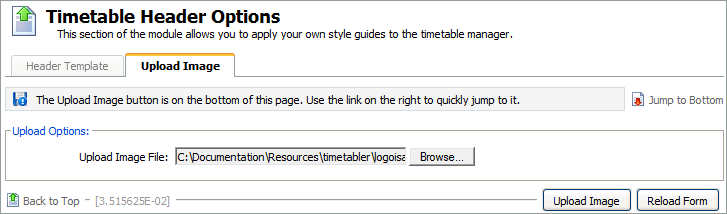
- Click Browse and select your own image to upload.
- Click Upload Image to upload your image into iSAMS. Click Reload Form to refresh the screen to previous saved settings.
- Open the Header Template tab and enter your image file name in the style sheet.
An example is shown below: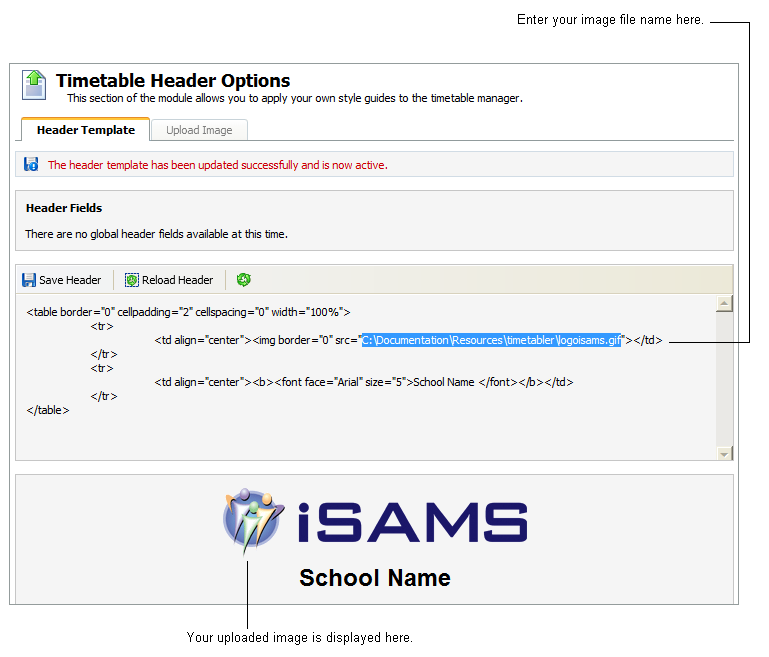
- Click Save Header to save any changes you have made to the header style sheet. Click Reload Header to refresh the screen to previous saved settings.
An example of how changes to the style sheet are displayed in the print view of timetables is shown below: