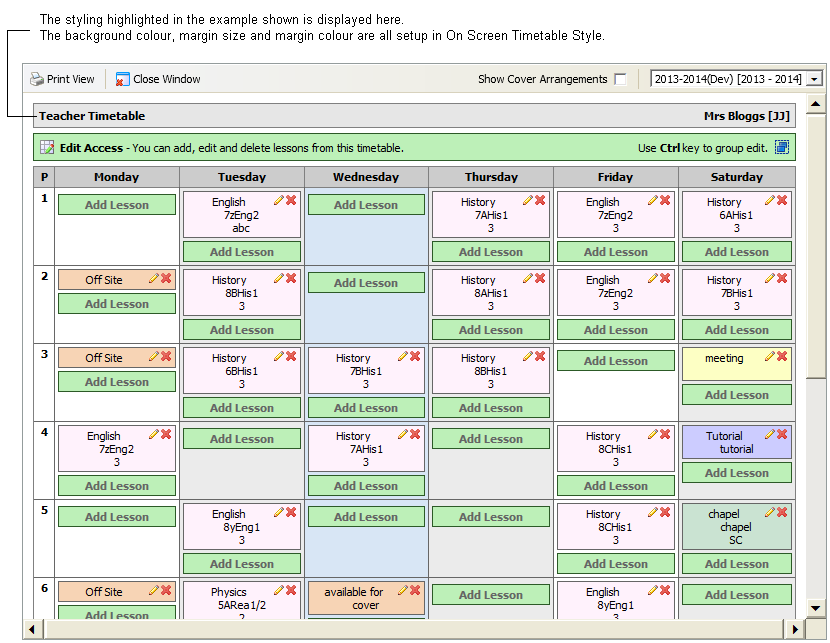
Use the On Screen Timetable Style option in the Timetable Manager module to change the font size and colour, background colours and alignment of text in the edit view of timetables.
To change the style of the edit view of timetables, follow the steps below:
- Open the Timetable Manager module and select the Configuration tab.
- Select On Screen Timetable Style:
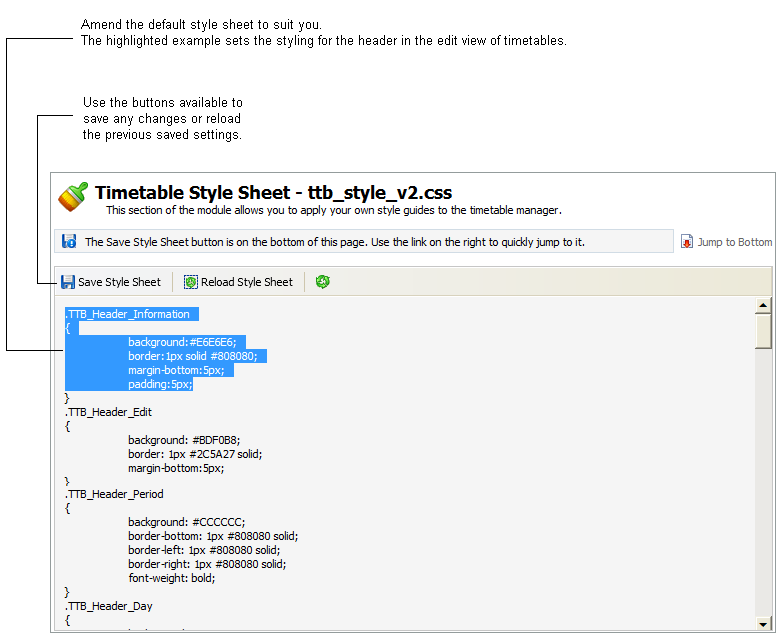
- Change colours and spacing in the style sheets to suit you. Use hexadecimal colour codes and common formatting terms in the style sheet.
- Click Save Style Sheet to save changes to the style sheet. Use Click Reload Footer to refresh the screen with previous saved settings.
An example of where your selections are displayed in timetables is shown below: