
Use the Create Entry Files option in the External Exams Manager module to create EDI files once all exam entries have been made.
Once created, EDI files can be uploaded to the appropriate exam board.
- Ensure that entries have been checked before EDI files are created. Checks can be made using the Candidate Entry Report and the Programme Entry Report.
- You can only create entry files for the BaseData that you have imported into the selected exam cycle.
- Create a separate EDI file for each series of BaseData and exam board in the exam cycle. So, one for A Levels and one for GCSEs for each exam board.
To create an entry file:
- Open the External Exams Manager module and select the Entries tab.
- Select Create Entry Files from the right hand menu to display this screen:
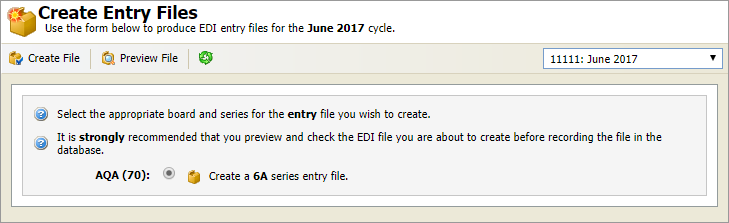
Use the drop down list in the header bar to select the exam cycle that you want to work with.
- Select the exam board and series that you want to work with. In this example there is only one to choose from but you may have several boards and different series for A Levels and GCSEs.
- Click Preview File.
A warning is displayed to remind you that you are only previewing the file and must still create a file for a record to be created. - Click OK.
The file preview is displayed in the lower part of the screen: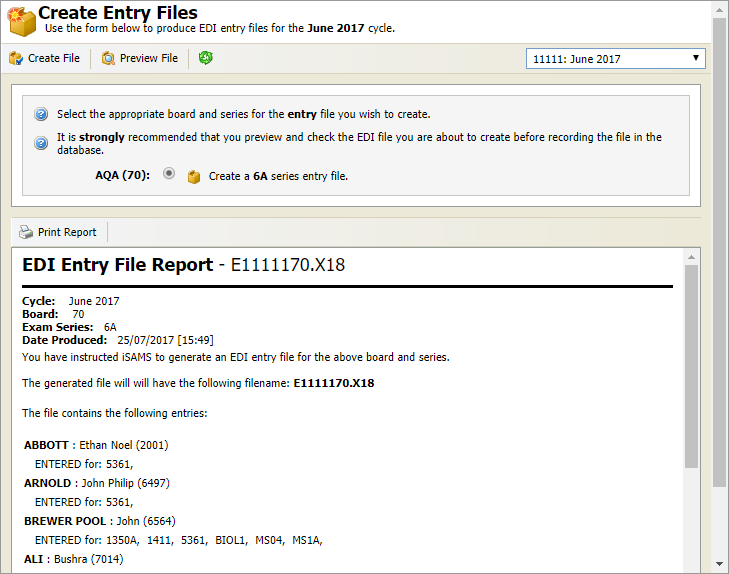
All entries for the options linked to the selected BaseData are listed. 'Current' candidates are shown alphabetically with 'Returning' and 'Private' candidates shown at the bottom of the list. - Click Print Report for checking.
- Once you are satisfied that all of the entries in the report are correct, click Create File.
You are prompted that a file will be created, Are you sure you wish to continue? - Select Yes. The file is given a unique reference number.
A message is displayed to confirm that the file has been successfully created: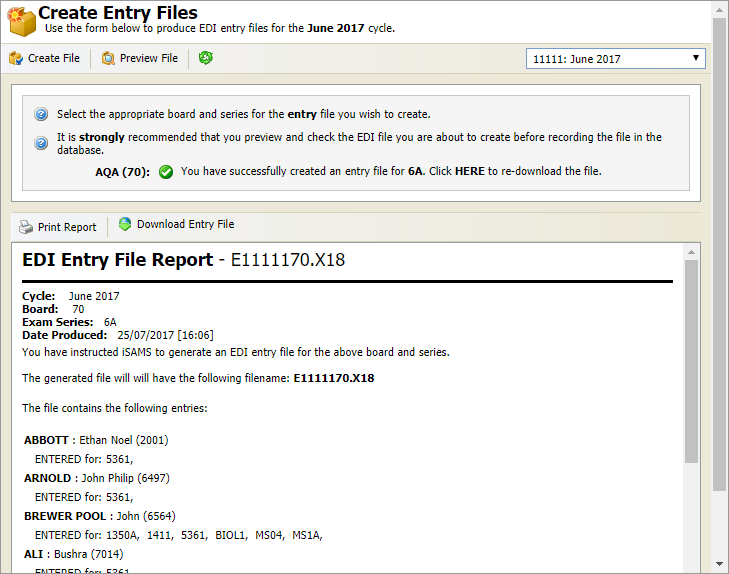
- Click Download Entry File and save the file as required.
- You can now download the entry file into the A2C folder specified by each exam board.
The file is listed in the EDI History option and cannot be changed. Any changes to entries must be made using an Amendment File. - You are now ready to run an Candidate Fees Report to be imported into Fees Billing.