
Use the View Programme Entries option in the External Exams Manager module to view and enter candidates for exams by searching through the exam programmes available in your selected exam cycle.
This option is useful for entering or removing candidates in bulk for a selected exam programme.
- Always check that you are working in the correct exam cycle; the BaseData containing exam programme details is specific to each exam cycle.
- Candidates can only be entered for options matched in the BaseData.

To use View Programme Entries:
- Open the External Exams Manager module and select the Entries tab.
- Select View Programme Entries from the right hand menu to display the Programme Entries screen:
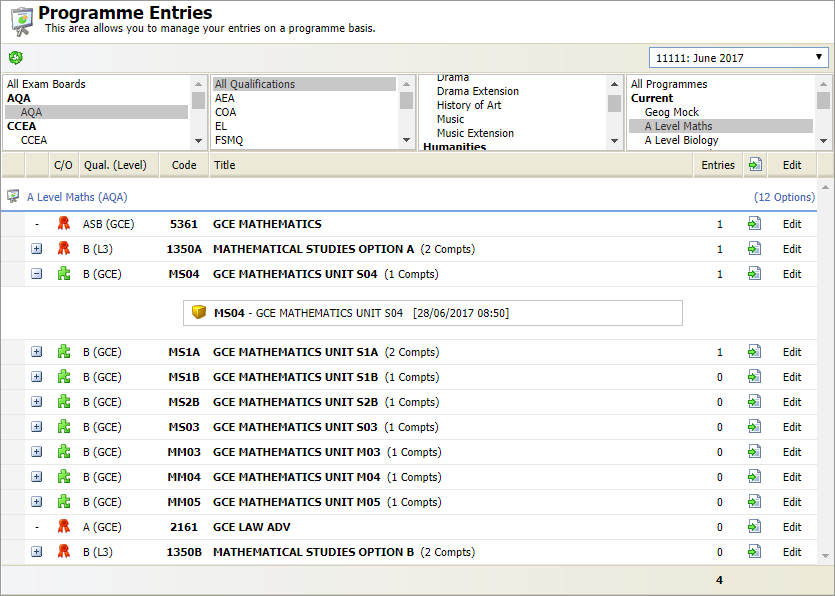
Use the drop down list in the header bar to select the exam cycle that you want to work with.
- Use the filters available to list the programmes that you want to work with:

Your filtered programmes are displayed. Qualifications ( ) and units (
 ) are listed for each programme along with the number of entries. Click
  on a selected qualification or unit to view components (
 ). Components are exam papers, coursework and assessments. The date and time of exam papers is shown.
 - Scroll to the programme that you want to work with. A count of entries is shown for each option in the programme.
- Choose to either:
Download a List of Candidate Entries
- Click
 in your selected option to display the Option Entry Report, this is useful for quickly checking candidates that have been entered: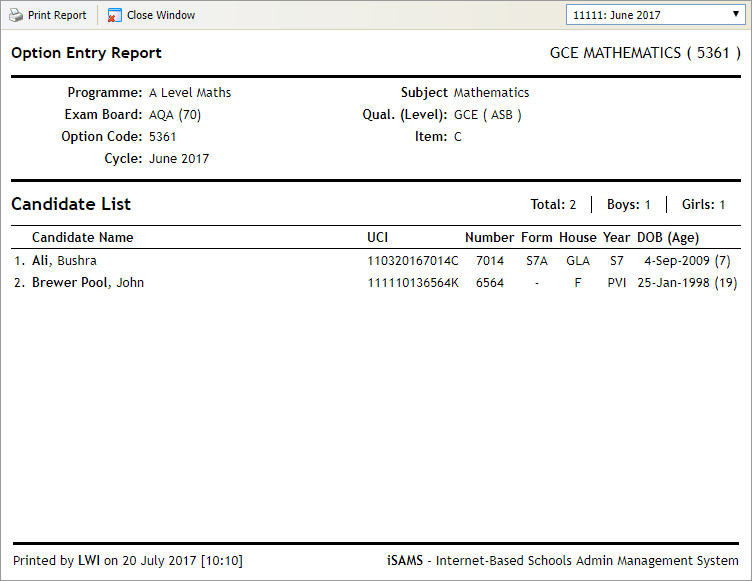
- Click Print Report if you want to distribute a hard copy to be checked.
Add or Amend Candidate Programme Entries
- Click Edit in any of the options listed for your selected programme to display this window:
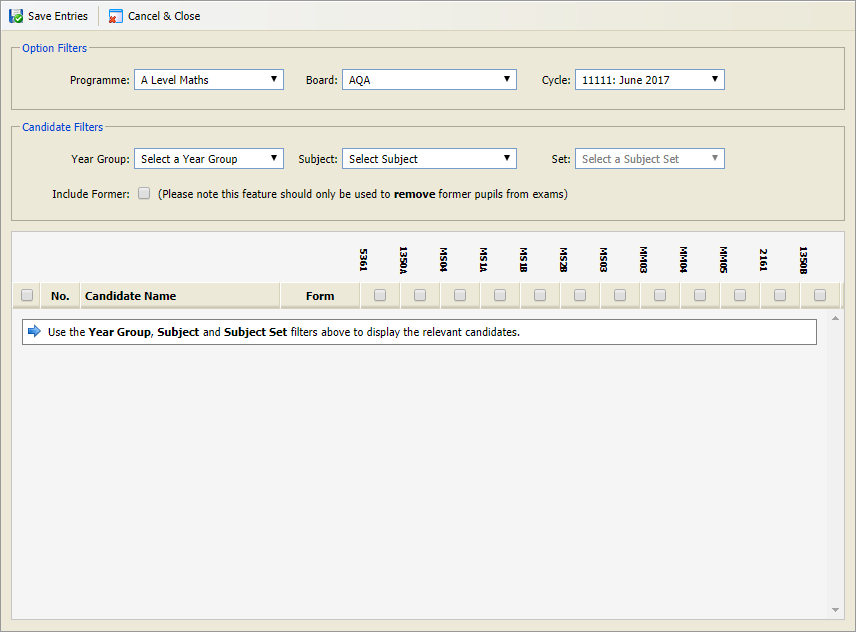
The Option Filters section is populated for you to reflect the programme and exam cycle that you are working in. Candidates can be entered for any of the options for the selected programme from this window. - Use the Candidate Filters to display the candidates that you want to work with:

- In the Year Group drop down select either a current year group in your school or a non-current candidate status ('Recent', 'Returning' or 'Private'). The Subject and Set drop downs are not displayed if a non-current candidate status is selected in the Year Group drop down.
- Filter candidates by Subject and Set (candidates must be assigned to the selected subject set in the Teaching Manager module to be listed when Subject and Set is selected). The subject is preselected if an option has been associated with a subject in the BaseData.
- Keep the Include Former box unchecked to display all current, recent leavers, private and returning candidates. Check the box if you need to remove any former pupils still listed as candidates for exams.
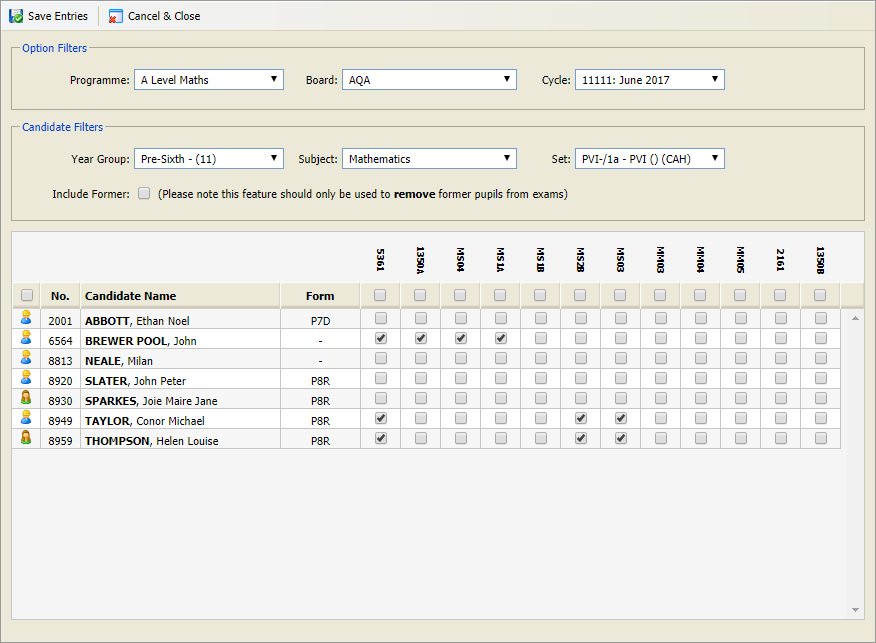
- Use the checkboxes displayed to select/deselect entries. Either:
- Check the box above the pupil icon in the header to select all of the options for all of the candidates shown.
or - Check the box in the header for an individual option to select of the candidates for that option.
or - Check individual boxes under the options displayed to select specific candidates for specific options.
- Check the box above the pupil icon in the header to select all of the options for all of the candidates shown.
- Click Save Entries.
- The number of entries for each option is revised in the Programme Entries screen.
- You can now download the Programme Entry Report to check the entries made for a selected programme.