
Use the Activity Overview tab in your selected child activity module to create events. Events refers to matches and competitions between schools.
To create an event:
- Select a child activity module from the module bar:
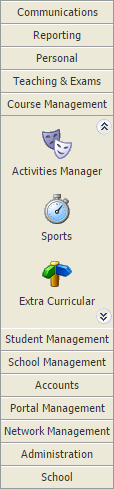
- Select the Activity Overview tab and select any Event Overview option from the right hand menu:

- Click Create Event in the top left of the screen.
Step 1 of the Create Event wizard is displayed.
Create Event Wizard. Step 1 of 4

Create Event Wizard. Step 2 of 4


Click Next to move to Step 3 of the Create Event wizard.
Create Event Wizard. Step 3 of 4
The window displayed varies depending on whether you are creating a:
Single Event

Select the Group tab and check the groups that you want to assign to the event. Use the filters to define the information displayed.
Select the Teachers tab and check the teachers that you want to assign to the event. Only teachers linked to the selected groups are listed by default. Check Display All Teachers in the top right of the window to show all teachers.
- Click Next to display Step 4 of the Create Event wizard.
Subgroup Event
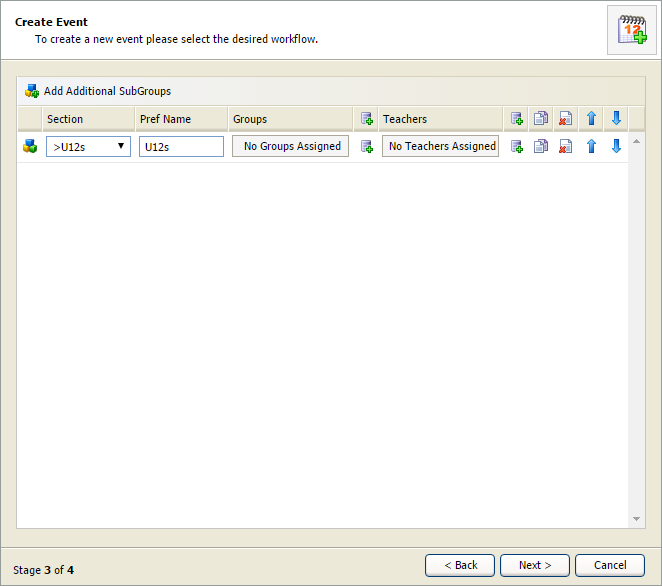
Select a Section for the subgroup. The Preferred Name for the subgroup defaults to the section name. Over type this if required.
Click
 next to the Groups field. The Add Attributes window is displayed: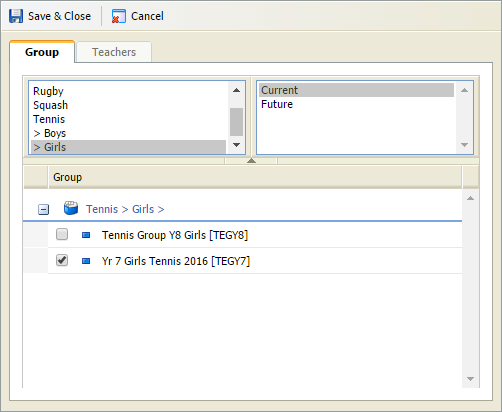
Select the Groups tab and check the groups that you want to assign to the subgroup. Use the filters to refine the groups displayed if you need to.
Select the Teachers tab and check the teachers that you want to assign to the subgroup. Only teachers linked to the selected groups are listed. Check the Display All Teachers box to list all teachers.
Click Save & Close to close the Add Attributes window.
Click Add Additional SubGroups if you want to add more subgroups to the event.
- Click Next to display Step 4 of the Create Event wizard.
Create Event Wizard. Step 4 of 4

Use the options available in the Population section to add pupils to the event. Select:
Launch Group Picker. Make a selection from pupils already linked to the group/s added to the event.
Assign all pupils in groups to event. All pupils linked to the group/s added to the event are included in the event.
Finish. The event is created but no pupils are added. Pupils can be added to the group at a later stage.
Click Finish.
If you have selected Launch Group Picker one of two windows is displayed depending on whether you are creating a:Single event.
or- Subgroup event. The SubGroup Picker Wizard is currently being developed.
The event is listed in the Activity Events screen:

Using the Pupil Selector
Use the Pupil Selector window to add pupils to an event. Only pupils who are in the groups already added to the event are available for selection.
Use the filters available if a high number of pupils are listed (this reduces the volume of records shown):

Either:
Select the pupil status, year group, form or house that you want to display. Hold Ctrl to make multiple selections.
or
Enter a term you want to search for in the Pupil, Year, Form or House fields. Click
 and select a query type to apply to the term. Ensure that you choose a query type which can be applied to the term you have entered. For example, use 'Equals' for text fields and 'Greater Than' for number fields.
Use the checkboxes next to each pupil name to select the pupils that you want to include in the event:
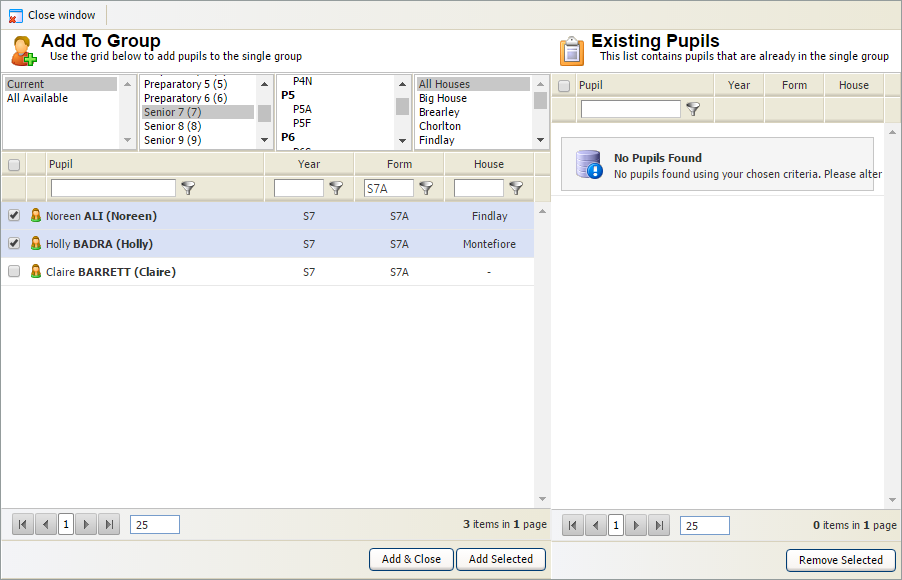
Click Add Selected. The selected pupils are displayed in the panel on the right of the window.
Click Close Window. The pupil count is displayed in the Activity Events screen.
The list of pupils linked to the event can only be accessed via the Activity Events screen. No record of the event is kept in the Pupil View tab.