
Choose to view assessments for pupils from previous terms or other report types. For example, view a selected pupil's complete assessment history from their first 'Form Tutor Report' to their most recent 'Subject Reports'.
To view previous assessments, follow the steps below:
- Select the Assessments module to open the OAS Home tab and select the report cycle you want to work in:
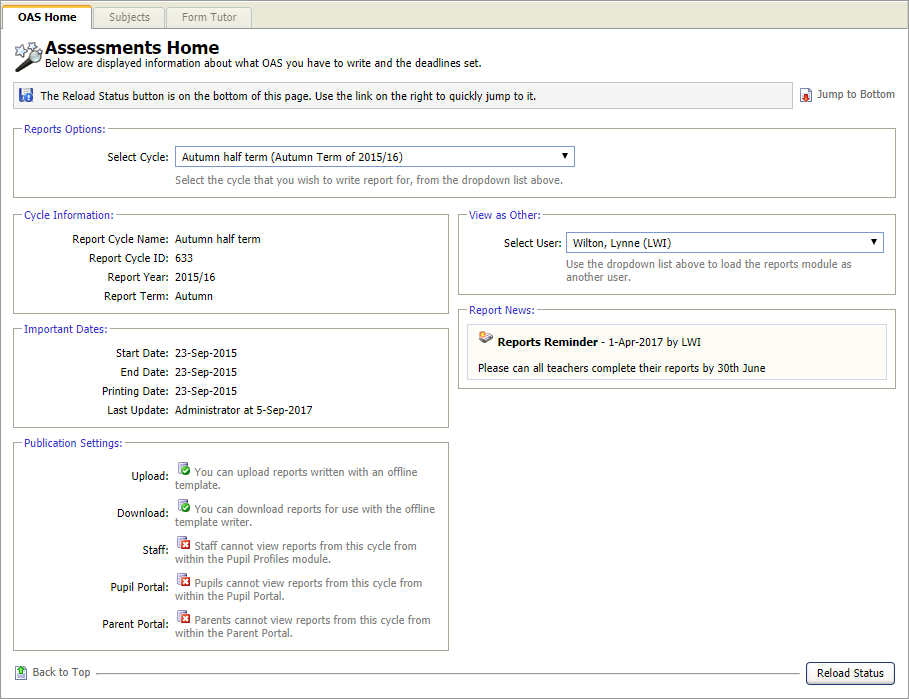
- In the View as Other section, select the user whose assessments you want to access. This defaults to display your own username but depending on your user permissions you can select another user.
A tab is displayed for each of the report types allocated to the selected report cycle:
Select a tab to work with. Each tab uses the same format for writing assessments. In this example we have selected the Subjects tab but the processes are similar for each of the report type tabs.
An example of the Subjects Reports screen is shown below; this is displayed when you select the Subjects tab: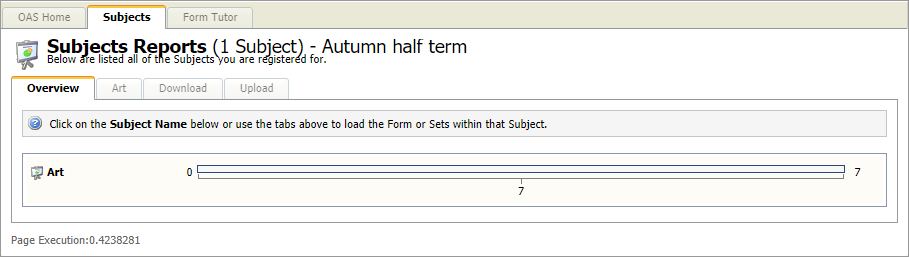
Each of the subjects that you have to write assessments for has a sub tab and is also listed in the Overview tab. The number of assessments you have to write for each subject is also displayed. In the example shown '7' assessments have to be written for 'Art'.- Select a subject/group to work with. Either:
- Click in the subject/group name in the Overview tab.
or - Click on a sub tab in the Subjects Reports screen.
An example of the Sets and Forms screen is displayed below: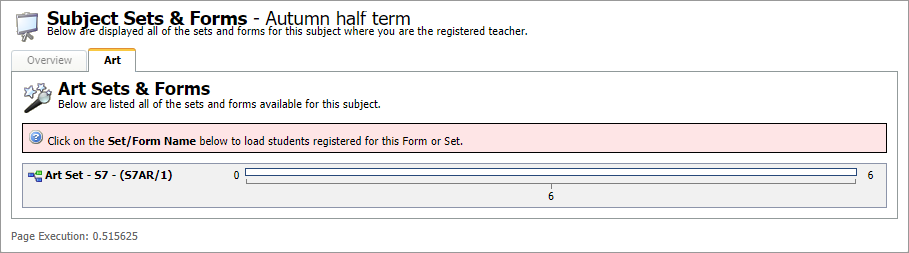
- Click in the subject/group name in the Overview tab.
- Click on a set/form to display the Reports screen. All of the pupils in the selected set/form are listed:

- Select the pupil whose previous assessments you want to view and click
 .
.
The View Previous Student Reports window is displayed: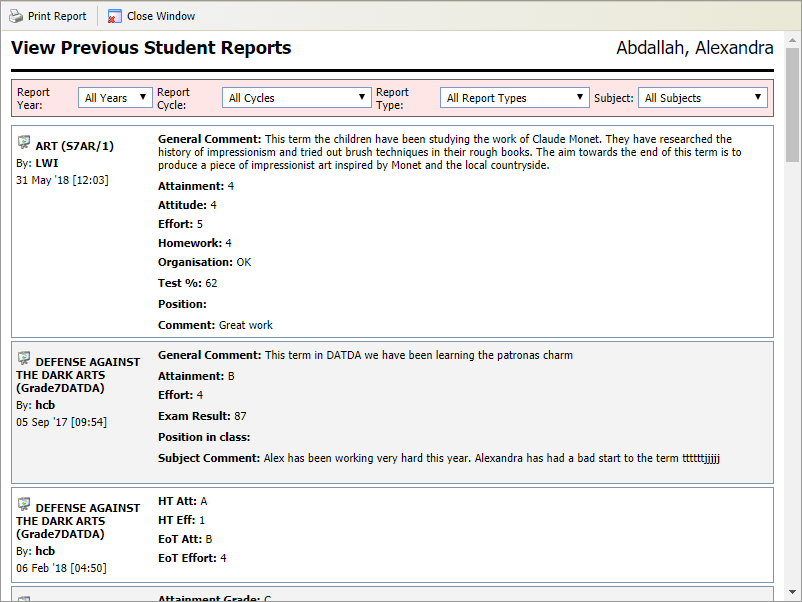
- Use the filters at the top of the window to select the assessments that you want to see.
- Click Print Report.
- Click Close Window to return to the Reports screen.