
Use the Cycle Manager tab in the Reports Manager module to edit the properties of a report cycle, if required. It is not recommended that this is done once a report cycle is active and in use.
- Editing a report cycle which is in use can change all of the reports within the cycle.
- It is important that a report cycle is marked inactive before it is edited.
To edit a report cycle, follow the steps below:
- In the Reports Manager module, select the Cycle Manager tab.
The Report and Assessment Cycle screen is displayed:
- Click Edit in your selected report cycle.
The Cycle Information window is displayed: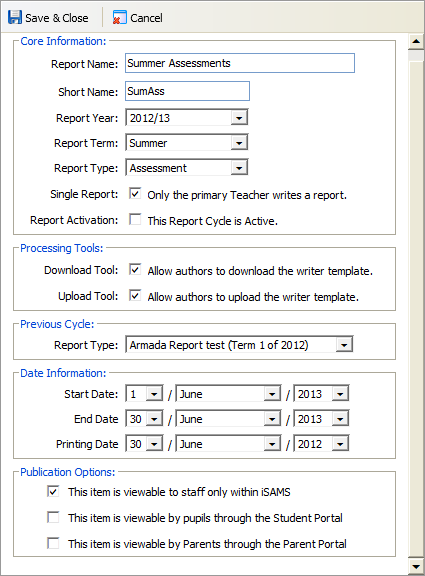
Uncheck the Report Activation box.
Any reports which are in the process of being written in the Report Cycle are lost at this stage.
Edit the fields displayed in the Core Information section, if applicable
Field
Explanation
Report Name
Enter a clear and concise name for the report cycle. It recommended that you use the term and year in the Report Name. This is displayed throughout the Reporting modules.
Short Name
Enter a clear short name for the report cycle. This is used throughout the Reporting modules to identify the report when space is limited.
Report Year
Select an academic year for the report cycle. Report cycles are listed by academic year in the Cycle Manager tab. Your selection does not restrict when the report cycle can be used.
Report Term
Select a term for the report cycle. This is for administration purposes only, your selection does not restrict when the report cycle can be used. Keep reports for each term in a separate report cycle for clarity.
Report Type
- Select 'Report' for the report cycle to be used in the Reports module. Use this for full written reports.
- Select 'Assessment' for the report cycle to be used in the Assessment module. Use this for concise assessments of grades.
All the reports within each report cycle must be the same type, either 'Report' or 'Assessment'.
Single Report
Single Report only applies to reports for subjects.
- Check the box if only the primary teacher for a subject is to write reports. Primary teachers are selected in the Teaching Manager module when a subject is set up.
- Leave this box unchecked if you want all teachers associated with a subject to write reports. This may be useful when you have multiple teachers teaching different aspects of the curriculum in a single subject. For example, you may have an athletics coach and a cricket coach teaching in PE and you want both teachers to write assessment reports for pupils.
Report Activation
- Check the box for the report cycle to be active, users can start writing reports in an active cycle.
 identifies the report cycle as active.
 - Uncheck the box if you want to amend the Report Cycle.
 identifies the report cycle as inactive.
Report cycles are also colour coded to identify activation status:
- Red = An active assessment cycle.
- Grey = An active report cycle.
- White = An inactive report or assessment cycle.
Check the boxes in Processing Tools to enable reports to be written in Excel. This is useful for times when users have no access to iSAMS. Partial reports can be downloaded into Excel for completion. The completed report can be uploaded into iSAMS. The download and upload tools are only available in subject reports.
Select a Previous Cycle from the drop down list. This field is optional and only applies to full reports. The report cycle you select:
- Can be viewed when you are writing reports. This is useful for comparing previous report results and comments for a pupil.
- Can be included on printed reports. This is useful for displaying a pupil's progress and goal achievements over time.
- Use the drop down lists to complete Date Information for the report cycle. The dates you select are for information only, your selection does not restrict when the report cycle can be used:
- Start Date/End Date. The dates you select are used in report statistics.
- Printing Date. The date you select is displayed on the printed versions of reports. This is useful if reports are due to be printed after the end of term. You may want to set a Printing Date on the last day of term to appear on reports, for consistency.
Check the boxes in Publication Options to select where the reports in this report cycle can be viewed. Icons in the Report and Assessment Cycles screen identify the options chosen:
 Reports for this cycle can be viewed by all staff in the Pupil Profiles module.
 Reports for this cycle can be viewed in the Student Portal.
 Reports for this cycle can be viewed in the Parent Portal.
Click Save & Close.
The report cycle is listed in the Report and Assessment Cycles screen.