
Use the Configuration tab in the Registration module to set up the attendance statistics displayed in the wizard bar and the Period View tab. These provide 'at-a-glance' present attendance statistics without having to run a full attendance report from the Reports tab.
- Open the Registration module and select the Configuration tab.
Select Statistics from the right hand menu to display this screen:
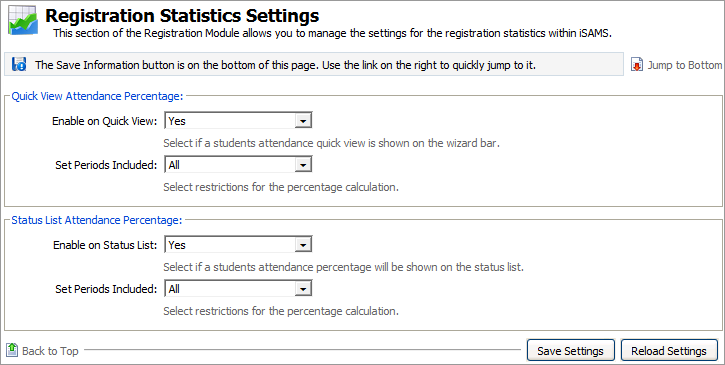
Work through the settings shown:
Setting
Explanation
Quick View Attendance Percentage
- Enable on Quick View. Use the drop down list to select whether attendance statistics are shown available in the Student Quick View Details wizard.
- Set Periods Included. Use the drop down list to select which registration periods are included in the Student Quick View Details wizard calculations. Select 'AM and PM' to only include statistics on the statutory AM and PM registration periods.
Status List Attendance Percentage
- Enable on Status List. Use the drop down list to select whether attendance percentages should be displayed as a column in the Period View tab.
- Set Periods Included. Use the drop down list to select which main registration periods are to be included in the attendance calculations displayed in the Period View tab. Select 'AM and PM' to only include statistics on the statutory AM and PM registration periods.
When the details are as required, click Save Settings.
Use the Reload Settings button to cancel any changes you have made to these settings, i.e. reset the values as they were when you first accessed this form. The Reload Settings button only cancels changes if you have not already saved them.