
Use the Diary option in a medical record to enter details of any medical appointments. This is linked to the Medical Centre calendar and works in the same way. Details of dispensed medication and follow up appointments can also be added in this option:

- Your security profile's record sensitivity for the option is displayed. In this example, the record sensitivity restriction is 'Low' so you can only view entries with a low record sensitivity.
- This option is available in both pupil and staff medical records in the Medical Centre module.
Choose to:
- Add a diary entry.
- Edit a diary entry. Amend an entry that has been incorrectly entered.
- Delete a diary entry. Remove an entry that has been added in error.
- View an audit log. View a log of changes made to diary entries.
- Contact iSAMS if you want to create a report using diary entries.
Add a Diary Entry
- Open the Medical Centre module and select the Records tab:

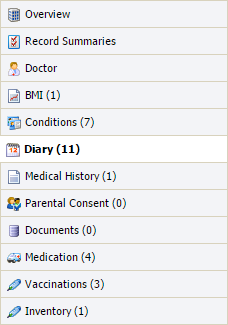
- Click Add Diary. The Diary window is displayed:
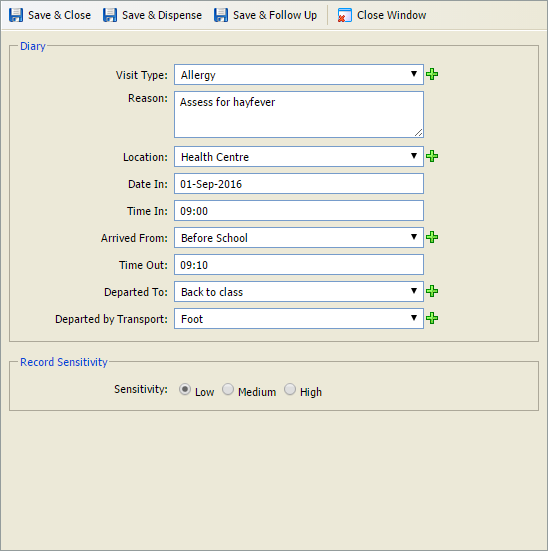
- Select a Visit Type or click
 to add a new one.
 - Enter details of the appointment in the Reason field.
- Select a Location for the appointment or click to add a new one.
- Select a Date and Time In for the appointment to start.
- Select where the patient has Arrived From for their appointment or click to add a new one.
- Select a Time Out for the appointment. This and the Time In determine the length of the patient's appointment.
- Select a Departed To location for the entry. This indicates where the patient is going after the appointment. Click to add a new entry in this field.
- Select the Transport Type that the patient has used to leave the appointment or click to add a new one.
- Click either:
- Save & Close. The window closes and the appointment displays in the Manage Diary tab. It is also displayed in orange in the Medical Centre calendar. Appointments are colour coded in the calendar. Orange indicates that this is a general appointment.
If the Departed To location has been checked Out of School in Reference Data, a popup window prompts Would you like to register this pupil as out of school? Select Yes. This only applies to pupil appointments. The pupil is logged as Out of School in the register. - Save & Dispense. The Medication window opens to log the medication dispensed to the patient.
or - Save & Follow Up.
- Save & Close. The window closes and the appointment displays in the Manage Diary tab. It is also displayed in orange in the Medical Centre calendar. Appointments are colour coded in the calendar. Orange indicates that this is a general appointment.
Save & Dispense
Complete the fields displayed in the Medication window:

- Select the Supplier of the medication or click to add a new one.
- Select the Medication being provided. If Other is selected, enter the name of the Non Stock Medication in the field displayed.
- Select the Dose being dispensed and the Location of the medication. Click to add a new location if required.
- Set the Expiry Date of the medication and the Date and Time of Issue.
- Check the Medication Consent checkbox if applicable. This is for records only.
- Enter any relevant Notes regarding the treatment.
- Set the Record Sensitivity for this record.
- Click Save & Close. The window closes and the appointment displays in the Manage Diary tab. The medication is listed in the Medication option. The appointment is also displayed in orange in the Medical Centre calendar. Appointments are colour coded in the calendar. Orange indicates that this is a general appointment.
- Choose to add a follow up appointment now if necessary. Click
 in the new appointment and click Save & Follow Up in the window displayed:
Save & Follow Up
Complete the fields displayed in the Diary window:
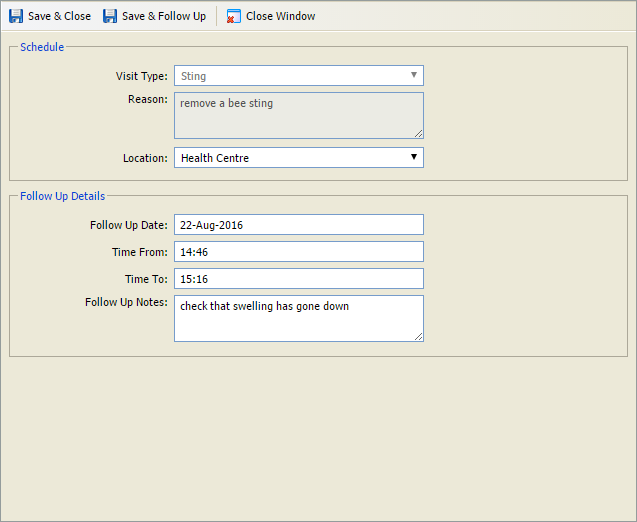
- The details in the Schedule section are completed for you. Change the Location for the follow up appointment if necessary.
- Set the Follow Up Date and Time.
- Add any relevant Follow Up Notes regarding the treatment.
- Either:
- Save & Follow Up to add another follow up appointment.
or - Save & Close. The window closes and the appointment displays in the Manage Diary tab. It is also displayed in green in the Medical Centre calendar. Appointments are colour coded in the calendar. Green indicates that this is a follow-up appointment.
- Save & Follow Up to add another follow up appointment.
Edit a Diary Entry
- Open the Medical Centre module and select the Records tab:
The Manage Diary screen is displayed:- Use the filters to display the entries that you want to work with:

- Click in your selected appointment. The Diary window is displayed:
- Amend the Visit Type or click to add a new one.
- Amend details of the appointment in the Reason field.
- Amend the Location for the appointment or click to add a new one.
- Edit the Date and Time In for the appointment to start.
- Change where the patient has Arrived From for their appointment or click to add a new one.
- Select a Time Out for the appointment. This and the Time In determine the length of the patient's appointment.
- Change the Departed To location for the entry. This indicates where the patient is going after the appointment. Click to add a new entry in this field.
- Select the Transport Type that the patient has used to leave the appointment or click to add a new one.
- Save & Close. The window closes and the appointment displays in the Manage Diary tab in orange in the calendar. It is also displayed in orange in the Medical Centre calendar. Appointments are colour coded in the calendar. Orange indicates that this is a general appointment.
If the Departed To location has been checked Out of School in Reference Data, a popup window prompts Would you like to register this pupil as out of school? Select Yes. This only applies to pupil appointments. The pupil is logged as Out of School in the register. - Save & Dispense. The Medication window opens to log the medication dispensed to the patient.
or - Save & Follow Up.
- Save & Close. The window closes and the appointment displays in the Manage Diary tab in orange in the calendar. It is also displayed in orange in the Medical Centre calendar. Appointments are colour coded in the calendar. Orange indicates that this is a general appointment.
Delete a Diary Entry
- Open the Medical Centre module and select the Records tab:
The Manage Diary screen is displayed:- Use the filters to display the entries that you want to work with:
- Click
 in your selected appointment. The Diary window is displayed:
- Check that this is the appointment you want to delete.
- Open the Medical Centre module and select the Records tab:
- Search for the record that you want to work with.
- Select Diary from the right hand menu:
- Select the Audit Log:

- Click on an entry to view more detail:

- Click Close Window to close the popup.