
Use the Medication option in a medical record to add details of medication that has been administered to the patient:

Your security profile's record sensitivity for the option is displayed. In this example, the record sensitivity restriction is 'High' so you can view all entries.
Choose to:
- Add a medication entry.
- Edit a medication entry. Amend an entry that has been incorrectly entered.
- Archive a medication entry. This is a useful housekeeping tool for outdated entries. Choose to reverse this procedure if you need to.
- Delete a medication entry. Remove an entry that has been added in error.
- View an audit log. View a log of changes made to medication entries.
- Contact iSAMS if you want to create a report using medication entries.
Add a Medication Entry
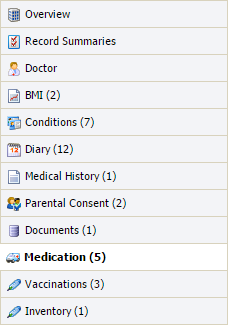
- Open the Medical Centre module and select the Records tab:

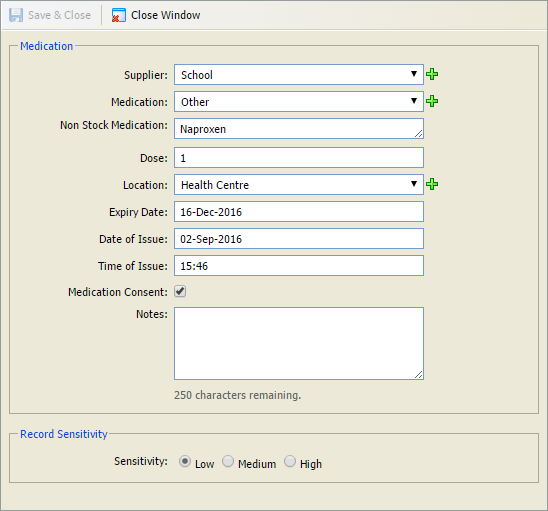
- Select a Supplier for the item or click
 to add a new one.
 - Select the Medication from the Stock Item list or click
 to add a new one. If the stock levels are too low the medication cannot be issued.
or - Select 'Other' in Medication and enter a Non Stock Medication in the field displayed.
- Select the Medication from the Stock Item list or click
- Select the Location where the medication is dispensed or click to add a new location.
- Check the Medication Consent box if this is necessary for the selected medication.
- Enter any additional Notes about the medication in the field available if required.
Set the Record Sensitivity for the entry. This defaults to 'Low'.
- Click Save & Close.
The entry is listed in the Manage Medication screen.
Edit a Medication Entry
- Open the Medical Centre module and select the Records tab:
- Use the filters to display the entries that you want to work with:

- Click
 in your selected entry. The Medication window is displayed:
 - Change the Supplier for the item or click to add a new one.
- Select the Medication from the Stock Item list or click to add a new one. If the stock levels are too low the medication cannot be issued.
or - Select 'Other' in Medication and enter a Non Stock Medication in the field displayed.
- Select the Medication from the Stock Item list or click
- Select the Location where the medication is dispensed or click to add a new location.
- Check the Medication Consent box if this is necessary for the selected medication.
- Enter any additional Notes about the medication in the field available if required.
Amend the Record Sensitivity for the entry. This defaults to 'Low'.
- Click Save & Close.
The amended entry is listed in the Manage Medication screen.
Archive a Medication Entry
- Open the Medical Centre module and select the Records tab:
- Use the filters to display the entries that you want to work with:
- Click
 in your selected entry.
You are prompted Are you sure you want to archive this record? - Select Yes.
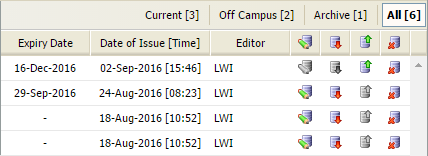
- Reinstate an archived entry by clicking
 in your selected entry.
Delete a Medication Entry
- Open the Medical Centre module and select the Records tab:
- Use the filters to display the entries that you want to work with:
- Click
 in your selected entry. The Medication window is displayed:
- Check that this is the entry that you want to delete.
- Click Delete & Close. The entry is removed from the Manage Medication screen. A log is kept in the Audit Log.
View an Audit Log
- Open the Medical Centre module and select the Records tab:
- Select the Audit Log tab:

- Click on an entry to view more detail:

- Click Close Window to close the popup.