
Each activity listed in the Activity Manager module must have a timetabled schedule. Registers are automatically created for each schedule.
Review timetabled activity schedules and the status of activity registers from either the:
- Activities Manager parent module. This is useful for quickly accessing whether registers have been taken or are incomplete in each child activity module.
or - Selected child activity module.
To review schedules and the status of activity registers:
- Either
- Open the Activities Manager module and select the Overview tab.
- Select a Schedule Overview option from the right hand menu:

All scheduled activities are listed. The colour coding indicates the status of the register for each scheduled activity, a key is displayed at the bottom of the screen.
or
- Select a child activity module from the module bar:
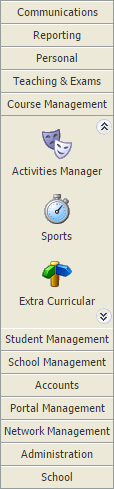
- Select the Activity Overview tab and select a Schedule Overview option from the right hand menu:

The Activity Events Today/Tomorrow/This Week screen is displayed depending on your selection. All of these options work in the same way.
or
- Select a child activity module from the module bar.
- Select the Group View tab and select the group in the left hand tree that you want to work with:

- Click Manage Registration in the Manage Features panel:

All scheduled activities are listed in the screen. The colour coding indicates the status of the register for each scheduled activity, a key is displayed at the bottom of the screen.
- Select Calendar View in the header. You can use the List View, which is displayed by default, but it is easier to view high numbers of activity schedules when the Calendar View is used.
- Use the date and time picker in the header to display schedules for a different time period if required and click Go. In this example we have expanded the dates to include schedules for the whole month:

- Use the display tools on the right in the header to select how schedules are displayed. In this example we have selected to display the whole month of November 2016.
Only scheduled activities for the selected period are listed:
- Right click and select Print if you want to distribute this calendar of activity schedules to other staff.
- Use the navigation tools on the left in the header to scroll to the next day, week or month as required or jump to a specific date:

- Go back to the List View and select a schedule to update registration details if required. See Take an Activity Register for more details.