
Each activity listed in the Activity Manager module must have a timetabled schedule. Registers are automatically created for each schedule.
Take a register for a scheduled activity from either the:
- Activities Manager parent module. This is useful for quickly accessing registers across a number of different child activity modules.
or - Selected child activity module.
To take an activity register:
- Either
- Open the Activities Manager module and select the Overview tab.
- Select a Schedule Overview option from the right hand menu:
or
- Select a child activity module from the module bar:
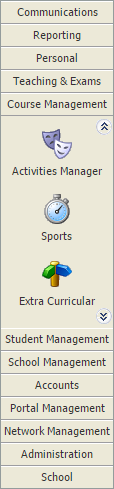
- Select the Activity Overview tab and select a Schedule Overview option from the right hand menu:

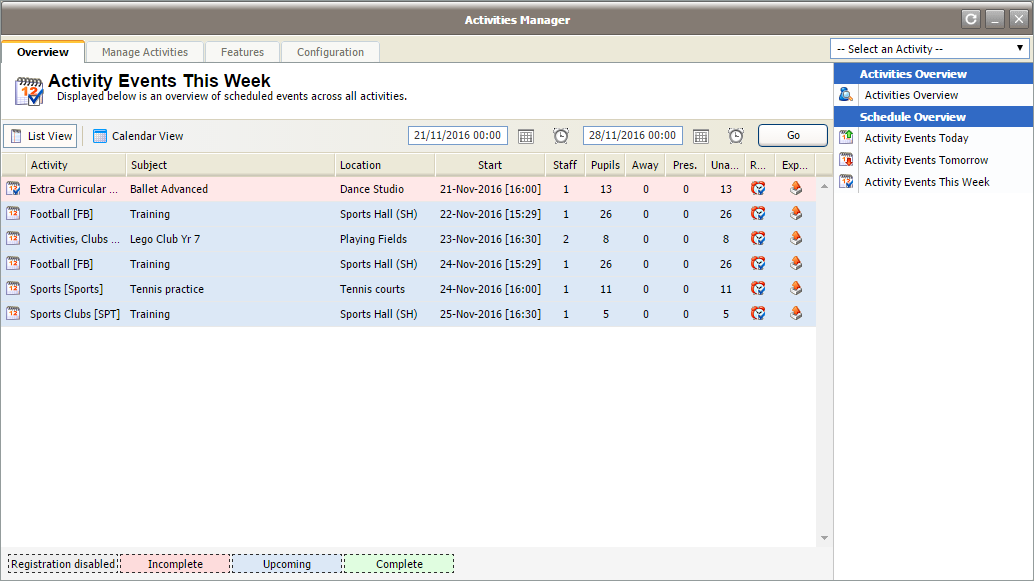
The Activity Events Today/Tomorrow/This Week screen is displayed depending on your selection. All of these options work in the same way.
or
- Select a child activity module from the module bar.
- Select the Group View tab and select the group in the left hand tree that you want to work with:

- Click Manage Registration in the Manage Features panel:

- Select List View in the header.
All scheduled activities for the selected period are listed. Each activity is colour coded, a key is displayed at the bottom of the screen. - Use the date and time picker in the header to display schedules for a different time period if required and click Go:

- Click
 in your selected activity. The Pupil Registration window is displayed:
- Work your way down the register, marking student attendance. Either:
- Use the No/Yes marker buttons to indicate a student's registration status:

- Record the student's lateness if applicable. Enter the number of minutes the student was late for registration. This is only available if the feature has been enabled for the activity.
or
- Select All Away or All Present from the quick registration buttons:

- If you have already registered some pupils, you will be asked to confirm the change.
- Use the No/Yes marker buttons to indicate a student's registration status:
- Add an absence code from the drop down list and a reason for the absence. This is only available if the feature has been enabled for the activity.
- Click Save. A message is displayed at the top of the window to confirm whether the register is complete or incomplete.
- Click Close to close the Pupil Registration window. The registration is displayed in green once it is complete. An overview of attendance figures is also shown:
