
Add results for activity events listed in your selected child activity module.
Event Results Features must be enabled for results to be recorded.
To add results for an event.
- Select a child activity module from the module bar:
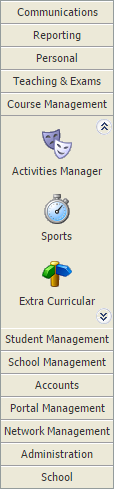
- Select the Activity Overview tab and select an Event Overview option from the right hand menu:
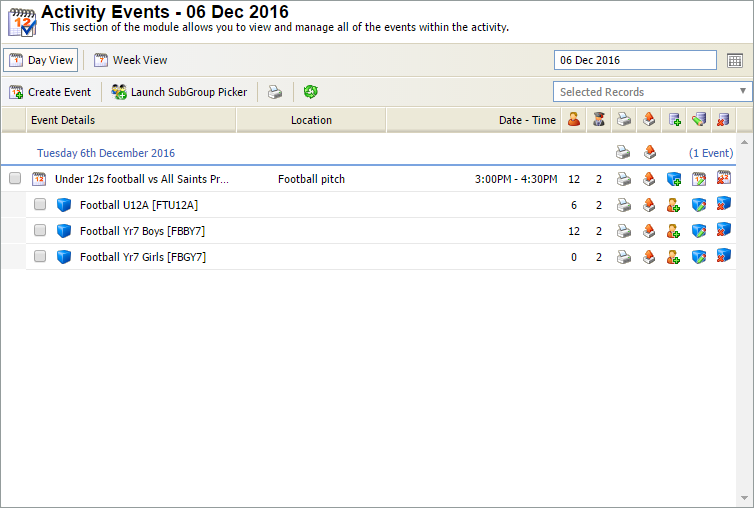
The Activity Events Today/Tomorrow/This Week/Next Week/This Month screen is displayed depending on your selection. All of these options work in the same way. - Use the filters in the header bar to display the dates that you want to work with:

Select either:- Day View.
- Week View.
or - Use the date picker on the right to select a specific date.
- Use the checkboxes to the left to select the event or individual groups/subgroups in the event.
- Select Add Results from the drop-down list in the header bar:

The Results Data window is displayed:
The fields available depend on the features enabled. - Enter the score for each match. The 'Win/Lose/Draw' field updates automatically, use the drop-down to override this if required.
- Enter a summary for the event. This could include a write up of the match or record the player of the match.
- Click Save & Close.
The Activity Events screen displays the scores of each event. With each event being colour coded to reflect the score:- Green = Win.
- Yellow = Draw.
- Red = Lose.

Results are listed both here and in the Results View tab. Results cannot be accessed from the Group View tab, Pupil View tab or in pupil records.