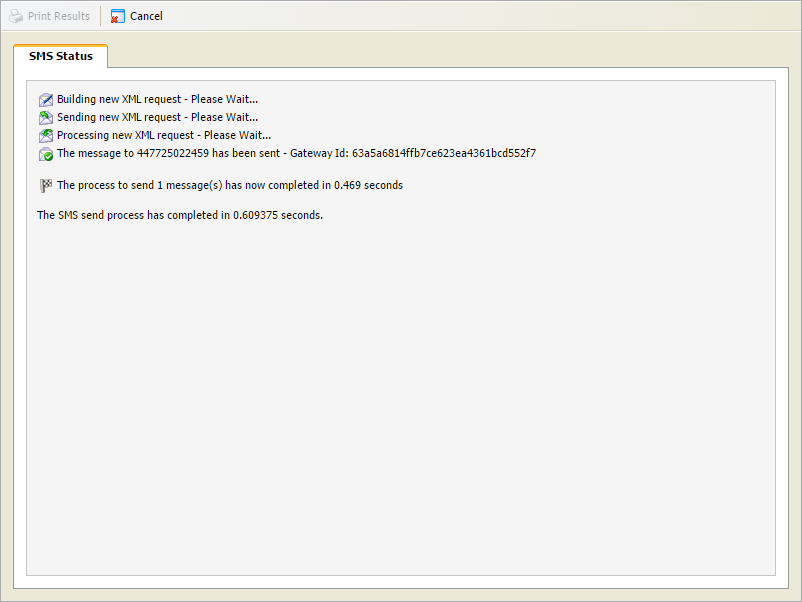
Use SMS Authorisation Queue to authorise outbound SMS messages created by users with limited security privileges.
To authorise messages:
- Select the iSAMS Control Panel from the left hand menu.
- Select the SMS Gateway listed within the applets available.
Select SMS Authorisation Queue from the right hand menu to display this screen:
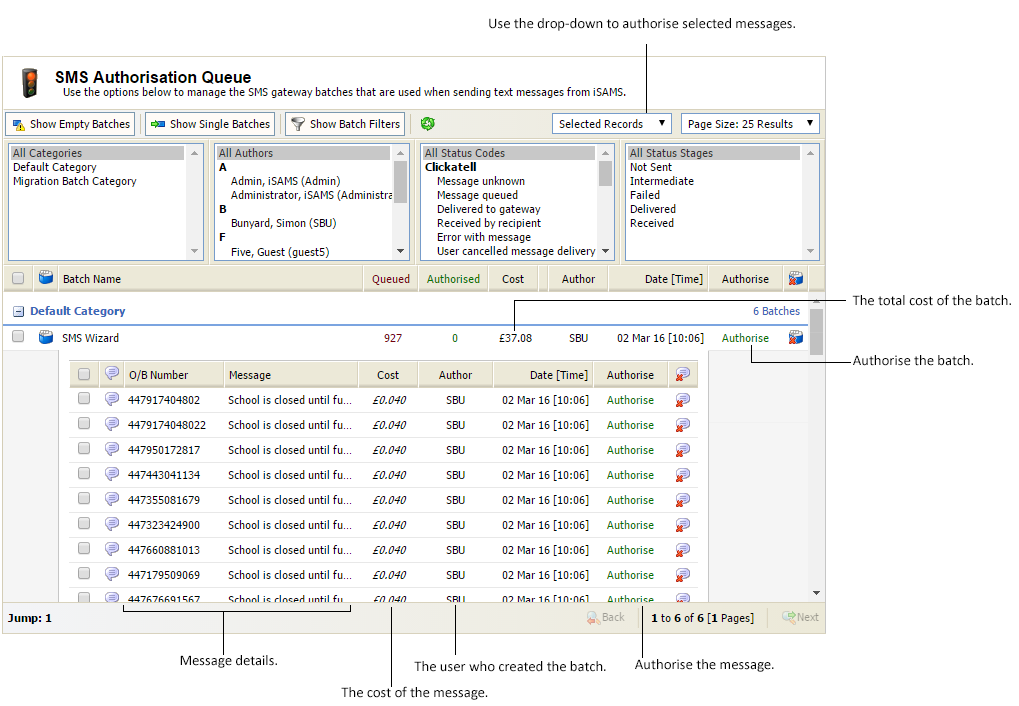

When you first open the SMS Authorisation Queue screen all batches are displayed. Use the buttons and filters at the top of the screen to alter the information displayed:
 ButtonExplanation
Show Empty Batches Select to show batches that contain no messages. This is a useful housekeeping tool, if you want to delete any obsolete batches. Show Single Batches Select to show batches that only contain a single message. You may choose not to show single message batches if you want to review batches that have been sent to multiple recipients. Show Batch Filters Select to show the batch filters. These are displayed by default and are a useful tool for displaying the batch records that you want to review.
Batch Filter Explanation Categories All batches are listed under a category, in the example shown we have:
- Default Category. This is the standard category in the current SMS Gateway.
- Migration Batch Category. These are a log of old batches that have been imported into the SMS Gateway from a previous system.
More categories can be added using the Manage Batch Categories screen.
Authors Choose to only view batches by a selected message author. Hold Ctrl to select more than one author. Status Codes Choose to display batches by message status code. Hold Ctrl to select more than one code.
Each SMS provider has their own version of status codes. Once iSAMS Support has linked your provider details to the SMS Gateway the status codes are shown here.
Status codes are linked to Status Stages. Several status codes may be linked to the same status stage. For example, the status codes of 'Error with message' and 'Routing error' may both be linked to the status stage of 'Failed'.
Status Stages Choose to display batches by delivery status stage. Hold Ctrl to select more than one stage.
iSAMS Support link each of your provider Status Codes to a status stage. Several status codes may be linked to the same status stage. For example, the status codes of 'Error with message' and 'Routing error' may both be linked to the status stage of 'Failed'.
The SMS Authorisation Queue screen shows:
- The total cost of each batch.
- Details of each message. The number and body of the message to be sent.
- The cost of each message.
- The user who created the batch. Shown in the Author column. Click on a username to see their contact details.
- The time that the messages were sent.
Choose to:
- Authorise an individual message. Select individual messages for authorisation.
- Authorise selected messages. Select a number of messages for authorisation.
- Authorise a message batch. Quickly select and authorise a batch of messages created by users with limited security privileges.
- Delete any unauthorised messages.
Authorise an individual message
- Click Authorise next to your selected message:
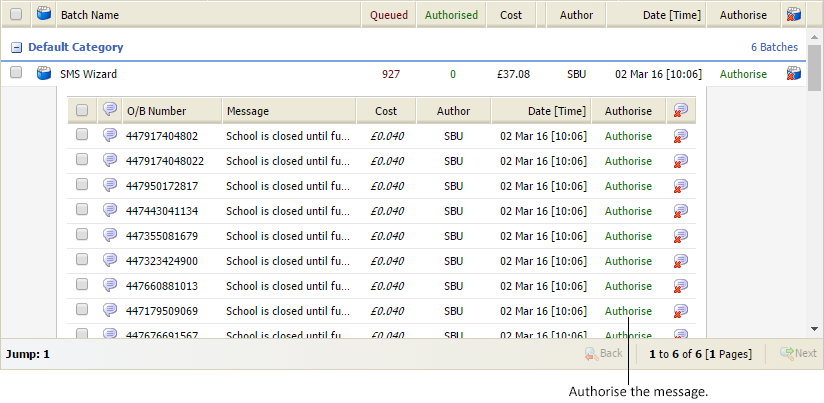
You are prompted Are you sure you want to authorise this SMS message? - Select Yes.
The delivered message is listed in Outbound Gateway Logs.
Authorise selected messages
- Use the checkboxes next to batches or individual messages to select the messages that you want to authorise:
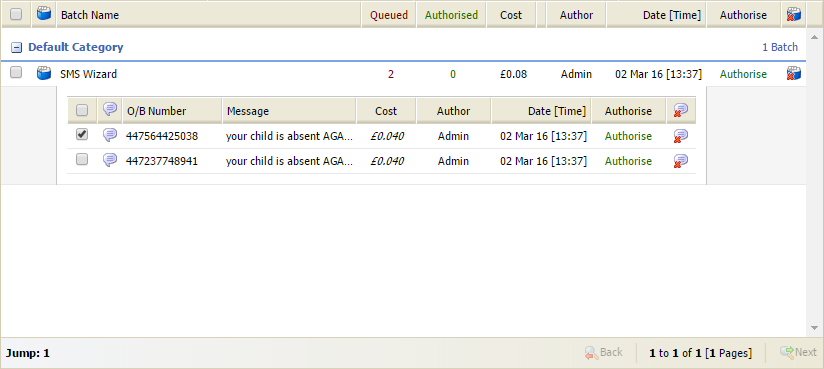
- In the Selected Records drop-down, select Authorise Selected:

You are prompted Are you sure you want to authorise the selected message? - Select OK.
The Authorise SMS Batch is window is displayed confirming that the message has been delivered:
Authorise a batch of messages
- Click Authorise next to your selected batch:
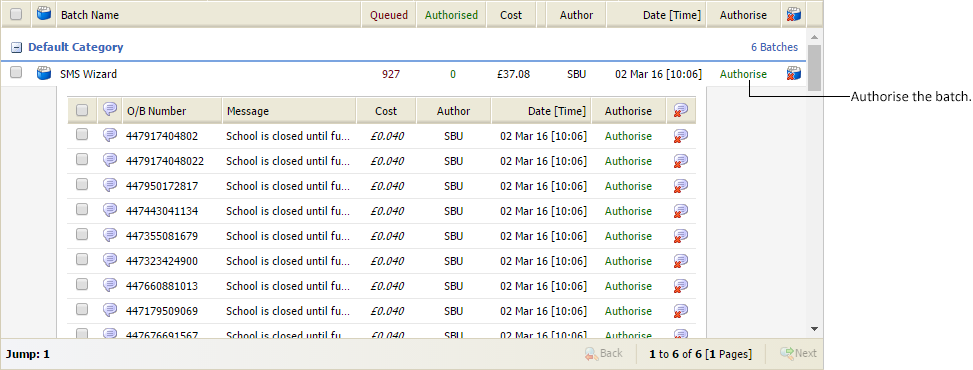
You are prompted Are you sure you want to authorise this SMS batch? - Select Yes.
The Authorise SMS Batch window is displayed confirming that the messages in the batch have been delivered: