
Choose to download unwritten or incomplete pupil reports from the Reports module into Excel. This is useful for completing reports when you have no access to iSAMS. Upload the completed reports back into iSAMS using the upload tool available.
- Only write reports in Excel as a last resort for report writing.
- Do not make any changes to reports in iSAMS once you have downloaded them to Excel.
- The download and upload tools (Processing Tools) are only available for Subject reports.
- These Processing Tools must be set up for the Report Cycle in the Reports Manager module.
To download full reports, follow the steps below:
- Select the Reports module to open the Reports Home tab and select the report cycle you want to work in:

- In the View as Other section, select the user whose assessments you want to access. This defaults to display your own username but depending on your user permissions you can select another user.
Select the Subjects tab:

The Subjects Reports screen is displayed: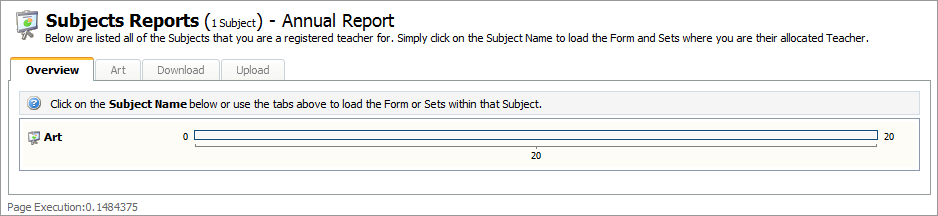
- Select the Download tab to display the Download Report Template screen:
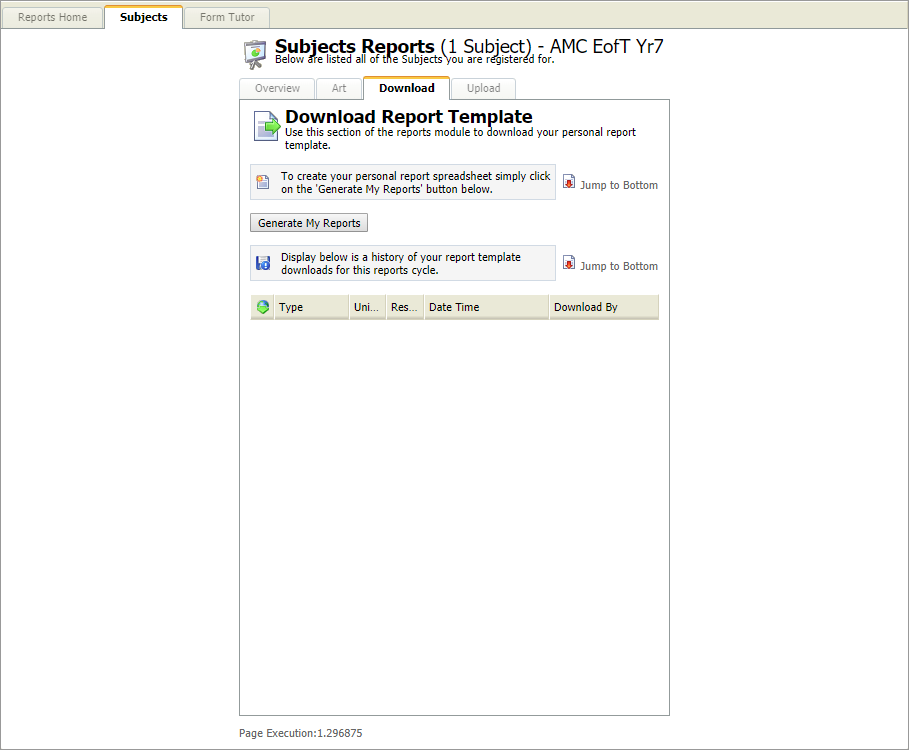
- Click Generate My Reports.
- Click the link Download the Excel Spreadsheet containing the Report Template.
- Save the file in your preferred location, changing the file name if required.
Your Excel report file is now listed in the Download Report Template screen:
Open the downloaded file to launch it in Excel. Worksheets are available for each subject's set and form listed in the report cycle:

Do not change any details in the worksheets labelled 'Information' or 'iSAMS Information'. This causes errors when the reports are uploaded back into iSAMS.
- Select a set/form worksheet to work with:
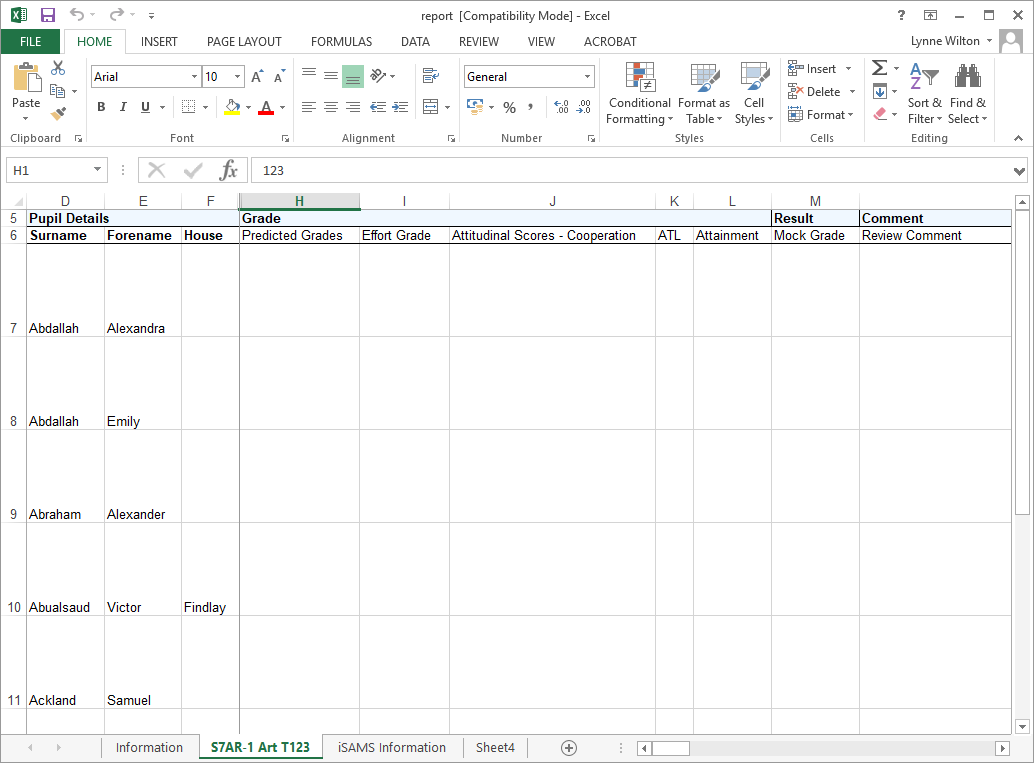
Complete the reports for the pupils listed using the columns displayed (some fields may not be displayed):
Column
Explanation
Grade
Select grades from the drop down lists displayed when you click in a cell.
Position
Enter the pupil's ranking position in the form/set.
Result
Enter a result. Ensure that you use a standard convention for results. For example, this may be a percentage score or a grade for an exam.
Comment
Use this to add detailed reasons for a pupil's performance or advice for areas of improvement. If the number of characters in the comment field is limited, you are prompted to retry your entry.
Save the document.
You are now ready to Upload Reports to iSAMS.