Use the Configuration tab in the Registration module to set up the out of school display and edit functions:
- Open the Registration module and select the Configuration tab.
- Select Out of School Settings from the right hand menu to display this screen:
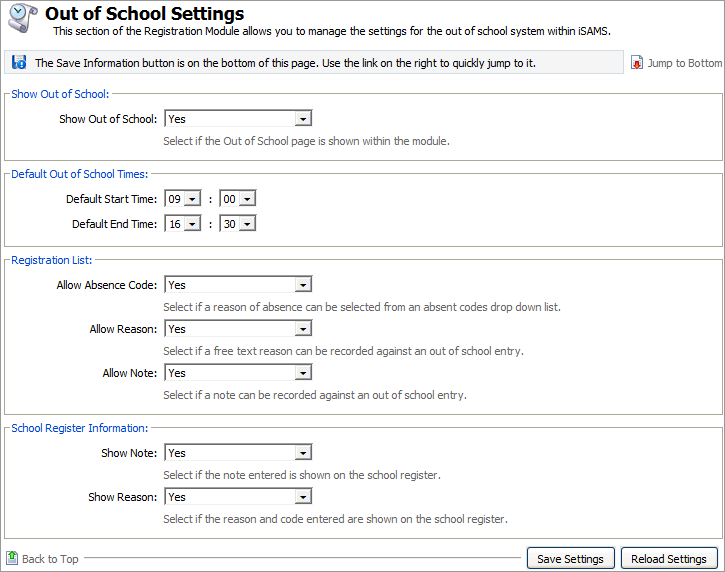
Work through the sections displayed:
Setting
Explanation
Show Out of School
Use the drop down list to select whether the Out of School tab is to be displayed and used in the module.
Default Out of School Times
Use the drop down lists to select the default times for a day to start and end when marking a student out of school.
For example, for full boarding schools set this for a 24 hour day and for day schools set this for the length of the school day only. You can overwrite this time when you mark a student out of school.
Registration List
- Allow Absence Code. Use the drop down list to select whether registration codes are available when marking a student out of school.
- Allow Reason. Use the drop down list to select whether a free text box is available to record a detailed reason for absence when marking a student out of school. Your reason is displayed in the Out of School, School Register and Period View tabs.
- Allow Note. Use the drop down list to select whether a free text box is available to record notes when marking a student out of school. Use the notes facility to pass on information to other users. For example, the expected date a student will be back at school. Your note is displayed in the Out of School and School Register tabs.
School Register Information
- Show Note. Use the drop down list to select whether Out of School notes are displayed on the school register.
- Show Reason. Use the drop down list to select whether Registration Codes and Out of School reasons for absence are displayed on the school register.
Select 'Yes' to these settings to display notes and reasons when you hover over a student record on the school register. This offers a quick way to display out of school entries without opening the Out of School tab.
- Click Save Settings once the details are as required.
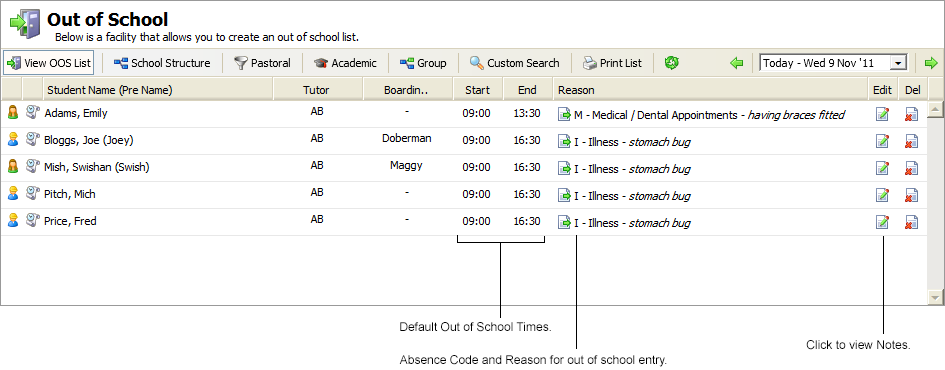
An example is shown below of how your setting selections influence the Out of School tab: