
Use the Vaccinations option in a medical record to log vaccination details for the patient including any vaccination schedules that you want to link the patient to:

Your security profile's record sensitivity for the option is displayed. In this example, the record sensitivity restriction is 'High' so you can view all entries.
Choose to:
- Add a vaccination entry.
- Edit a vaccination entry. Amend an entry that has been incorrectly entered.
- Delete a vaccination entry. Remove an entry that has been added in error.
- View an audit log. View a log of changes made to vaccination entries.
- Link the patient to a vaccination schedule.
- Contact iSAMS if you want to create a report using vaccination entries.
Add a Vaccination Entry
- Open the Medical Centre module and select the Records tab:


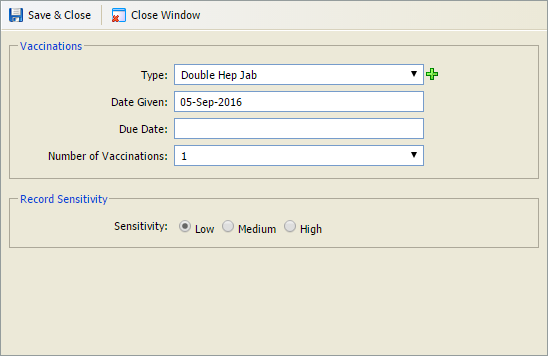
- Select the Type of vaccination or click
 to add a new one. If you select a Vaccination Group here each vaccination in the group is listed separately in the Manage Vaccinations screen.
 - Select the date that the vaccination is given. A date must be entered here.
- There is no need to enter a Due Date when adding an entry.
- Select the Number of Vaccinations in this course.
- Set the Record Sensitivity for the entry. This defaults to 'Low'.
- Click Save & Close.
The entry is listed in the Manage Vaccinations screen.
Edit a Vaccination Entry
- Open the Medical Centre module and select the Records tab:

- Click
 in your selected entry. The Vaccination window is displayed:
- Change the Type of vaccination or click to add a new one.
Amend the Record Sensitivity for the entry. This defaults to 'Low'.
- Click Save & Close.
The amended entry is listed in the Manage Vaccinations screen.
Delete a Vaccination Entry
- Open the Medical Centre module and select the Records tab:
- Click
 in your selected entry. The Vaccination window is displayed:
- Check that this is the entry that you want to delete.
- Click Delete & Close. The entry is removed from the Manage Vaccinations screen. A log is kept in the Audit Log.
View an Audit Log
- Open the Medical Centre module and select the Records tab:
Select the Audit Log tab:

Click on an entry to view more detail:

Click Close Window to close the popup.
Link a Vaccination Schedule
- Open the Medical Centre module and select the Records tab:

- Click Update Data to save the details displayed. If any of the vaccinations in the schedule become overdue they are listed in the Medical Centre Overview tab.