
Use the View Candidate Entries option in the External Exams Manager module to search for candidates and view the exams they have been entered for. This option is useful for adding, amending and removing exam entries for a specific candidate, form group or house.
- Always check that you are working in the correct exam cycle; the BaseData containing exam programme details is specific to each exam cycle.
- Candidates can only be entered for options matched in the BaseData.
- Only internal candidates can be entered for exams in this option. Use the View Programme Entries option to enter 'Returning' and 'Private' candidates.

To use View Candidate Entries:
- Open the External Exams Manager module and select the Entries tab.
- Select View Candidate Entries from the right hand menu to display the Candidate Entries screen:

Use the drop down list in the header bar to select the exam cycle that you want to work with.
- Use the filters available to find the candidates that you want to work with. Use either:
- Candidate Filters. Search by current school year, form group, boarding house and academic house.
or - Candidate Search. Search by name, UCI number and candidate number.
- Candidate Filters. Search by current school year, form group, boarding house and academic house.
- Scroll through the list displayed on the left and click on the candidate you want to work with.
The candidate's current entries are displayed. - Choose to either:
Delete candidate exam entries. Click
 in your selected entry and confirm the selection when prompted.
or
- Mark the exam as a resit. Check the box in the Resit column and click Save Resits. This is for internal use only.
You can now download the Candidate Entry Report to check the entries made for a selected candidate.
Add or Amend Entries
- Click Make Additional Entries in the candidate entry record.
The Assign Options window is displayed: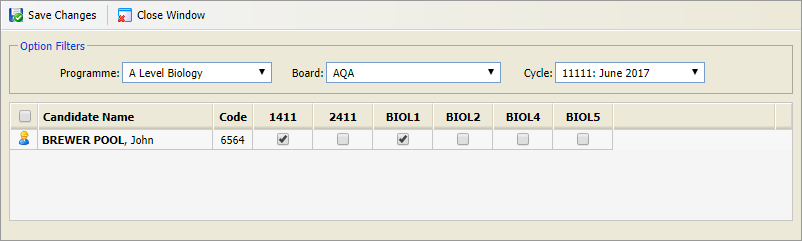
- Use the Option Filters to search for and select the programme and exam board that you want to work with.
- Check that the exam cycle is correct.
- Use the checkboxes displayed to select/deselect entries. Either:
- Check the box above the pupil icon in the header to select all of the options.
or - Check individual boxes under the options displayed.
- Check the box above the pupil icon in the header to select all of the options.
- Click Save Changes.
- Click Close Window to see the entries listed in the candidate entry record.
Entries at this stage are only held within iSAMS. You will still need to create an EDI file before entries can be confirmed with exam boards.