
Use the BaseData tab in the External Exams Manager module to add exam programmes. Programmes link subjects and exam options to imported BaseData and custom BaseData. Once BaseData is imported or created it is automatically pulled in and matched with programmes and the corresponding options. Each programme you create is displayed across all exam cycles, so you do not have to repeat the process with each new exam cycle.
- You must create a programme for each subject and level of qualification (GCSE and A Level).
- Programmes will not display any data for the selected exam cycle until BaseData has been imported or created.
- You must create a new programme if you change exam board for a subject.
- It is recommended that you create a single programme for GCEs, rather than separate ones for AS and A2.
To add a programme:
- Open the External Exams Manager module and select the BaseData tab.
- Select any of the Manage options from the right hand menu. It does not matter at this stage which of the options you select, the status of the programme is determined further on in the process.
An example of the screen displayed is shown below. This screen is completely blank when you first start working with the External Exams Manager module: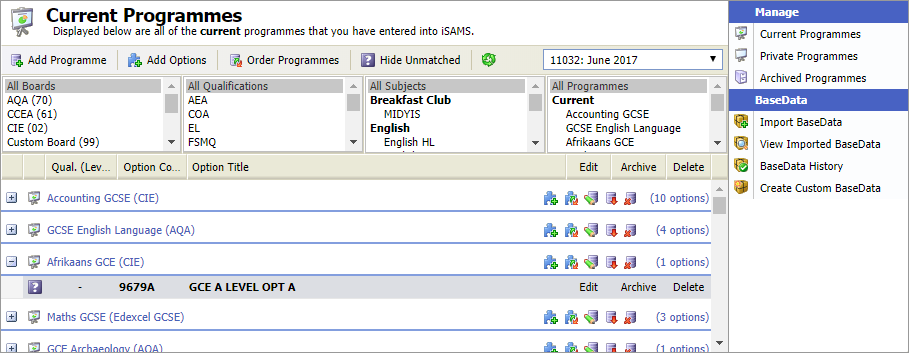
Click Add Programme in the header bar. A popup window is displayed:
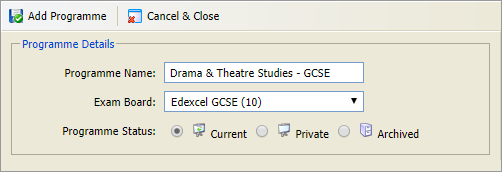
- Add a clear and concise Programme Name. Programme names do not have to follow an exam board convention, however it is recommended that you clearly distinguish between GCSE and A Level programmes. It also useful to clearly name programmes to be used for custom boards.
- Select an Exam Board for the programme.
- Select a Programme Status:
- Current. For subjects currently taught in your school.
- Private. For subjects not taught in your school but have private candidates using your school as an exam centre.
- Archived. For programmes that are not currently active in your school but may be used at a later date.
- Click Add Programme.
The new programme is listed in the appropriate screen:Each programme is displayed across all the exam cycles you create in iSAMS. - You can now add options to the programme.
- Options may display as unmatched if the corresponding BaseData has not yet been imported.
- Programmes may display as unmatched if exam options are not relevant in the exam cycle you are working in. Click Hide Unmatched in the header bar to temporarily hide the unused programmes.