
Use the Invoice Preview stage of the Invoice Wizard to select which pupil accounts are to have invoices generated in this run. This is still only the preview stage of invoicing; you are not producing live invoices yet.
There are two tabs available in this stage of the wizard:
- Generate Preview Run. Select the pupils to include in the invoice run.
- Preview Run History. Preview any invoices that are due to be included in the invoice run. The total value of each invoice run in the selected billing cycle is also provided for you. This is a useful accounting tool. Skip straight to the Preview Run History tab if you are generating amended invoices.
Generate Preview Run
To generate an invoice preview run, follow the steps below:
- After following the Prerequisite stage of the Invoice Wizard, ensure that you are in the billing cycle that you want to work in.
- Use the drop down in the top right if you need to change this:

- Select Invoice Preview from the left hand menu and choose the Generate Preview Run tab:
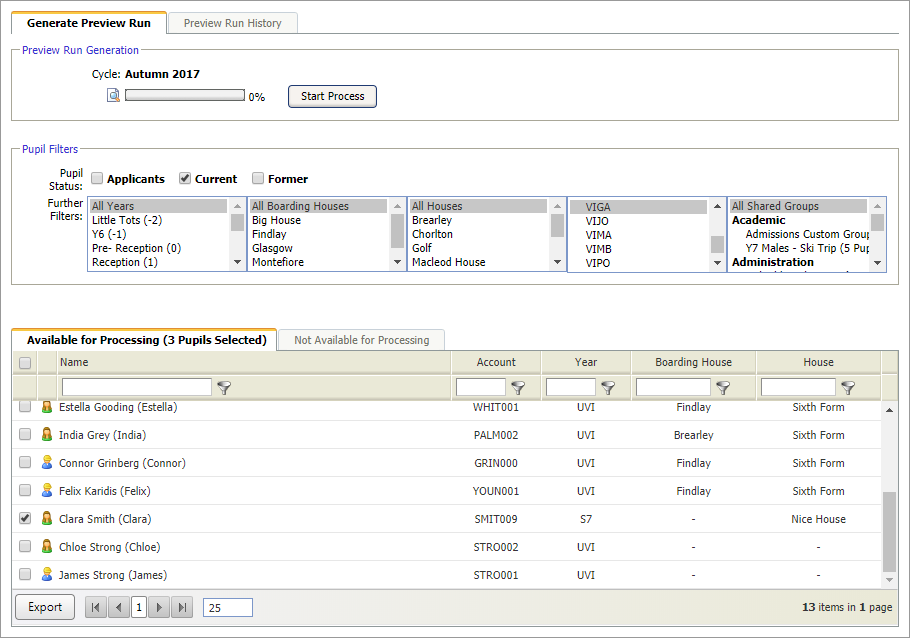
- Use the Pupil Filters available to display the pupil accounts that you want to work with.
- Use the checkboxes next to each pupil name to select/deselect pupils in the invoice run. By default all pupils are selected. Use the checkbox in the header bar to select/deselect all pupils. You may need to scroll through to additional pages of data:
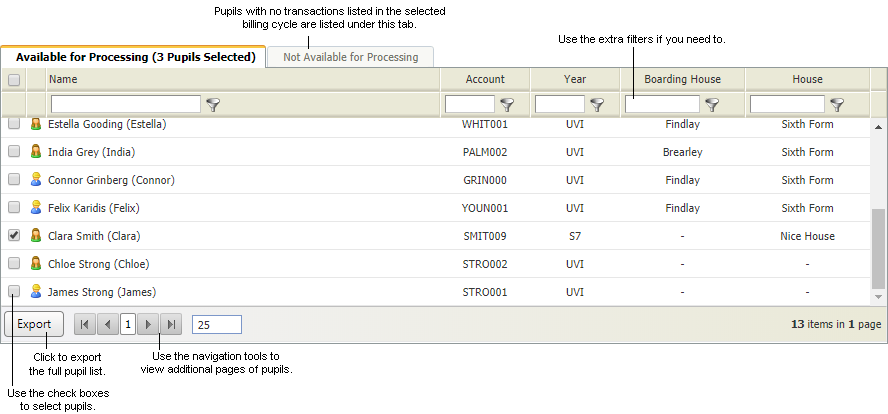
- Use the Export function in the bottom bar to export a copy of the pupil list in your preferred format. This is useful if you want to check pupil invoicing lists away from iSAMS.
- Click Start Process. An error message is displayed if invoices have already been generated for the pupils selected in this billing cycle. See Amend a Pupil Account after Invoice Generation if you want to amend existing invoices.
Once the preview run has been generated it is listed in the Preview Run History tab. - Select the Preview Run History tab. All the invoice preview runs for the selected billing cycle are listed here. The total value of each invoice preview run is also provided for you:
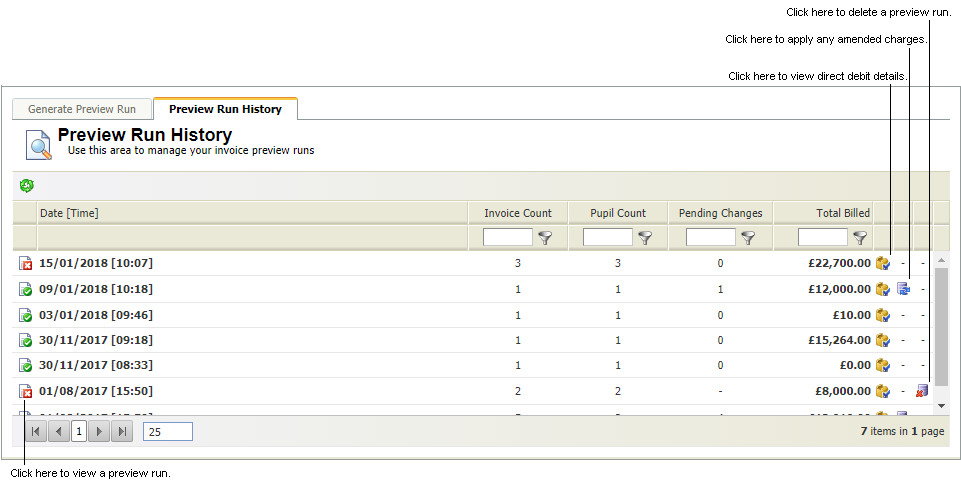
Choose to:- Apply amendments to pupil invoices. Click
 to apply amended charges and discounts to a pupil invoice. Original values for this billing cycle are overwritten. You are prompted when changes have been applied successfully. You can now move onto the Producing Invoices stage of the Invoice Wizard.
 - View direct debit charges. View the direct debit payments due in the invoice preview run.
- View the preview run in detail and select the invoices that you want to produce.
- Delete a preview run. This is only available for invoice preview runs which have not yet been accepted for production. Click
 to delete the preview run.
- Apply amendments to pupil invoices. Click
View Direct Debit Charges
Any direct debits which are listed in the invoice preview run can be viewed in detail.
- Click
 in your selected invoice preview run. A popup window is displayed:
- Locate the pupil account that you want to view and expand to see the direct debit payments in detail.
- Click Close Window to return to the Preview Run History tab.
- You can now view the preview run in detail and select the invoices that you want to produce.
Accept Invoices for Production
This is still only the preview stage of invoicing; you are not producing live invoices yet.
To accept invoices for production, follow the steps below:
- Click on the invoice preview run that you want to work in. The
 icon identifies the invoice preview run which needs to be accepted.
The View Preview Run window is displayed: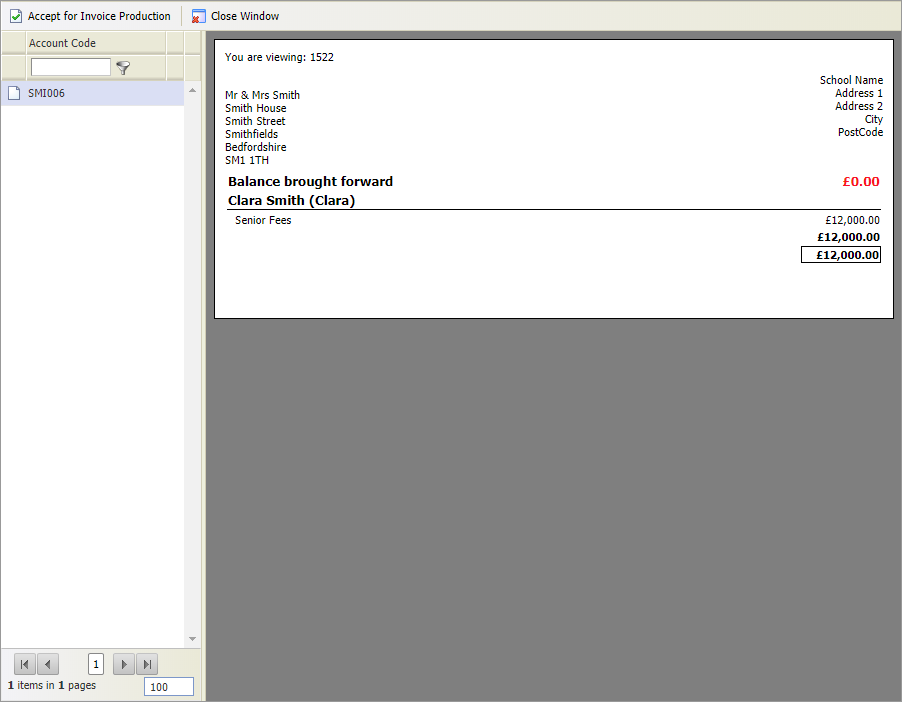
- Select an Account Code from the left hand menu to display invoice details. The invoice details are not displayed in the final invoice format at this stage.
- Click Accept Invoice for Production once you are satisfied that all the invoice details are correct. This is still only the preview stage of invoicing; you are not producing live invoices yet. Use Revoke for Invoice Production to reverse this action (this option is only available when you have accepted invoices but not yet generated them).
- Click Close Window. Your selected invoice preview run is approved and identified with the
 icon.
icon.
You can now move onto the Producing Invoices stage of the Invoice Wizard.