
Before you start to generate pupil invoices you must run some prerequisite checks. Prerequisite checks make you aware of any missing invoice data, such as account codes. Resolve any problems you are made aware of before moving onto the next stage of invoice generation.
Only problems for the selected billing cycle are listed in Prerequisite Checks.
A common problem that may arise when you run prerequisite checks is that billing contacts are missing for newly enrolled siblings of current pupils. Billing contacts for siblings are not automatically linked in sibling groups; these must be manually linked in the Pupil Manager module. Once sibling groups are linked any changes that you make are made to all siblings in the group. Do not link siblings for blended families where the billing contacts are different for each sibling.
To run prerequisite checks, follow the steps below:
- Open the Fees Billing module and select the Invoice Generation tab.
The tab defaults to open the Invoice Wizard from the Navigation menu: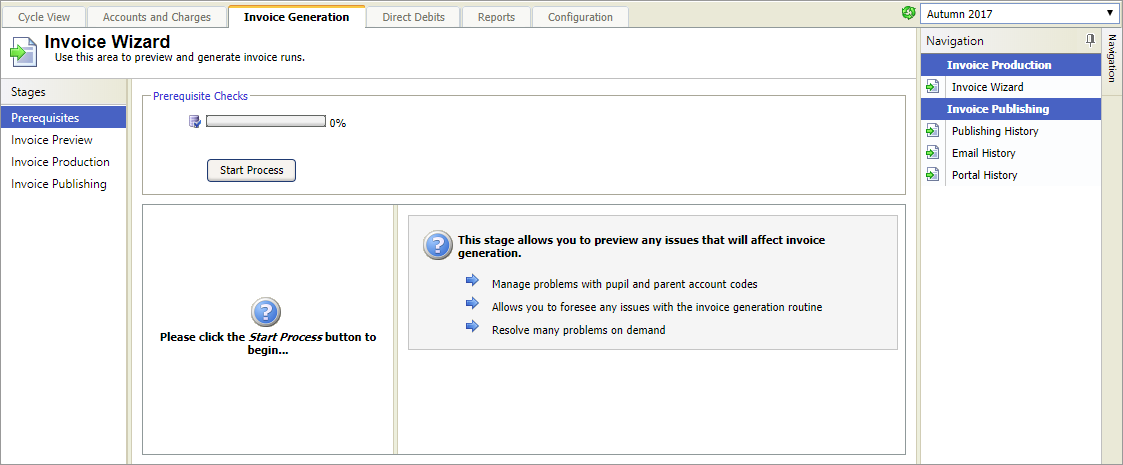
- In the top right, choose the billing cycle that you want to work with:

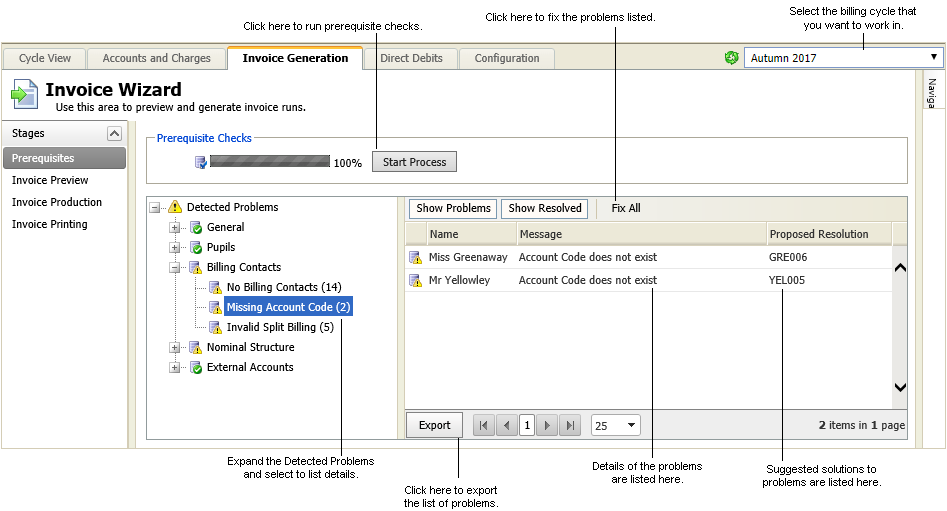
- Select Prerequisites from the left hand menu and click Start Process. If any problems are detected they are summarised for you in the Detected Problems tree:
- Expand the Detected Problems tree and work through the problems listed.
- Click on a Detected Problem to list all the details in the right of the screen. You may need to scroll through to additional pages of data if a high number of problems are listed. Suggested solutions are listed to help you.
- Use the Export function in the bottom bar to export a copy of the unresolved problems in your preferred format. This is useful if you need to resolve the problems in another part of iSAMS.
- Resolve problems by either:
- Using the Fix All button, where available, to resolve problems directly from the prerequisite checks stage. Missing account codes can be resolved this way.
or - Going back to the relevant part of iSAMS to add the missing data. For example, you may need to add a charge code in Fees Billing or list billing contacts in the Pupil Manager .
- Using the Fix All button, where available, to resolve problems directly from the prerequisite checks stage. Missing account codes can be resolved this way.
- Click Start Process again to check for any problems you may have missed.
Once you are satisfied that all problems have been resolved you can move onto the Previewing Invoices stage of the Invoice Wizard.