
If you need to log a candidate's change of name once they have been included in an EDI file, two options are available to you:
- Option 1. Contact exam boards and change candidate records. No need to create an EDI amendment file.
- Option 2. Change candidate records and re-enter the candidate for exams. Create an EDI amendment file.
Follow the procedure that is most convenient for you.
Option 1
To change a candidate name:
- Open the External Exams Manager module and select the Entries tab.
- Run a Candidate Entry Report so that you have exam entry details to hand.
- Contact each exam board listed for the candidate to inform them of the name change.
- Update the candidate's records with the name change. Either:
- Update an internal candidate. This only updates the candidate name in the External Exams Manager module, not the pupil name in the Pupil Manager module.
or - Update a private or returning candidate.
- Update an internal candidate. This only updates the candidate name in the External Exams Manager module, not the pupil name in the Pupil Manager module.
Option 2
- Open the External Exams Manager module and select the Entries tab.
- Run a Candidate Entry Report so that you have exam entry details to hand.
- Update the candidate's records with the name change. Either:
- Update an internal candidate. This only updates the candidate name in the External Exams Manager module, not the pupil name in the Pupil Manager module.
or - Update a private or returning candidate.
- Update an internal candidate. This only updates the candidate name in the External Exams Manager module, not the pupil name in the Pupil Manager module.
- Use the View Candidate Entries option to remove the candidate's exam entries. The candidate's original name is still shown in the list of students on the left; their new name is shown with exam entries in the centre panel:

- Click
 next to each exam to delete it. Confirm that you want to delete the entry in the popup window displayed.
 - Re-enter the candidate for each of the exams. Click Make Additional Entries.
The Assign Options window is displayed (the candidate's original name is still displayed in this window):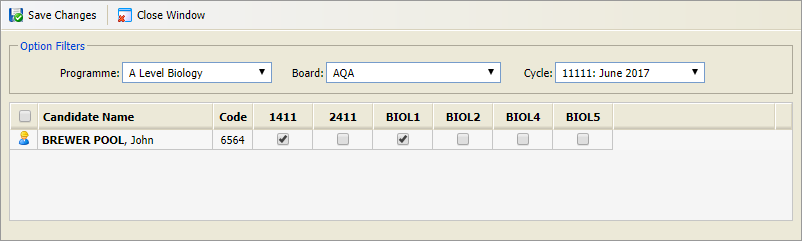
- Use the Option Filters to search for and select the programme and exam board that you want to work with.
- Check that the exam cycle is correct.
- Use the checkboxes displayed to select entries. Either:
- Check the box above the pupil icon in the header to select all of the options.
or - Check individual boxes under the options displayed.
- Check the box above the pupil icon in the header to select all of the options.
- Click Save Changes.
- Click Close Window to see the entries listed in the candidate entry record.
- Create an amendment files and forward it to the exam boards
The candidate entries are now listed under the new name in the External Exams Manager module and the exam boards are aware of the name change.