
Use the BaseData tab in the External Exams Manager module to create custom BaseData. Custom BaseData must be created if you intend to add any new syllabus and qualifications not listed by JCQ, such as IB. It is also useful for non UK based schools who want to run CIE programmes and qualifications.
- Custom BaseData must be created for each exam cycle. It cannot be migrated from cycle to cycle.
- Before you create custom BaseData you must:
To create custom BaseData:
- Open the External Exams Manager module and select the BaseData tab.
- Select the Create Custom BaseData option from the right hand menu to display this page:
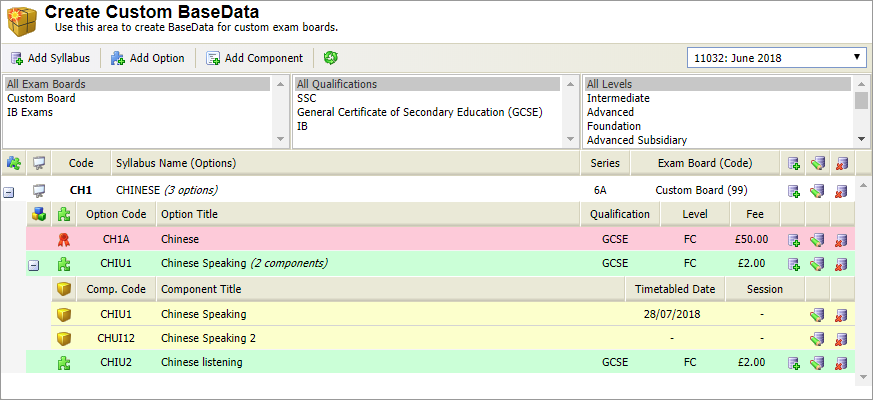
- Use the drop down list in the header bar to select the exam cycle that you want to work with.
Each custom syllabus with corresponding options and components is listed. - Click
 in any listed syllabus to view the options and components listed for it.
 Choose to:

- Click Add Syllabus in the header bar to display this popup:
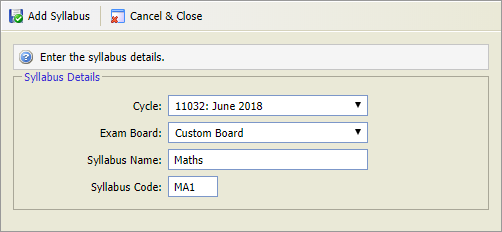
- Select the Cycle that you want in.
- Select the custom Exam Board that you want to work with.
- Enter a unique Syllabus Name and Code.
- Click Add Syllabus to close the popup window.
- Click
 .
.
The new syllabus is listed: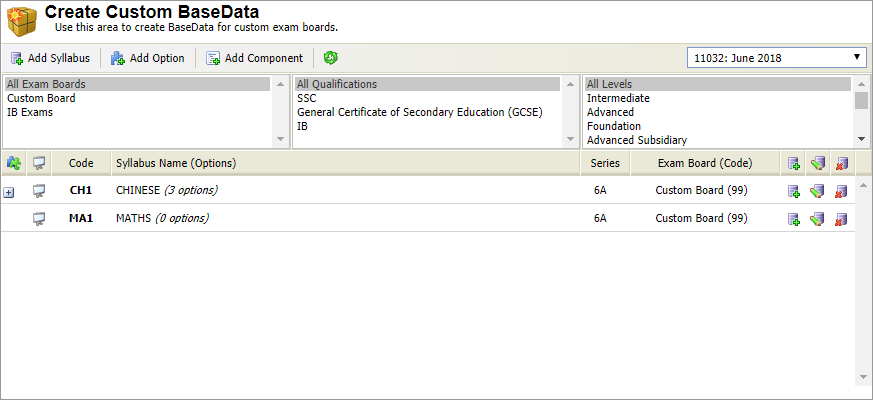
- You can now add an option to the syllabus.
Click
 in your selected syllabus:
A popup window is displayed: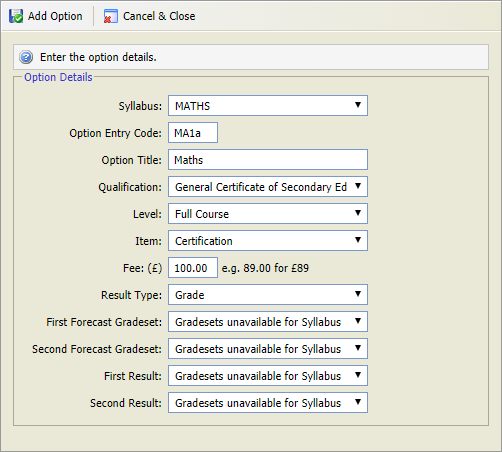
The Syllabus you are working in is preselected.If you are entering options to construct CIE International custom BaseData it is recommended that the correct option codes are used. These can be obtained from CIE.
- Enter a unique Option Entry Code and a clear and concise Option Title.
- Select the level of Qualification for the option, for example 'IB'or 'GCSE'.
- Select a Level for the option. This is for information only.
- Select a type of Item for the qualification. Your selection determines how the option is displayed in the syllabus:
- Certification = The overall qualification for the course =

- Certification and Unit/Module = The overall qualification for the course. This option is also a unit. =

- Unit/Module = Units are not linked to a specific certificate or qualification =

- Certification = The overall qualification for the course =
- Enter an option Fee. This is added to candidate records when they are entered for an exam.
- Select the Result Type. This determines the grade or mark that can be entered when adding results.
- Use of the Gradeset drop down lists is optional. A gradeset file must be uploaded to the External Exams Manager module for selections to be available.
- Click Add Option.
- Click to close the popup window.
The new option is listed: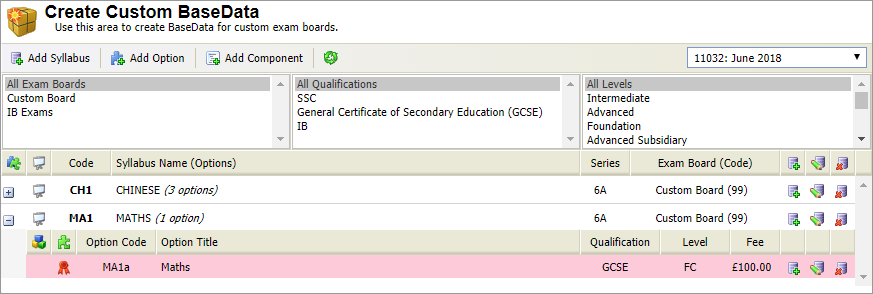
- You can now add a component to the option.
Click
 in your selected option: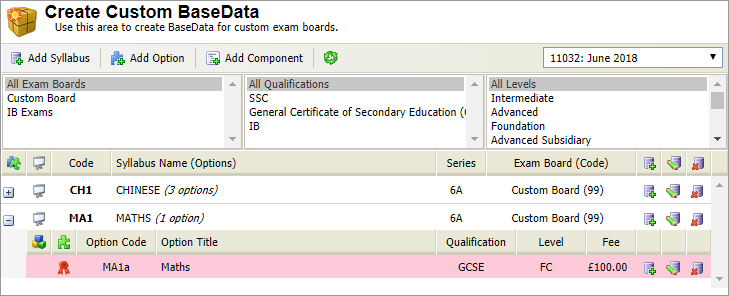
A popup window is displayed: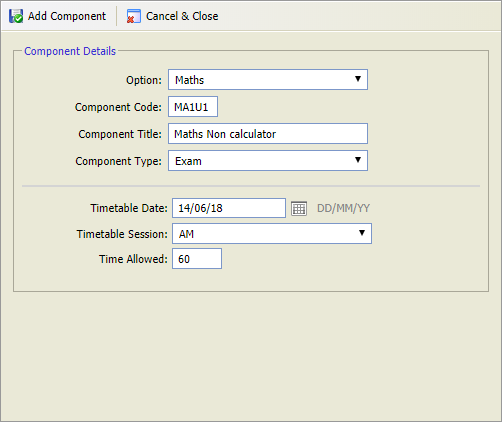
The option you are working in is preselected.If you are entering components to construct CIE International custom BaseData it is recommended that the correct component codes are used. These can be obtained from CIE.
Enter a unique Component Code and a clear and concise Component Title.
Select the Component Type. Whether the component is an exam or coursework.
Your selection determines the other fields available. Select either:
A Timetable Date, Timetable Session and the Time Allowed (in minutes) for the exam. This is optional. It is not required if you are only using the module to log results for candidates. Exam timetables are updated automatically.
or
The Gradeset and Due Date for the coursework.
- Click Add Component to close the popup window.
- Click .
The new component is now listed: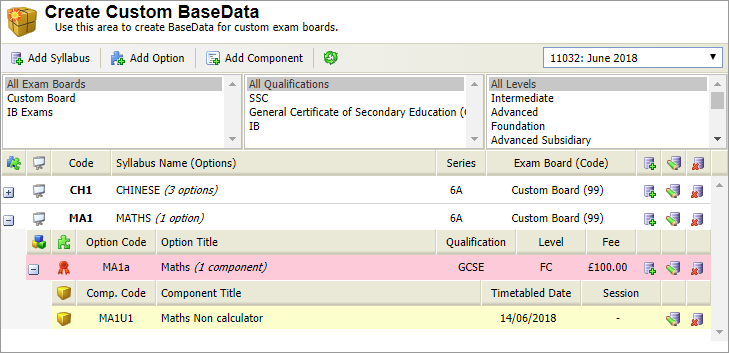
Click
 in your selected syllabus:
A popup window is displayed:
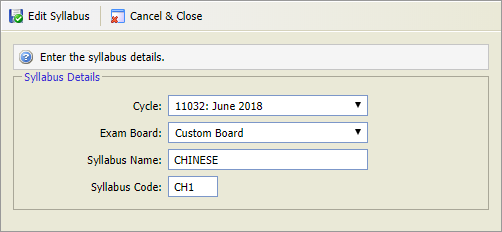
- Select the Cycle that you want in.
- Select the custom Exam Board that you want to work with.
- Enter a Syllabus Name and Code. It is recommended that you mirror UK based CIE codes if you are building custom BaseData to reflect UK based CIE BaseData.
- Click Edit Syllabus to close the popup window.
- Click .
The amended syllabus is displayed.
Click
 in your selected option:
A popup window is displayed:
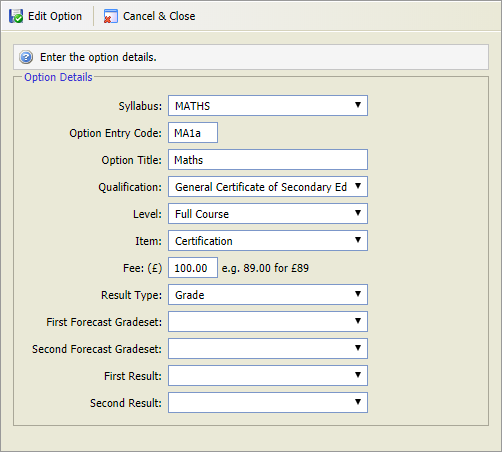
It is recommended that you mirror UK based CIE Basedata options if you are building custom BaseData to reflect UK based CIE BaseData.
- Enter a unique Option Entry Code and a clear and concise Option Title.
- Select the level of Qualification for the option, for example 'IB'or 'GCSE'.
- Select a Level for the option. This is for information only.
- Select a type of Item for the qualification. Your selection determines how the option is displayed in the syllabus:
- Certification = The qualification that is achieved =
- Certification and Unit/Module = Each unit is linked to a specific certificate or qualification =
- Unit/Module = Units are not linked to a specific certificate or qualification =
- Certification = The qualification that is achieved =
- Enter an option Fee. This is added to candidate records when they are entered for an exam.
- Select the Result Type. This determines the grade or mark that can be entered when adding results.
Use of the Gradeset drop down lists is optional. A gradeset file must be uploaded to the External Exams Manager module for selections to be available.
Click Edit Option to close the popup window.
Click
.
The amended option is listed.
Click
in your selected component:A popup window is displayed:
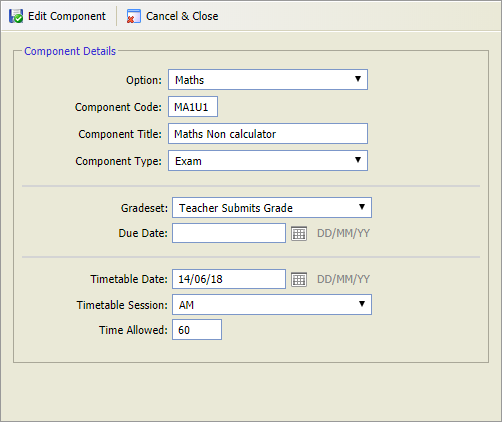
It is recommended that you mirror UK based CIE Basedata options if you are building custom BaseData to reflect UK based CIE BaseData.
Enter a unique Component Code and a clear and concise Component Title.
Select the Component Type. Whether the component is an exam or coursework.
Your selection determines the other fields available. Select either:
A Timetable Date, Timetable Session and the Time Allowed (in minutes) for the exam. This is optional. It is not required if you are only using the module to log results for candidates. Exam timetables are updated automatically.
or
The Gradeset and Due Date for the coursework.
- Click Edit Component to close the popup window.
- Click .
The amended component is listed.
Click
 in your selected syllabus, option or component.
You prompted to confirm your selection.- Click OK.
Click . Your selection is removed.
- Click Add Syllabus in the header bar to display this popup:
You are now ready to add an exam programme and link the custom BaseData options to it.