
Use the Subject View tab in the Teaching Manager module to add and edit the teaching sets linked to each subject.
For example, create new sets for subjects and add students to the set. You can manage sets for either the current academic year or the development academic year.
- In the Teaching Manager module, select the Subject View tab:

- Use the drop down lists in the top right of the screen to select the:
- Academic year that you want to work with. The roll over option is only available when you select the 'Current Academic Year'.
- School divisions that you want to work with.
- Status of the subjects that you want to work with.
- Locate the subject that you want to work with and click Edit Sets.
The Set List screen is displayed: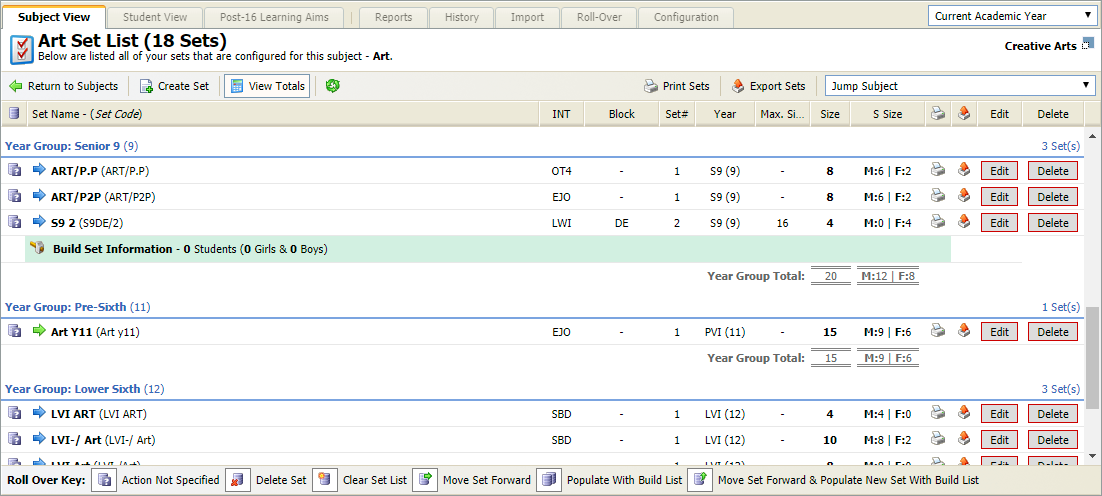
- Choose to:
- Create a Subject Set. Create sets of students for each subject in your school. Set up as many sets as you require, linking a different teacher to each set. Subjects must be set up to be taught in sets before you can create a subject set.
- Edit a Subject Set. Edit the sets listed for each subject in your school. For example, you may want to add a detailed description for the set or change the set teacher.
- Delete a Subject Set. Remove subject sets which are not in use.
- Roll Over a Subject Set Details. Set up the roll over action for each set. This information is used when you are ready to roll over your Teaching Manager data from the current to the development year. For example, choose to clear a set of students but keep the set and teacher listed.
Create a Subject Set
- Click
 Create Set.
A popup window is displayed: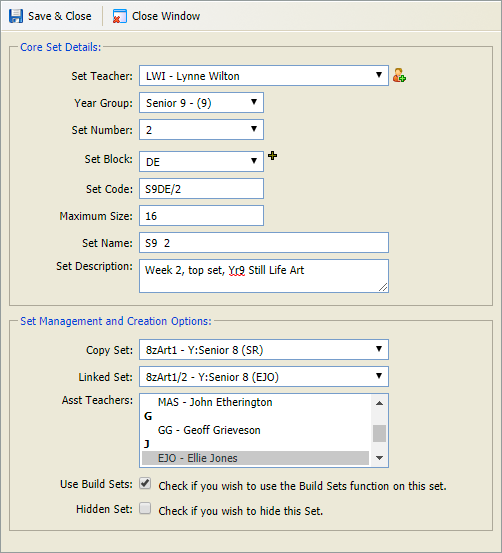
Complete the fields in the Core Set Details section:
Field
Explanation
Set Teacher
Select the primary teacher for the set from the drop down list. Click
 to add a teacher to the drop down list.
Year Group
Select a year group for the set.
Set Number
Select a number from the list. The use of set numbers is optional. Use set numbers to indicate the level of each set, for example set 1 is for your most capable students.
Set Block
Select a set block from the list. Click
 to add a set block to the list. The use of set blocks is optional.
Set Code
A set code is automatically generated for you. Edit this if required.
Maximum Size Enter a maximum number of pupils for the set. This is optional. Set Name
A set name is automatically generated for you. Edit this if required.
Set Description
Use this field to add more detail. For example, the minimum test score requirements to join the set.
Complete the fields in the Set Management and Creation Options section:
Field
Explanation
Copy Set
Choose to copy a set, this is optional. This is useful when set lists for other subjects contain the same students. For example, Yr 9 set 1 for Maths lists the same students that you want to list in Yr 9 set 1 for English.
Linked Set
Select another set to link to this set. This is useful when you are editing set information as it saves time. All the students in the linked set you choose are listed to this new set. If you choose to add or remove students in the set list for this set the linked set is also changed, and vice versa.
Associated Teachers
Select an associated teacher from the list displayed. Hold Ctrl to make multiple selections, if required.
Use Build Sets
Check the box to enable the Build Sets function for the set. Use the Build Set List function when developing new set lists for subjects. Build set lists are not active and can be created for both the current and development academic year. Activate build set lists when you are ready to start using them.
Hidden Set
This is option is not currently in use.
Click Save & Close to return to the Set List screen.
You are now ready to add students to the set.
Edit a Subject Set
- Click Edit in your selected set.
The Set Info screen is displayed: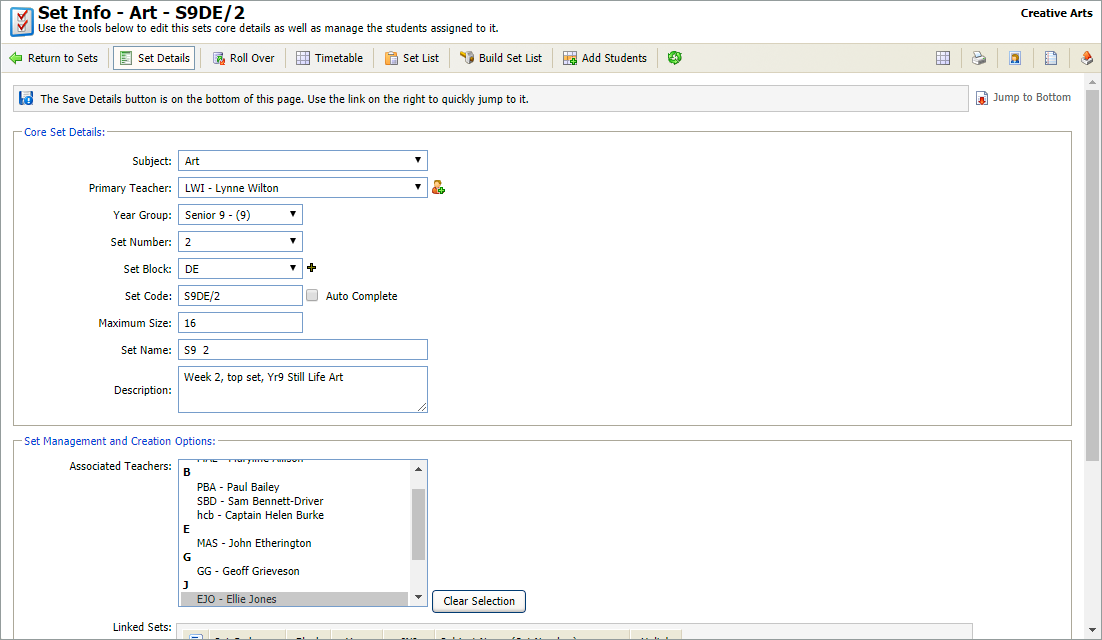
Edit the fields in the Core Set Details section:
Field
Explanation
Subject
This defaults to the subject you have chosen to edit.
Primary Teacher
Select the primary teacher for the set from the drop down list. Click
to add a teacher to the drop down list.Year Group
Select a year group for the set.
Set Number
Select a number from the list. The use of set numbers is optional. Use set numbers to indicate the level of each set, for example set 1 is for your most capable students.
Set Block
Select a set block from the list. Click
to add a set block to the list. The use of set blocks is optional.Set Code
A set code is automatically generated for you. Edit this if required.
Maximum Size Enter a maximum number of pupils for the set. This is optional. Set Name
A set name is automatically generated for you. Edit this if required.
Description
Use this field to add more detail to the set. For example, the minimum test score requirements to join the set
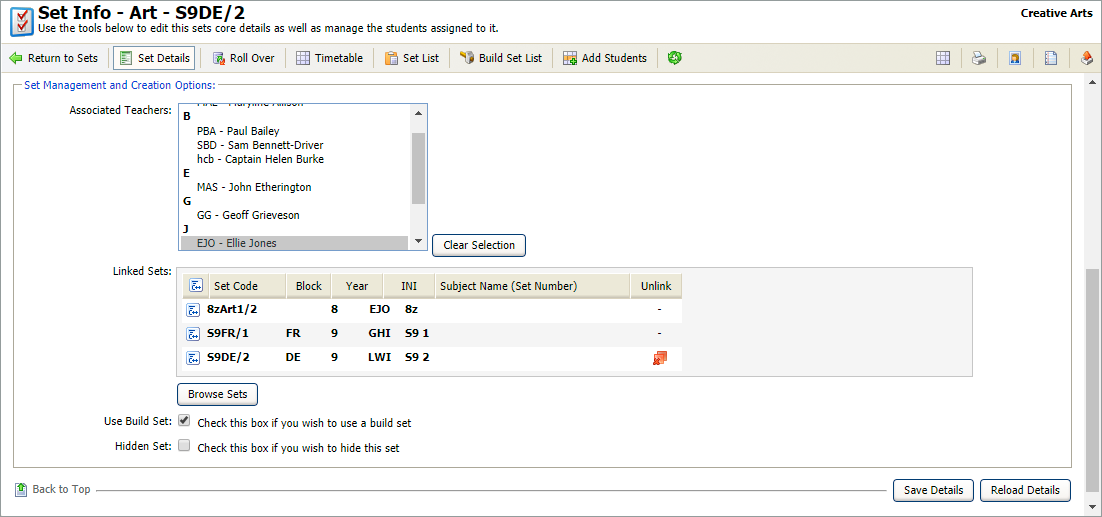
Edit the fields in the Set Management and Creation Options section:
Field
Explanation
Associated Teacher
Select an associated teacher from the list displayed. Hold Ctrl to make multiple selections, if required.
Linked Set
All of the other sets that have already been linked to this set are listed.
Choose to:

- Click Browse Sets to display the Link Sets window:
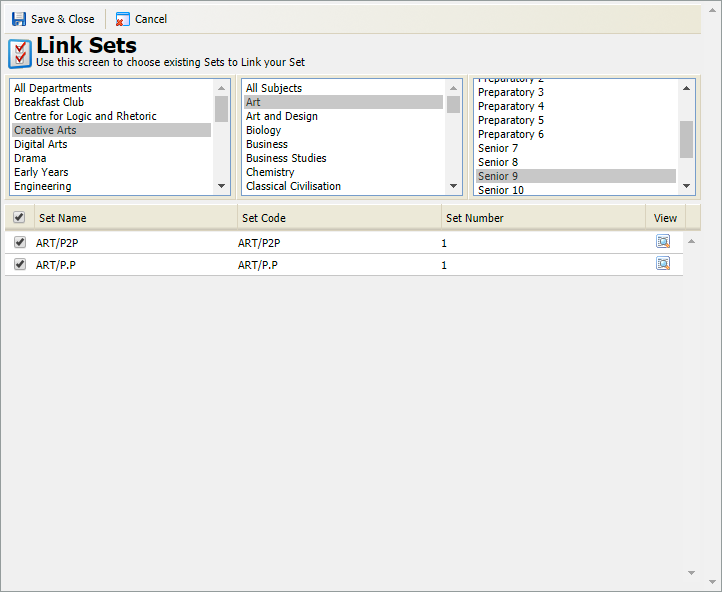
- Use the filters to help find the sets that you want to link.
- Click
 next to a set to view the Set Details window: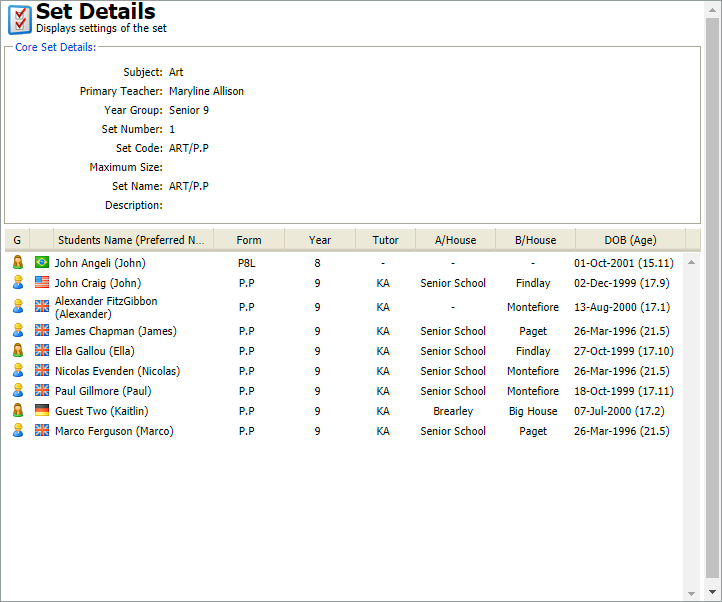
All of the students in the set are listed. - Close the Set Details window and select the sets that you want to link.
All the students in the linked set you choose are listed in this new set. - Click Save & Close to return to the Set Info screen.
More linked sets other than the ones you have just selected maybe listed in the Set Info screen. This is because the sets you have selected may already be linked to other sets.
If you choose to add or remove students in the set list for this set the linked set is also changed, and vice versa.
- Click
 in the Unlink column.
You are prompted Are you sure you want to unlink this set? - Select OK.
The set is no longer linked to any other sets.
Use Build Set
Check the box to enable the Build Sets function for the set. Use the Build Set List function when developing new set lists for subjects. Build set lists are not active and can be created for both the current and development academic year. Activate build set lists when you are ready to start using them.
Hidden Set
This is option is not currently in use.
- Click Browse Sets to display the Link Sets window:
Click Save Details.
Delete a Subject Set
Do not delete sets which are active and in use. Deleted sets are removed from all associated timetables. All links to staff and pupils are also deleted.
- Click Delete in your selected set.
You are prompted Are you sure you want to delete this set? - Select Yes.
The set is deleted from iSAMS.
Roll Over Subject Set Details
- Click Edit in your selected set.
The Set Info screen is displayed. - Click
 Roll Over in the header bar to display Roll Over Details: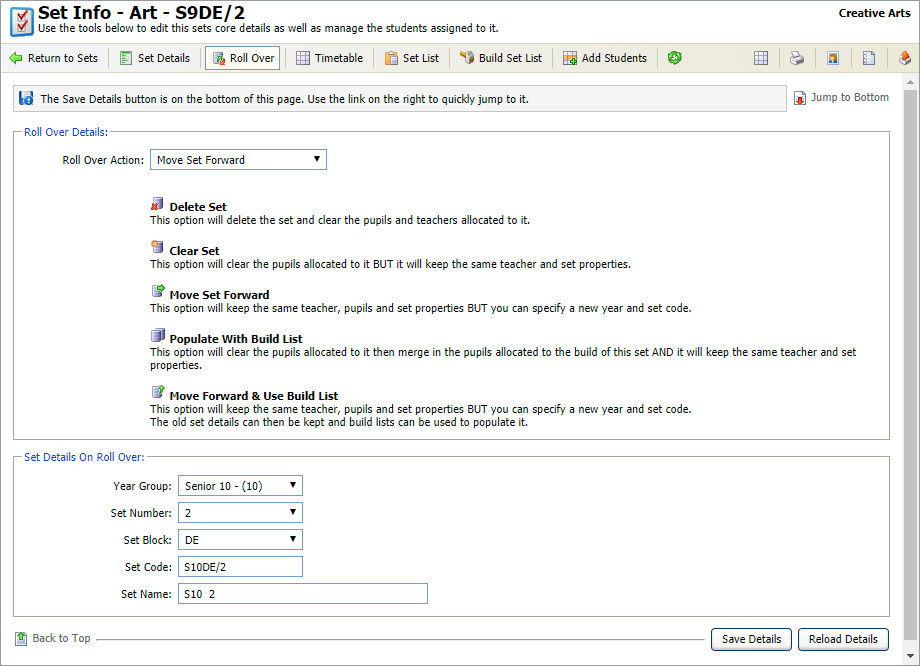
Select an action from the drop down list displayed:
Action
The subject set is...
Delete Set
Not included in the roll over.
Clear Set
Included in the roll over but all pupils allocated to it are removed from the set.
Move Set Forward
Included in the roll over with all teachers, pupils and properties remaining the same. Edit the year group and set code to reflect the pupils' new year group.
The Set Details on Roll Over section is displayed, see below for more details.Populate With Build List
Included in the roll over but the set list is replaced with students listed in the build set list.
Move Forward & Use Build List
Included in the roll over with all teachers, pupils and properties remaining the same. Edit the year group and set code to reflect the pupils' new year group.
The original set is also included in the roll over with the original set code. 'Build set list' pupils are listed in the original set.
The Set Details on Roll Over section is displayed. See below for more details.Complete the Set Details On Roll Over section. This section is only displayed for selected Roll Over Actions. The fields displayed are explained below:
Field
Explanation
Year Group
Select a new year group for the set.
Set Number
Select a new set number for the set.
Set Block
Change the set block listed.
Set Code
Change to reflect the new year group, set number and set block.
Set Name
Change to reflect the new year group, set number and set block.
Click Save Details.