
Use the Configuration tab in your selected child activity module to edit the activity. For example, edit activity permissions to keep user access details up to date or change portal publication settings.
Child activity modules can also be edited from the parent Activities Manager module. See Managing Activities for more details.
To edit an activity:
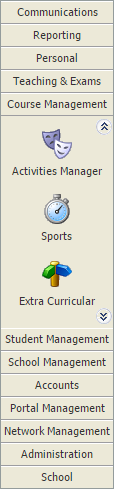
- Select the child activity module that you want to work with from the module bar:
- Select the Configuration tab:

- Select Edit Activity Type from the right hand menu.
The Edit Activity window is displayed:
Edit the fields in the Properties tab:
SectionExplanationCore Information - Activity Type. Select a status for the activity. Only activities marked as 'Current' are displayed as a child module in the module bar.
- Activity Name. Enter a clear and concise name for the activity. This is displayed in the module bar and throughout iSAMS.
- Activity Code. Enter a clear code for the activity. Codes are used as an identifier when pupil lists are exported and imported into activity groups.
- Activity Image. Click in the field and select an appropriate icon for the activity. This is displayed in the module bar.
Optional Information Add a description for the activity. This is optional. - Select the Publications tab and choose whether the activity is to be displayed in the Parent and Pupil Portals. The Activities Manager module must also be linked in the Parent and Pupil Portals for this to operate as expected.
- Edit user permissions for the activity in the Permissions tab:

- Use the drop-down list in the top right of the window to select a 'Security Group', 'User Group' or 'Username' to set permissions for.
- Use the checkboxes to set different levels of permission for each group or user listed. Groups and users with no boxes checked default to no activity access and the child module is not displayed in their module bar.
- Select the Terminology tab and edit the default terminology used throughout the activity as required:

For example, change the term Event to 'Match' and 'Matches' and edit the A or An? term accordingly. - Click Save & Close once you have completed changes.