
Create a new teaching form directly from the Timetable Manager module.
To create a new form, follow the steps below:
- Once you have started a timetable import and established that you have set code warnings to resolve.
The Resolve Set Problems window is displayed: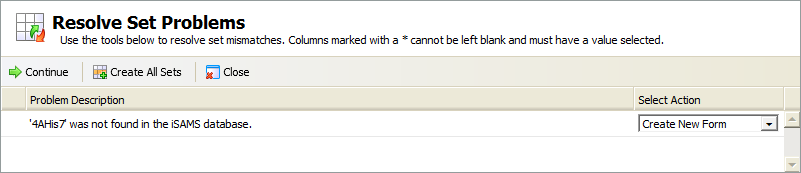
- Select Create New Form for the selected set code.
- Click Continue in the header bar. An example of the window displayed is shown below:
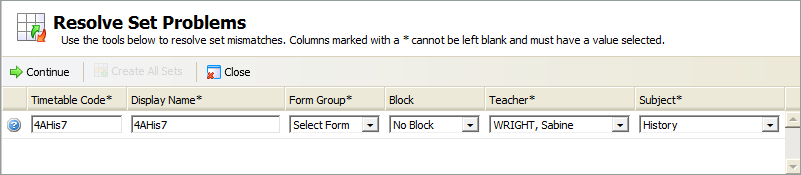
In this example no form group or block has been allocated to the lesson in the Teaching Manager module. Enter the form details you want to change in the columns shown. iSAMS completes as many columns as possible using your imported information. All columns marked with a * must be completed:
Column
Explanation
Timetable Code
Enter a code for the teaching form, following the same format you have used for other teaching form codes. This can reflect the form group which you select, for example form '4B' for 'History' could have a timetable code '4BHis'. This is saved in the Teaching Manager module once you complete your import.
Display Name
Enter a name for the teaching form. You can choose this to be the same as the timetable code or use a simpler format. Timetable code, display name or both can be displayed in timetable period boxes.
Form Group
Use the drop down list to select a form group for the teaching form. All the form groups created in the School Manager module are listed here.
Block
Use the drop down list to select a block for the teaching form, this is optional. These are used to provide a simple format to distinguish year groups and departments. Blocks can be displayed in timetable period boxes. For example, use Year 7 HI to identify Year 7 History department lessons. Blocks are setup in the Teaching Manager module.
Teacher
Use the drop down list to select a teacher for the form. All staff members setup as teaching staff in the Human Resources Manager module are listed here.
Subject
Use the drop down list to select the subject. All subjects setup in the Teaching Manager module are listed here.
Select Continue once you have completed your amendments. iSAMS checks the validity of the form you want to create and identifies any problems with the form, such as a duplicate timetable code or an incomplete column.
The window below is displayed if your teaching form is not valid: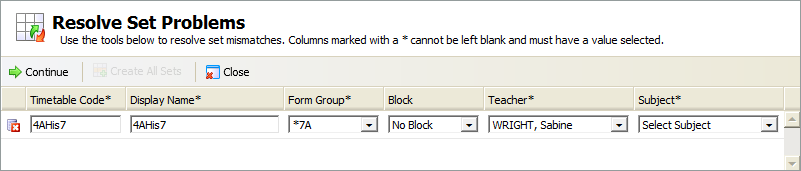
 indicates a form that has been rejected. In the example shown no subject has been selected, so the teaching form is not valid.
- Select to Continue once you have made the relevant amendments.
This window is displayed when iSAMS has recognised your form as valid: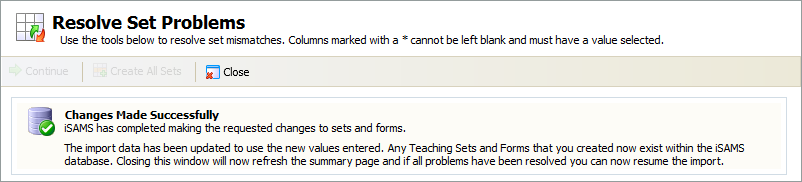
- Click Close to return to the Import Timetable - Version 2 screen.