
Use the Gradeset Objects option in the Configuration tab to translate numerical data linked to the Tracking Manager Module into gradesets. Apply Gradeset Objects in your Tracking Models so that columns have common values. This helps you to compare information gathered from different sources. The original data is still available to view in your Tracking Models.
Each Gradeset Object consists of Gradeset Elements. Use a different Gradeset Element for each range of values you want to grade in the Gradeset Object. For example, use a Gradeset Object to translate percentage results into grades. Setup the Gradeset Elements to list all gradeset values between '80 and 100' as a grade 'A', continue to setup Gradeset Elements for all percentage results.
An example of the Gradeset Objects screen is shown below:
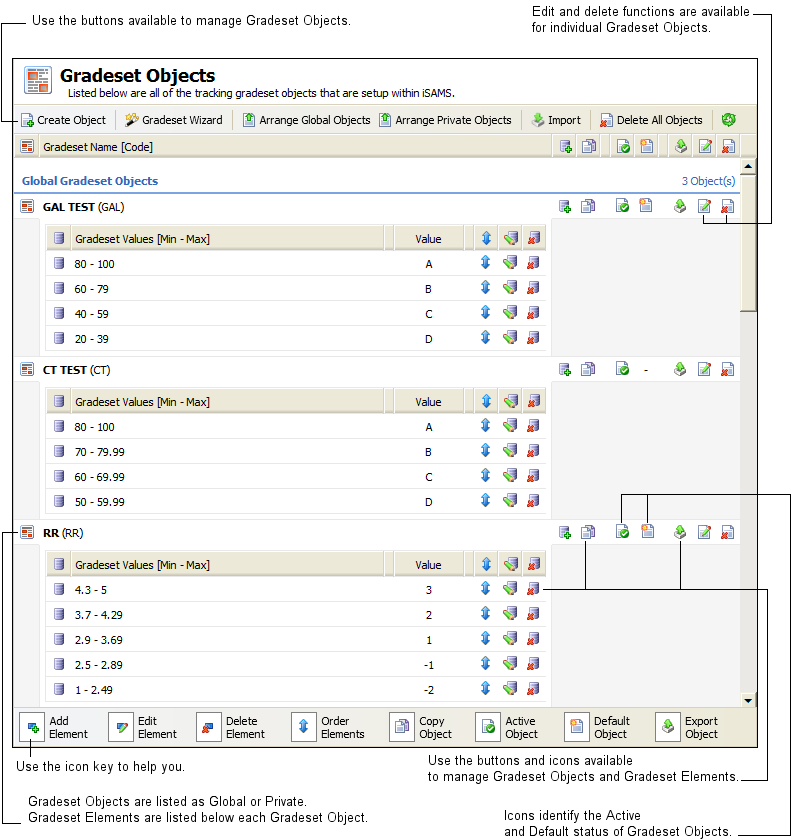
Use the functions available in the Gradeset Objects screen to:
- Create a Gradeset Object. Choose to setup Gradeset Objects to be used by all Tracking Manager Module users (Global Objects) or setup your own Private Objects. Private Gradeset Objects can only be accessed by the user who has set them up. You can setup as many Gradeset Objects as you require to grade the different types of data used in the Tracking Manager Module.
- Add a Gradeset Element to a Gradeset Object. Each Gradeset Object consists of Gradeset Elements. Use a different Gradeset Element for each range of values you want to grade in the Tracking Manager Module.
- Use the Gradeset Wizard. The Gradeset Wizard takes you through steps to create a Gradeset Object and add Gradeset Elements to it. This ensures that you complete all the steps required to start using Gradeset Objects in your Tracking Models.
- Copy an Existing Gradeset Object. This duplicates an existing Gradeset Object which you can then edit to suit you. This saves time when you have different types of data that you want to grade in the same way.
- Edit and delete Gradeset Objects if you need to. See Edit a Gradeset Object and Delete a Gradeset Object for more information.
- Edit and delete Gradeset Elements. See Edit a Gradeset Element and Delete a Gradeset Element for more information.
- Arrange Gradeset Objects and Gradeset Elements. Change the order that these are displayed in the Tracking Manager Module. See Arrange Gradeset Objects and Arrange Gradeset Elements for more information.
- Export and import Gradeset Objects. Export the XML files of your Gradeset Objects to save an external backup of the Gradeset Objects you use. See Export a Gradeset Object and Import a Gradeset Object for more information.
Create a Gradeset Object
Create Gradeset Objects to translate numerical data into grades, marks or targets in your Tracking Models. It is useful to give numerical data a grading so that you can compare results from different sources. For example, all results linked to the Tracking Manager Module of between 80% and 100% can be awarded a grade 'A'. The original data is still available to view in your Tracking Models.
To create a Gradeset Object, follow the steps below:
1. In the Configuration tab, select Gradeset Objects from the right hand menu.
The Gradeset Objects screen is displayed.
2. Click  in the top left of the screen.
The Create Gradeset Object window is displayed. An example is shown below:

3. Complete the sections available in the Gradeset Details tab:
Section | Explanation |
Gradeset Details | Gradeset Name. Use a clear, concise and unique name for your Gradeset Object. This is displayed when creating columns in Tracking Models. Gradeset Code. Use a unique code. Choose to amend the default code, if necessary. The default Gradeset Code is made up of the first three letters of the Gradeset Name and is not always unique. Gradeset Codes are displayed when managing columns in Tracking Models. Gradeset Active. Select Yes to start using the Gradeset Object. Active Gradeset Objects are identified by the Gradeset Object inactive and you are unable to use it. |
Gradeset Defaults | Global Object. Select Yes for all Tracking Manager Module users to use this Gradeset Object. Select No for the Gradeset Object to be listed as Private (only you can use a Gradeset Object listed as Private). Default Object. Selecting Yes preselects this Gradeset Object when you choose to use Gradeset Objects to make column adjustments in your Tracking Models. Default Gradeset Objects are identified by the |


4. Select the Gradeset Elements tab to add Gradeset Elements to your Gradeset Object.
An example of the Gradeset Elements tab is shown below:
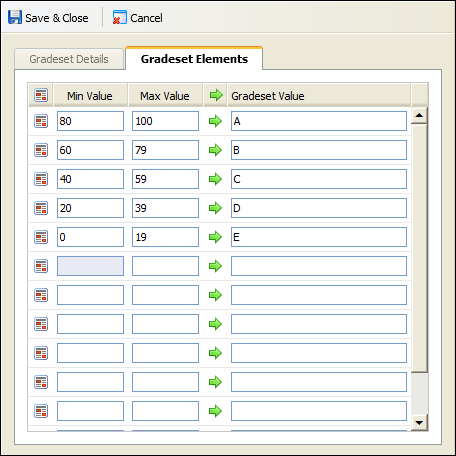
5. Complete the fields in order of merit with the highest value Gradeset Element at the top of the list:
a) Enter the minimum and maximum value range (Min Value and Max Value) used in the data you want to grade. For example, enter minimum and maximum values of '80' and '100' for the percentage a pupil is awarded for an exam.
b) Then enter a Gradeset Value to represent the value range you have listed. For example, for the value range of '80' to '100' percent a pupil is awarded an 'A' grade.
6. Click  Save & Close once you have completed the Gradeset Element fields.
Your Gradeset Object, and its associated Gradeset Elements, is added to the list of Gradeset Objects in the Gradeset Objects screen. Global Objects and Private Objects are listed separately, all newly created Gradeset Objects are at the end of the lists displayed.
An example of how Gradeset Objects are displayed in the Gradeset Object option is shown below:

Copy an Existing Gradeset Object
Copy an existing Gradeset Object to save time when you have different types of data that you want to grade in the same way. After you have copied the Gradeset Object you can choose to edit the Gradeset Details and Gradeset Elements.
To copy an existing Gradeset Object, follow the steps below:
1. In the Configuration tab, select Gradeset Objects from the right hand menu.
The Gradeset Objects screen is displayed. An example is shown below:

2. Click  in the Gradeset Object you want to copy.
You are prompted Are you sure you want to copy this gradeset object?
3. Click Yes.
A copy of the Gradeset Object and all the associated Gradeset Elements is listed in the Gradeset Objects screen. Copied Gradeset Objects are easily identified by name, for example 'Copy of Test' is listed when 'Test' is copied.
You are now ready to edit the copied Gradeset Object and the Gradeset Elements associated with it. See Edit a Gradeset Object and Edit a Gradeset Element for more information.
Edit a Gradeset Object
Choose to edit a Gradeset Object if you want to change any of its properties. For example, change its active status. It is not recommended that you edit a Gradeset Object once it is in use as this can alter your Tracking Models. Choose to copy an existing Gradeset Object and then edit the copy if the Gradeset Object is already in use.
To edit a Gradeset Object, follow the steps below:
1. In the Configuration tab, select Gradeset Objects from the right hand menu.
The Gradeset Objects screen is displayed.
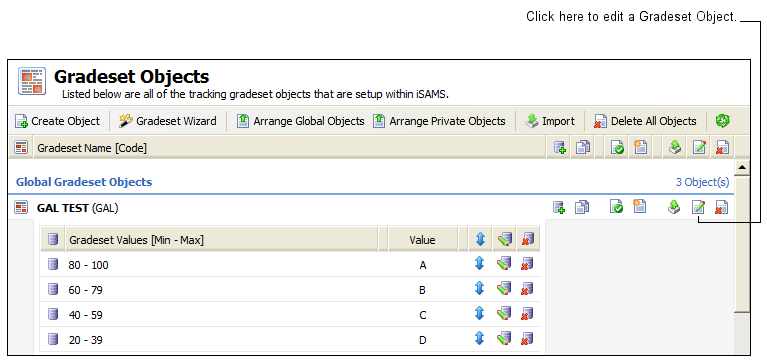
2. Click  in the Gradeset Object you want to edit.
See below for the location of the edit icon:
The Edit Gradeset Object window is displayed. An example is shown below:
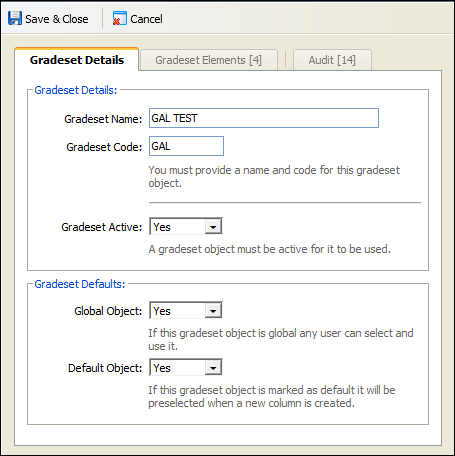
3. Edit the sections available in the Gradeset Details tab, as required:
Section | Explanation |
Gradeset Details | Gradeset Name. Use a clear, concise and unique name for your Gradeset Object. This is displayed when creating columns in Tracking Models. Gradeset Code. Use a unique code. Choose to amend the default code, if necessary. The default Gradeset Code is made up of the first three letters of the Gradeset Name and is not always unique. Gradeset Codes are displayed when managing columns in Tracking Models. Gradeset Active. Select Yes to start using the Gradeset Object. Active Gradeset Objects are identified by the |
Gradeset Defaults | Global Object. Select Yes for all Tracking Manager Module users to use this Gradeset Object. Select No for the Gradeset Object to be listed as Private (only you can use a Gradeset Object listed as Private). Default Object. Selecting Yes preselects this Gradeset Object when you choose to use Gradeset Objects to make column adjustments in your Tracking Models. Default Gradeset Objects are identified by the |
4. Select the Gradeset Elements tab to edit the Gradeset Elements in your Gradeset Object.
An example of the Gradeset Elements tab is shown below:
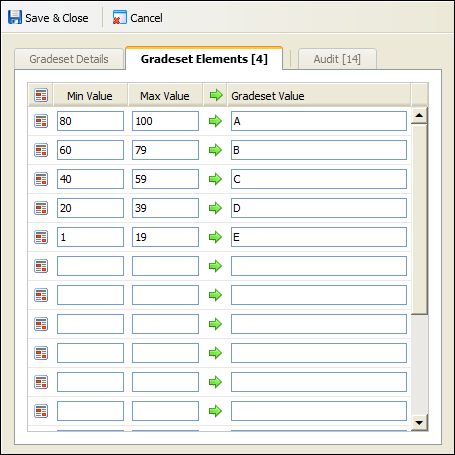
5. Complete the fields in order of merit with the highest value Gradeset Element at the top of the list:
a) Enter the minimum and maximum value range (Min Value and Max Value) used in the data you want to grade. For example, enter minimum and maximum values of '80' and '100' for the percentage a pupil is awarded for an exam.
b) Then enter a Gradeset Value to represent the value range you have listed. For example, for the value range of '80' to '100' percent a pupil is awarded an 'A' grade.
6. Select the Audit tab to view an audit log for the Gradeset Object. This is useful for viewing a history of changes made to the Gradeset Object.
An example of the Audit tab is shown below:
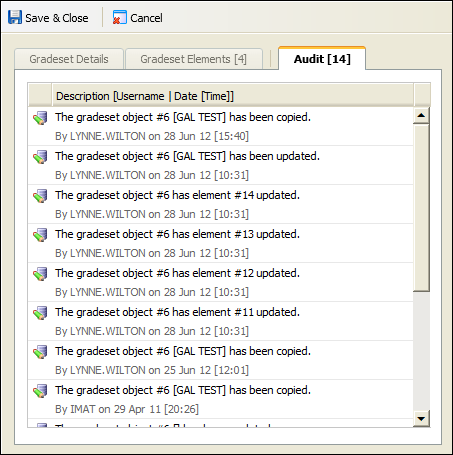
7. Click Save & Close. The changes you make are displayed in the Gradeset Objects screen.
Delete a Gradeset Object
Choose delete a Gradeset Object which you no longer require. You can also choose to delete all of the Gradeset Objects in the Tracking Manager Module, if required. Be careful when deleting any Gradeset Objects which are already in use. Deleting Gradeset Objects alters the Tracking Models they are used in.
To delete a Gradeset Object, follow the steps below:
1. In the Configuration tab, select Gradeset Objects from the right hand menu.
The Gradeset Objects screen is displayed. See below for the location of the delete buttons:
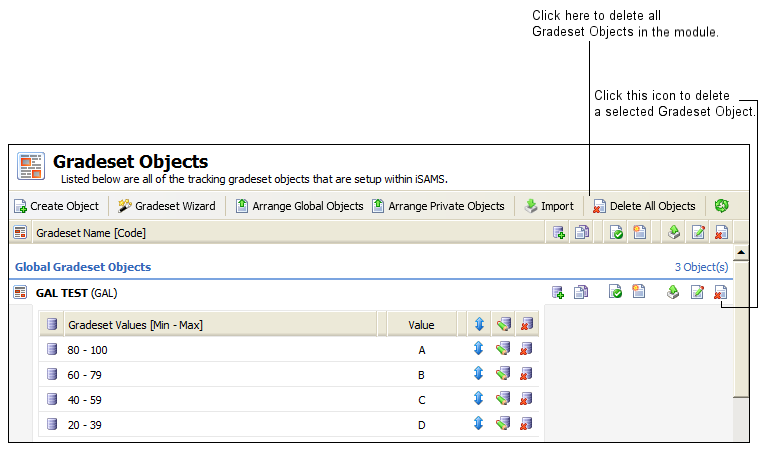
2. Either:
a) Click  in the Gradeset Object you want to delete. You are prompted Are you sure you want to delete this gradeset object?
b) Select Yes.
Your selected Gradeset Object is removed from the module.
or
a) Click  . You are prompted Are you sure you want to delete all the gradeset objects?
b) Select Yes. All Gradeset Objects are removed from the module.
Export a Gradeset Object
Export your Gradeset Objects to save a backup of the Gradeset Objects that you use. This is useful if you have to re-install the module at any point as your Gradeset Objects will not be saved. Also choose to export Gradeset Objects if you want to share the Gradeset Objects that you use with other schools.
To export a Gradeset Object, follow the steps below:
1. In the Configuration tab, select Gradeset Objects from the right hand menu.
The Gradeset Objects screen is displayed.
2. Click  in your selected Gradeset Object.
See below for the location of the edit icon:
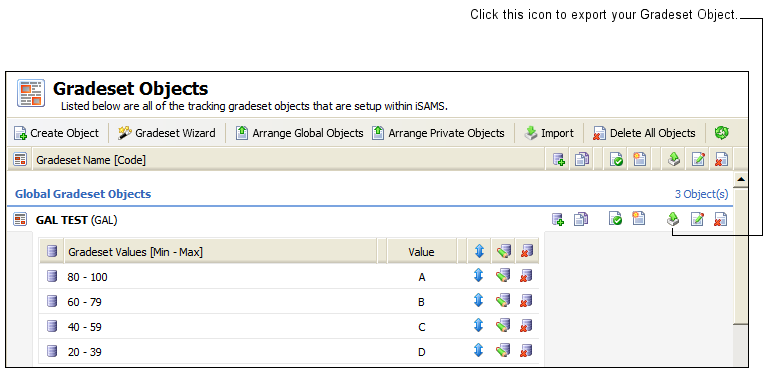
You are prompted Do you want to open or save gradeset.xml...?
3. Open or Save the file as you require. The Gradeset Object is exported as an XML document.
If you have selected to save the file, you are prompted when the download is complete.
Import a Gradeset Object
Import Gradeset Objects from an external source into iSAMS. This is useful when you have had to re-install the module and want to re-install the Gradeset Objects that you have previously exported. This also gives you the option of using Gradeset Objects recommended by iSAMS or by another school.
To import a Gradeset, follow the steps below:
1. In the Configuration tab, select Gradeset Objects from the right hand menu.
The Gradeset Objects screen is displayed.
2. Click  at the top of the screen.
The Upload Gradeset Object window is displayed. An example is shown below:

3. Click Browse and select the file you want to import. The file you select must be an XML document.
4. Click  .
.
You are prompted when the import is complete.
5. Click OK.
Your imported Gradeset Object is listed in the Gradeset Objects screen.
Arrange Gradeset Objects
Change the order that Gradeset Objects are displayed in the module. Global and Private Styles are listed and arranged separately. Choose to the list the most used Gradeset Objects at the top of the list, this saves time when you are selecting a Gradeset Object for your Tracking Model.
To arrange Gradeset Objects, follow the steps below:
1. In the Configuration tab, select the Gradeset Objects option from the right hand menu.
The Gradeset Objects screen is displayed.
2. Either:
Click  .
.
or
Click  .
.
The Arrange Gradeset Objects window is displayed. An example is shown below:

3. Select a Gradeset Object and use the arrows available to move it up or down the list:


4. Click Save & Close.
The Gradeset Objects are now displayed throughout the Tracking Manager Module in the revised order.
Add a Gradeset Element
To add a Gradeset Element to a Gradeset Object, follow the steps below:
1. In the Configuration tab, select Gradeset Objects from the right hand menu.
The Gradeset Objects screen is displayed.
2. Click  in your select Gradeset Object.
See below for the location of this icon in the Gradeset Objects screen:

The Create Gradeset Element window is displayed. An example is shown below:

3. Use the fields available to enter details of the Gradeset Element you want to add:
Field | Explanation |
Minimum Value | Enter the minimum value for the range of data you want to grade. |
Maximum Value | Enter the maximum value for the range of data you want to grade. |
Gradeset Value | Enter a Gradeset Value to represent the value range you have listed. For example, for the value range of '1' to '19' credits a pupil is awarded an 'E' grade. |
4. Click Save & Close.
The new Gradeset Element is added to the end of the list of Gradeset Elements associated with the Gradeset Objects.
An example is shown below:

5. Either:
Add more Gradeset Elements, as required.
or
Change the order of the Gradeset Elements to reflect the correct order of merit. See Arrange Gradeset Elements for more information.
Edit a Gradeset Element
Choose to edit a Gradeset Element if the term used in the data you are grading has changed. It is not recommended that you edit a Gradeset Element once it is in use as this can alter your Tracking Models.
To edit a Gradeset Element, follow the steps below:
1. In the Configuration tab, select the Gradeset Objects option from the right hand menu.
The Gradeset Objects screen is displayed.
2. Click  in your selected Gradeset Element.
See below for the location of this icon in the Gradeset Objects screen:

The Edit Gradeset Element window is displayed:

3. Use the fields available to edit the details of the Gradeset Element:
Field | Explanation |
Minimum Value | Enter the minimum value for the range of data you want to grade. |
Maximum Value | Enter the maximum value for the range of data you want to grade. |
Gradeset Value | Enter a Gradeset Value to represent the value range you have listed. For example, for the value range of '80' to '100' credits a pupil is awarded an 'A*' grade. |
4. Click Save & Close.
The changes you make are displayed in the Gradeset Objects screen.
Delete a Gradeset Element
Choose to delete a Gradeset Element which you no longer require. Be careful when deleting any Gradeset Elements which are already in use. Deleting Gradeset Elements alters the Tracking Models they are used in.
To delete a Gradeset Element, follow the steps below:
1. In the Configuration tab, select the Gradeset Objects option from the right hand menu.
The Gradeset Objects screen is displayed.
2. Click  in your selected Gradeset Element. See below for the location of this icon in the Gradeset Objects screen:

You are prompted Are you sure you want to delete this gradeset element?
3. Select Yes.
The Gradeset Element is removed from the module.
Arrange Gradeset Elements
Change the order that Gradeset Elements are displayed in the module. This is quick way to change Gradeset Elements into the correct order of merit.
To arrange Gradeset Elements, follow the steps below:
1. In the Configuration tab, select the Gradeset Objects option from the right hand menu.
The Gradeset Objects screen is displayed.
2. Click  next to any Gradeset Element in your selected Gradeset Object.
See below for the location of this icon in the Gradeset Objects screen:

The Arrange Gradeset Elements window is displayed. An example is shown below:

3. Select a Gradeset Element and use the arrows available to move it up or down the list:
List the Gradeset Elements in order of merit with the highest value Gradeset Element at the top of the list.
4. Continue to move Gradeset Elements up and down the list until you are satisfied with the order.
5. Click Save & Close.
The Gradeset Elements are now displayed throughout the Tracking Manager Module in the revised order.