
Use Tracking Features in the Configuration tab to select data sources and functions for the Tracking Manager module. Your selections influence the information you can view and track in the Tracking Manager module. Selecting multiple modules and data sources means that you can compare pupil progress data from different areas of your school.
Remember that you are only setting up the option of using these sources and functions. When you create Tracking Models additional options are available for you to select the data that you want to include.
For example, enable the use of Reporting Data and check the box to include Grading reports. When you create a Tracking Model you are presented with a list of Grading reports, select the report you want to include in your Tracking Model.
A number of tabs are available for you to work with in the Tracking Features screen:

Each tab available corresponds to a source or function used in the Tracking Manager module:
- Reporting. Links the Reports Manager module, the Reports Wizard module and the Online Assessment System module.
- External Exams. Links the Exams Manager module.
- Internal Exams. Links the Internal Exams Manager module.
- Mark Book Data. Links the Markbooks module.
- External Data. Enable the use of data from an external source.
- Calculated. Enable the use of calculated columns. These are useful for calculating average grades for a pupil's end of year exams or for reviewing pupil progress over time.
Reporting
To link the Reports Manager and Online Assessment System to the Tracking Manager module, follow the steps below:
- Select the Configuration tab and click Tracking Features in the right hand menu.
The Tracking Features screen is displayed. - Select the Reporting tab. An example of the Reporting tab is shown below:

- In Enable Reporting Features, select Yes to link the Reporting modules.
- Use the check boxes in Reporting Types to select the reporting types you want to link to the Tracking Manager module. Selecting all the options available gives you the most flexibility when creating Tracking Models.
- Use the check boxes in Reporting Status to link Draft or Incomplete reports to the Tracking Manager module. There is no check box for Complete reports, these are selected by default. In the majority of cases you only need to link Complete reports to the Tracking Manager module.
- Click Save Features to save your selections. Click Reload Features to reset the tab to the last saved settings, if required.
External Exams
To link the External Exams Manager to the Tracking Manager module, follow the steps below:
- Select the Configuration tab and click Tracking Features in the right hand menu.
- Select the External Exams tab. An example of the External Exams tab is shown below:

- In Enable External Exam Features, select Yes to link the module.
- Use the check boxes in External Exam Objects to select elements of external exam results to link to the Tracking Manager module.
- Use the check boxes in External Exams Results to select the types of result to link to the Tracking Manager module. Certification being the final grade and Component/Unit being the module grades of the external exam.
- Click Save Features to save your selections. Click Reload Features to reset the tab to the last saved settings, if required.
Internal Exams
To link the Internal Exams Manager to the Tracking Manager module, follow the steps below:
- Select the Configuration tab and click Tracking Features in the right hand menu.
- Select the Internal Exams tab. An example of the Internal Exams tab is shown below:

- In Enable Internal Exam Features, select Yes to link the module.
- Use the check boxes in Internal Exam Results to select marks and grades to link to the Tracking Manager module.
- Click Save Features to save your selections. Click Reload Features to reset the tab to the last saved settings, if required.
Mark Book Data
To link the Markbooks module to the Tracking Manager module, follow the steps below:
- Select the Configuration tab and click Tracking Features in the right hand menu.
- Select the Mark Book Data tab. An example of the Mark Book Data tab is shown below:
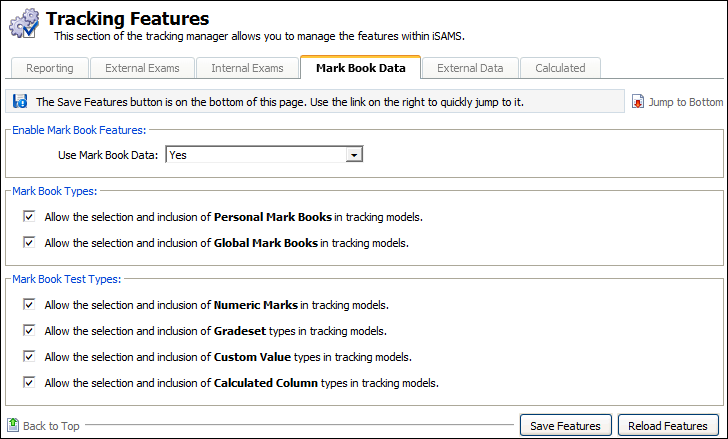
- In Enable Mark Book Features, select Yes to link the module.
- Use the check boxes in Mark Book Types to select marks to link to the Tracking Manager module. Personal Mark Books are those which you have setup and can only be used by you. Global Mark Books can be accessed by all Markbook module users.
- Use the check boxes in Mark Book Test Types to select Tests to link to the Tracking Manager module.
- Click Save Features to save your selections. Click Reload Features to reset the tab to the last saved settings, if required.
External Data
To setup the use of imported data in the Tracking Manage module, follow the steps below:
- Select the Configuration tab and click Tracking Features in the right hand menu.
- Select the External Data tab.
- In Enable External Data Features, select Yes. External data must be in an Excel file.
- Click Save Features to save your selections. Click Reload Features to reset the tab to the last saved settings, if required.
Calculated
To enable the use of calculated columns in your Tracking Models, follow the steps below:
- Select the Configuration tab and click Tracking Features in the right hand menu.
- Select the Calculated tab.
- In Enable Calculated Features, select Yes. Selecting No to Use Calculated Data after you have already used calculated columns does not remove any existing calculated columns in your tracking models.
- Click Save Features to save your selections. Click Reload Features to reset the tab to the last saved settings, if required.