
Use the Pupil Manager module to send an email to a selected group of pupils. You can also choose to send your email to pupil contacts. This is a useful tool for forwarding information quickly.
- In the Pupil Manager module, select a pupil records tab:

- Use your preferred search method to find the pupil records that you want to work with.
The Pupil Records List is displayed:
- Select pupil records using the checkboxes next to each Pupil's Name. Check the box in the header bar to select all the records displayed.
- In the pink drop down list select Email Wizard.
Step 1 of the Email Wizard is displayed:
Choose to send emails to:
Send an E-Mail to Pupils
- Select the Selected students checkbox and click Next.
A popup window is displayed. You are prompted The wizard is complete based on your selections. Do you want to continue with these choices? - Click OK.
The Send E-Mail window is displayed:
- Select the Message tab. Enter the E-mail Subject and use the Merge Template drop down list to select an email template, as required. Compile your email in the text box displayed.
- Select the Recipients tab. Use the checkboxes available to select the recipients of your email. A key is displayed in this tab to help you.
An example of the Recipients tab is shown below:
- Use the Attachments tab to upload attachments to your email, if required.
- Select the Options tab to enter additional recipients for your email. You can also edit the reply address and the priority of your email, as required.
- Click Preview E-Mail to preview and print your email, if required:
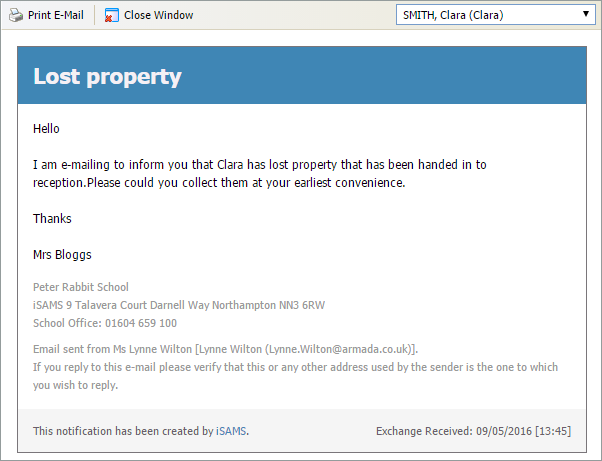
This is useful for checking that the correct merge fields have been selected: - Use the drop down in the top right of the window to jump between pupils in the selection and preview the email. Click Close Window once you have checked the email.
- Click Send E-Mail. A Communication Summary is displayed for you to check that your email has been sent.
- Click Cancel to return to the pupil records list.
Send an E-Mail to Pupil Contacts
Select the Contacts for the selected students checkbox and click Next.
Step 2 of the Email Wizard is displayed:
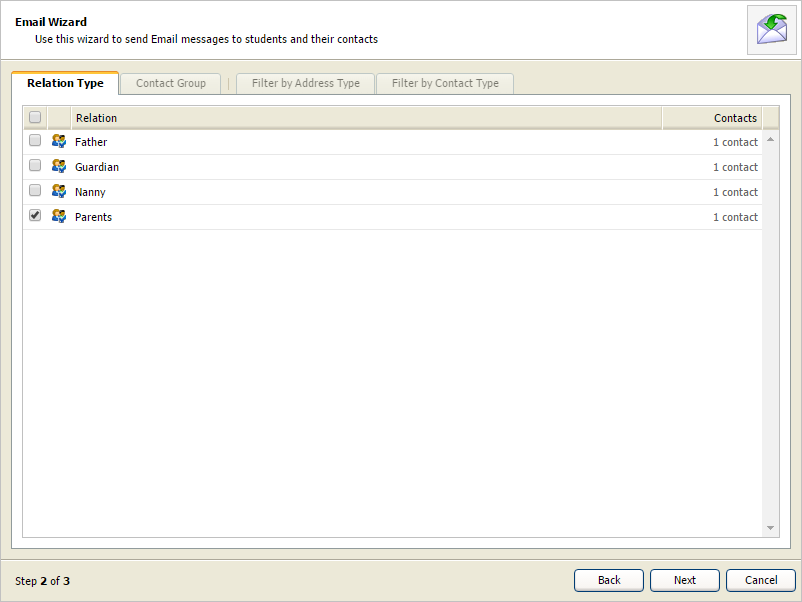
Select the contacts you wish to include in the email correspondence:
Relation Type. Select the relatives who are to be contacted.
- Contact Group. Select contacts linked to a Custom Contact Group.
Filter your selections by:
Address Type. Filter contacts by their address type, such as 'Home' contacts. Only contacts with an address of this address type are sent the email.
Contact Type. Filter contacts by their contact type, such as 'Billing' contacts. Only contacts marked as this contact type in contact records are sent the email.
Click Next.
Step 3 of the Email Wizard displays the filtered contacts: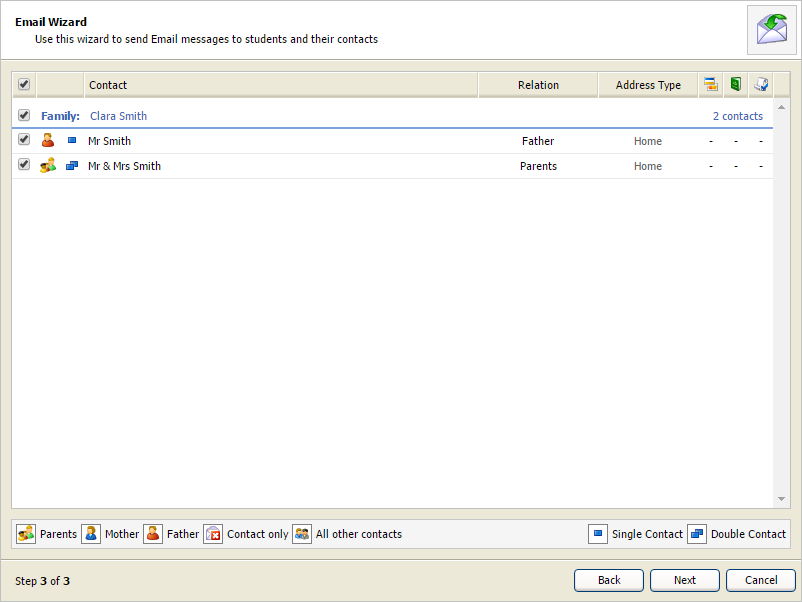
- Use the checkboxes available to select the recipients of your email.
- Click Next.
A popup window is displayed. You are prompted The wizard is complete based on your selections. Do you want to continue with these choices? - Click OK.
The Send E-Mail window is displayed: - Select the Message tab. Enter the E-mail Subject and use the Merge Template drop down list to select an email template, as required. Compile your email in the text box displayed.
- Select the Recipients tab. Use the checkboxes available to select the recipients of your email. A key is displayed in this tab to help you.
An example of the Recipients tab is shown below: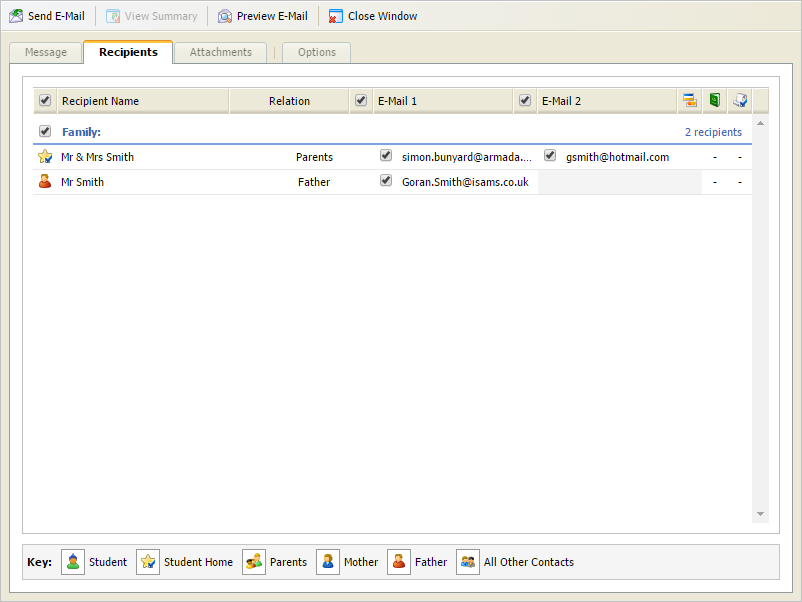
- Use the Attachments tab to upload attachments to your email, if required.
- Select the Options tab to enter additional recipients for your email. You can also edit the reply address and the priority of your email, as required.
- Click Preview E-Mail to preview and print your email, if required.
This is useful for checking that the correct merge fields have been selected: - Use the drop down in the top right of the window to jump between pupils in the selection and preview the email. Click Close Window once you have checked the email.
- Click Send E-Mail. A Communication Summary is displayed for you to check that your email has been sent.
- Click Cancel to return to the pupil records list.