
Use the Room Closures wizard in the wizard bar to view alternative teaching room arrangements for today's date and print them out for convenience. The report generated displays both published and unpublished cover arrangements.
This is available to all iSAMS users including those with no access to the Cover Manager module.
To use the Room Closures wizard:
- Open the Timetable wizard heading in the wizard bar on the right of your desktop:
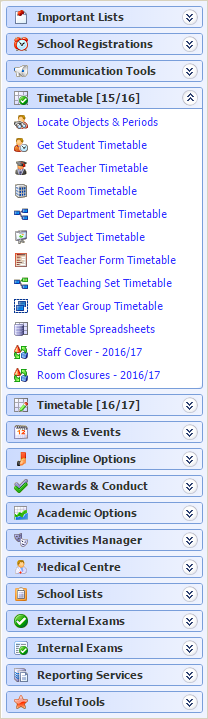

- Use the buttons in the header bar to select the school division that you want to view.
A number of functions are available to you once you have generated the report. Use these to edit the information displayed in the Master Cover Timetable, if required:
Drop down/Button
Explanation

Print a copy of the Master Cover Timetable for your records.

Click if you want to display published cover only. This is useful for checking confirmed cover arrangements.

Click to hide dates with no cover arrangements. This saves space if you have generated a report for an entire term.

Click to introduce a page break between dates in the report. Use this to clarify the information displayed when you have a high number of cover arrangements.
Click Close Window once you have the information that you need.