
Use the Cycle View tab in the Fees Billing module to set up split billing for pupil accounts. Apply bespoke split billing rules to pupil accounts to define how a bill is split between billing contacts. Billing contacts are those pupil contacts who are responsible for settling pupil accounts. Billing contacts are selected in the Pupil Manager module.
Set up sub rules to apply to split billing primary rules. Sub rules enable billing contacts to make a fixed contribution towards another billing contact's financial commitment.
For example, set up primary rules to split a bill equally between parents and grandparents. Then link a sub rule so that a godparent can make a £1000 contribution towards the parent's part of the pupil bill.
Please bear in mind:
- Split billing rules must add up to 100% of a pupil bill before invoices can be produced.
- Billing contacts who are linked to sub rules receive a bill only listing their contribution towards the pupil account.
- Bills do not list detailed information on contributions. For example, a grandparent contribution to music lessons is only listed as a contribution on a pupil bill.
Choose to:
- Create a Split Billing Primary Rule. Select this for the billing contacts who are to pay the bulk of a bill charge.
- Create a Split Billing Sub Rule. Select this for a billing contact who is to make a contribution towards another billing contact's financial commitment. Sub rules can only be set up once a primary rule has been applied to a pupil account.
- Delete a Split Billing Rule. Remove a split billing rule that has been added in error. It is not possible to amend an existing split billing rule. Instead of editing an existing split billing rule you must delete it and add a new rule.
Create a Split Billing Primary Rule
Create split billing primary rules for each of the billing contacts who are to settle the bulk of a pupil account.
To set up a split billing primary rule, follow the steps below:
- Select the Cycle View tab in Fees Billing and open the Navigation tab displayed on the right of the screen.
- Select Single Pupil Views from the Navigation tab to display the Single Pupil View screen.
- Use the filters available to refine your search and select the pupil record that you want to edit.
- Select the Split Billing tab:
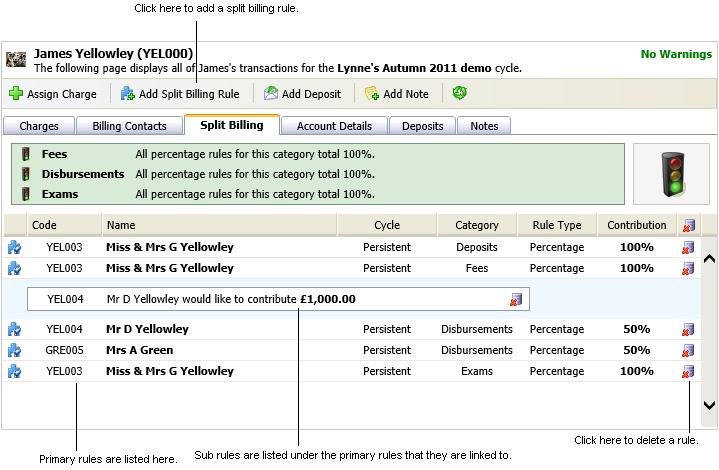
- Click Add Split Billing Rule.
Step 1 of the wizard is displayed for you to work through: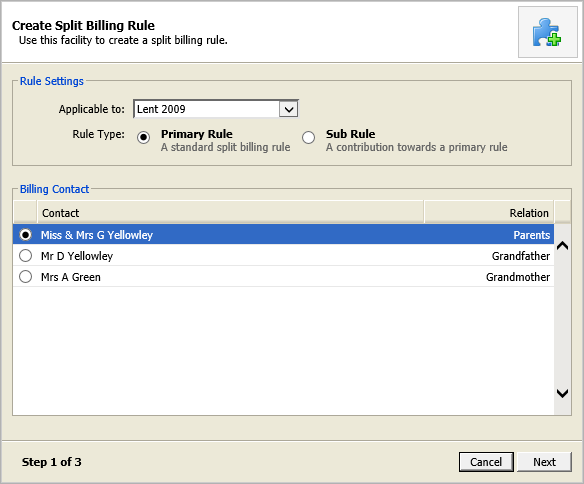
- Use the drop down list to select a billing cycle for the split billing rule. You can choose for the split billing rule to apply to all cycles if required.
- Select Primary Rule.
- Select the billing contact that the rule is apply to and click Next.
Step 2 of the wizard is displayed: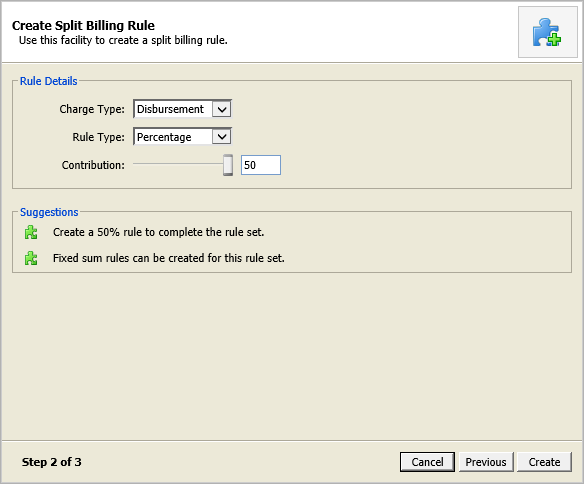
Suggestions are listed to help you complete step 2. - Select a Charge Type and Rule Type from the drop down lists displayed.
- Enter a Contribution value. The field displayed here changes according to your Rule Type selection. The percentage slider moves to reflect the percentage of the charge that is still to be covered by the rule.
- Click Create to complete the wizard:

- Click either:
- Restart if you want to add more split billing rules.
or - Finish to close the wizard.



- Restart if you want to add more split billing rules.
Create a Split Billing Sub Rule
Create a split billing sub rule for a billing contact who is to make a contribution towards another billing contact's financial commitment. Sub rules can only be set up once a primary rule has been applied to a pupil account.
To set up a split billing sub rule, follow the steps below:
- Select the Cycle View tab in Fees Billing and open the Navigation tab displayed on the right of the screen.
- Select Single Pupil Views from the Navigation tab to display the Single Pupil View screen.
- Use the filters available to refine your search and select the pupil record that you want to edit.
- Use the drop down list in the top right of the screen to select the billing cycle that you want to work with:

The default billing cycle is displayed first, only active cycles are listed. - Select the Split Billing tab:
- Click Add Split Billing Rule.
Step 1 of the wizard is displayed for you to work through: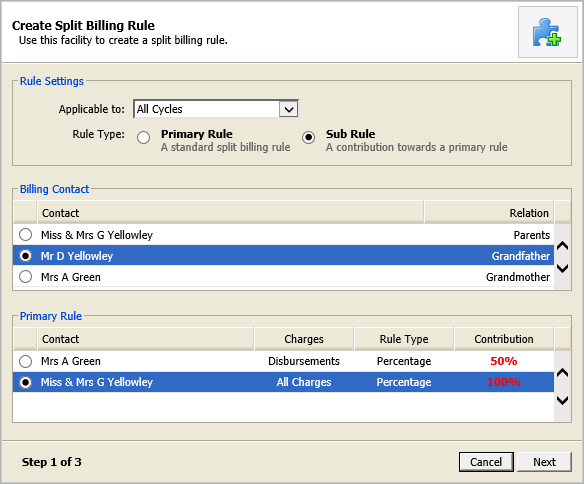
- Use the drop down list to select a billing cycle for the split billing rule.
- Select Sub Rule.
- In the Billing Contact section, select the billing contact that the sub rule is apply to.
- Link the sub rule to a primary rule in the Primary Rule section and click Next.
Step 2 of the wizard is displayed: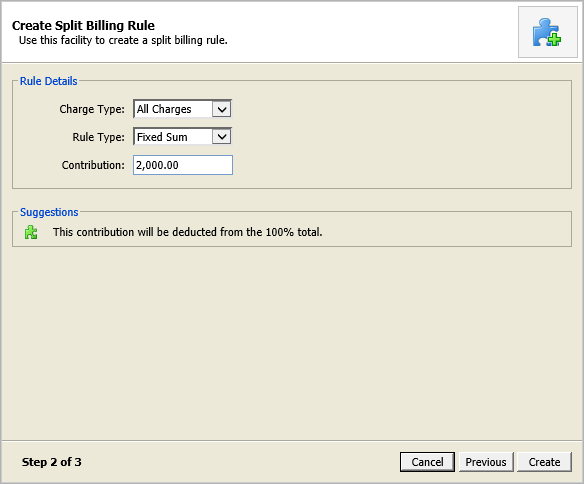
Suggestions are listed to help you complete step 2. - Select a Charge Type and Rule Type from the drop down lists displayed. You can only select 'Fixed Sum' for sub rules.
- Enter a Contribution value.
- Click Create to complete the wizard:
- Click either:
- Restart if you want to add more split billing primary rule or sub rules.
or - Finish to close the wizard.
- Restart if you want to add more split billing primary rule or sub rules.
Delete a Split Billing Rule
Remove a split billing rule that has been added in error. Choose to delete primary or sub rules. It is not possible to amend an existing split billing rule. You must delete it and add a new rule.
To delete a split billing rule, follow the steps below:
- Select the Cycle View tab in Fees Billing and open the Navigation tab displayed on the right of the screen.
- Select Single Pupil Views from the Navigation tab to display the Single Pupil View screen.
- Use the filters available to refine your search and select the pupil record that you want to edit.
- Use the drop down list in the top right of the screen to select the billing cycle that you want to work with:
The default billing cycle is displayed first, only active cycles are listed. - Select the Split Billing tab:
- Locate the split billing rule that you want to delete and click
 .
.
You are prompted Are you sure you want to delete this primary rule/contribution?
Any sub rules linked to a primary rule are also removed. - Select OK.
The split billing rule is removed.