
Use the Manage tab in the Data Protection module to add new data requests and manage existing data requests. This is a useful log of requests for information held in iSAMS.
- Open the Data Protection module and select the Manage tab.
Select Data Subject Access Request from the right hand menu:

Choose to:

- Click Create DSAR ('Data Subject Access Request') in the header bar. The screen changes to display subject filters:
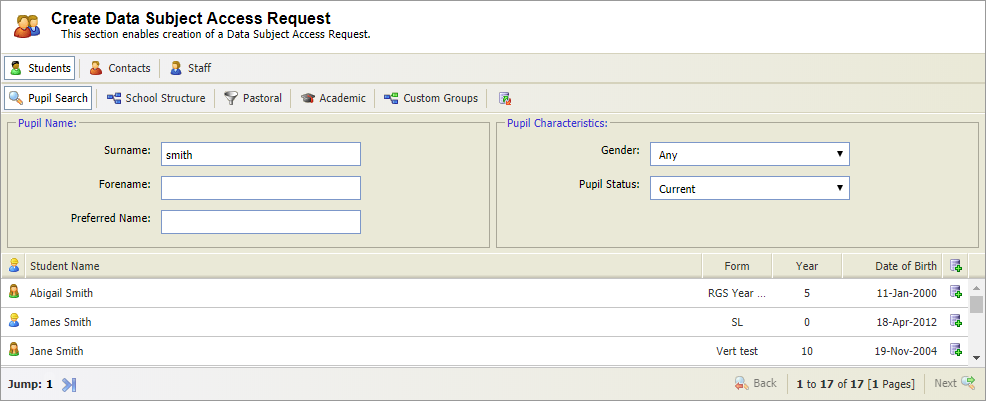
- In the header, select the subject (students, student contacts or staff members) that you want to work with.
Search for the records that you want to work with:
Data is pulled in from the Pupil Manager module and the Admissions module.
Click Students:

Use the filters shown to search for the records that you want to work with:
Filter Search by... Pupil Search Pupil name, gender and status. Click Enter once you have populated any of the Pupil Name fields.
School Structure - Year.
- Form Group.
- Boarding House.
Hold Ctrl to make multiple selections in each list.
Use these filters, for example, to search for Year 10 students from a selected boarding house.
Pastoral - Pastoral Tutor.
- Form Tutor.
- Year Tutor.
Hold Ctrl to make multiple selections in each list.
Select to display your selected tutor's students.
Academic - Department.
- Subject.
- Set.
Hold Ctrl to make multiple selections in each list.
Use these filters, for example, to search for students in a selected Art set.
Custom Groups Custom pupil group, such as a group for a school trip.

Click to clear any filters currently selected.
Data is pulled in from the pupil contacts listed the Pupil Manager module and Admissions module.
- Click Contacts:
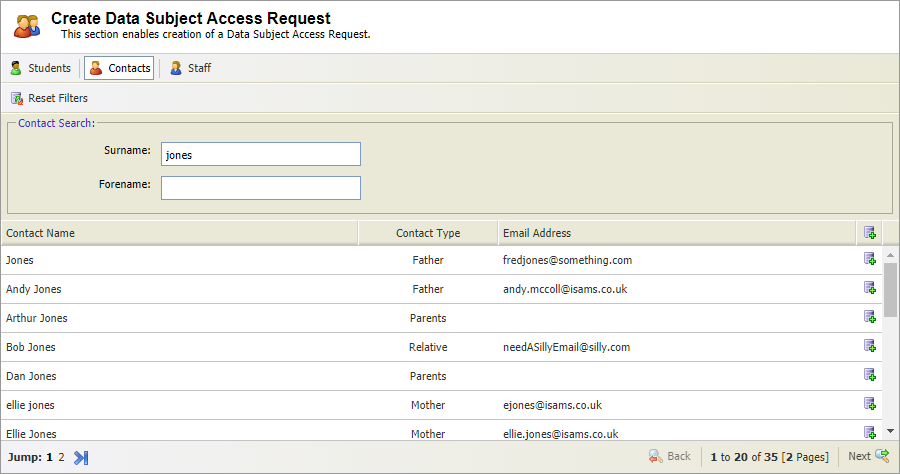
- Enter the name of the contact in the Contact Search fields.
- Click Enter.
Data is pulled in from the Human Resources Manager module.
- Click Staff:
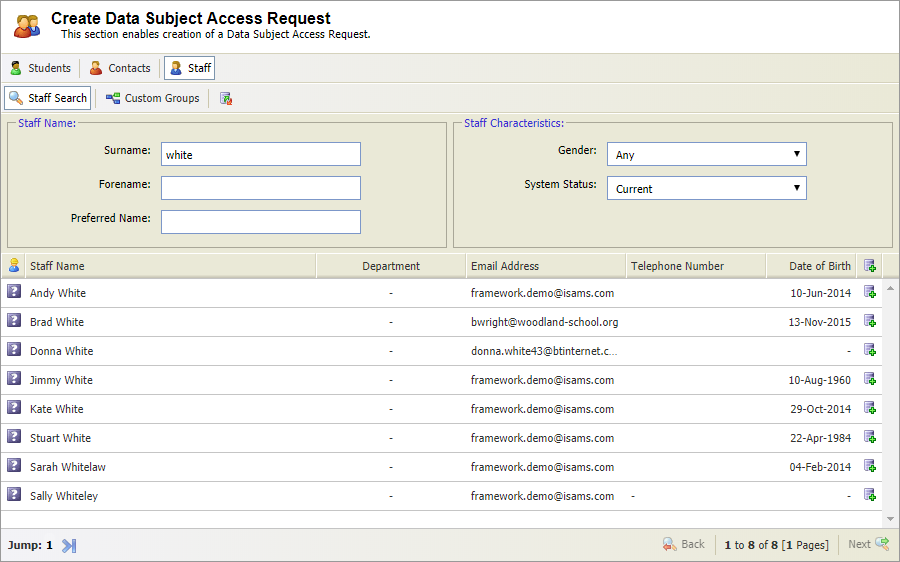
Use the filters shown to search for the records that you want to work with:
Filter Search by... Staff Search Staff name, gender and status. Click Enter once you have populated any of the Staff Name fields. Custom Groups Custom staff groups, such as staff social group. Click to clear any filters currently selected.
Your selected records are displayed.
- Use the navigation tools at the bottom of the screen to find the records that you want to work with.
- Click
 in your selected record and click OK in the popup box displayed to open the next screen: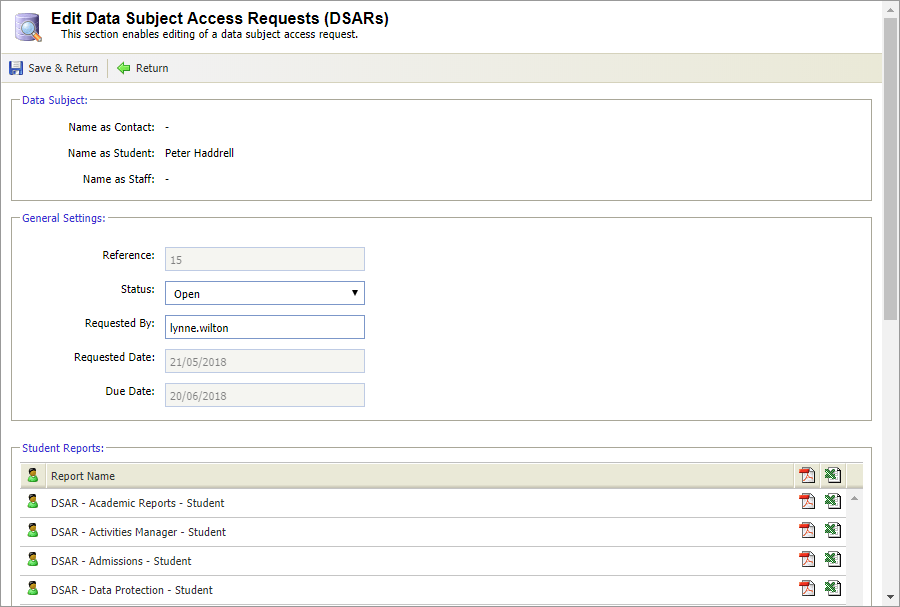
A unique reference number is automatically generated and display in the Reference field. - Select the Status of the data request.
Requested Date and Due Date of the request cannot be changed. - Click Save & Return.
The data request is now listed in the Manage tab and the Overview tab.
- Search for the record that you want to update using either:
- DSAR Search. Enter the unique reference number of the data request you want to work with.
or - Data Subject Search. Enter the name of the subject (student, student contact or staff member) that you want to work with.
- DSAR Search. Enter the unique reference number of the data request you want to work with.
- Use the navigation tools at the bottom of the screen to find the records that you want to work with.
- Click
 in your selected record.
 - Select the new Status of the data request and change the user in the Requested By field, if required.
Requested Date and Due Date of the request cannot be changed. - Click Save & Return.
The updated data request is now listed in the Manage tab and the Overview tab.
- Search for the record that you want to work with using either:
- DSAR Search. Enter the unique reference number of the data request you want to work with.
or - Data Subject Search. Enter the name of the subject (student, student contact or staff member) that you want to work with.
- DSAR Search. Enter the unique reference number of the data request you want to work with.
Use the navigation tools at the bottom of the screen to find the records that you want to work with.
Click
 in your selected record.
All modules in iSAMS which contain personal data are listed at the bottom of the screen.Reports are not available for the Medical Centre, Sanitorium Manager and Pastoral Manager as these may contain sensitive information. Data in these modules can only be accessed in the modules by users with the appropriate access permissions.
Scroll to the report that you want to download and click the icons to download as a PDF or Excel file.
Choose to edit Excel files before forwarding to recipients. This is useful for adjusting the look of the report or removing sensitive information about other pupils or teachers before forwarding.
- Print or save the report as required.
- Click Create DSAR ('Data Subject Access Request') in the header bar. The screen changes to display subject filters: