
Use the Marketing tab in the Admissions Module to upload documents, such as your school prospectus, into iSAMS. Documents are held in folders which must be created before you upload. Once uploaded, selected documents can be logged as sent to applicants, see Logging a Sent Prospectus and Sending a Prospectus for more information.
Choose to:
- Upload a document.
- Edit a document. Change the name of a document or add a description to clarify its use.
- Archive a document. Change the status of document. Archived documents cannot be selected from an applicant record.
- Un-archive a document.
- Delete a document. Delete admissions literature documents that are obsolete or have been added in error.
Upload a Document
To upload an admissions document, follow the steps below:
- Open the Marketing tab in the Admissions module and select Manage Admissions Literature from the right hand menu:

- Click on the folder that you want to use. The User Options section is displayed.
- Click Upload Document. A popup window is displayed:

- Click Browse and select a document to upload from your computer.
- Click Upload Document.
The document is listed in your selected folder and can now be selected in an applicant record.
Edit a Document
Change the name of a document or add a description to clarify its use.
To edit an admissions document, follow the steps below:
- Open the Marketing tab in the Admissions module and select Manage Admissions Literature from the right hand menu:

- Click
 next to the folder that you want to use. All the documents in the folder are displayed.
 - Click on the document that you want to edit. The User Options section is displayed.
- Click Edit Document. A popup window is displayed:

- Edit the name of the document. This is useful if the original file name does not make the content of the file very clear.
- In the Description field, add further details about the document's use.
- Use the Archived field to change the status of a document. Select 'Yes' to archive a document that you do not want to be selected in an applicant record. This is useful for out of date documents listed in a file.
- Click Save & Close.
The amended document is listed in the Manage Admissions Literature screen.
Archive a Document
Change the status of document. Archived documents cannot be selected from an applicant record.
To archive an admissions document, follow the steps below:
- Open the Marketing tab in the Admissions module and select Manage Admissions Literature from the right hand menu:
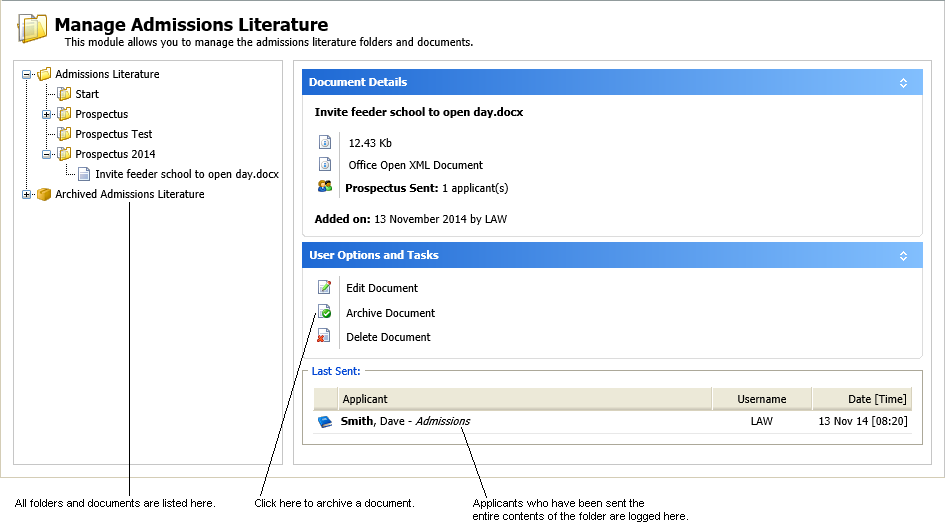
- Click next to the folder that you want to use. All the documents in the folder are displayed.
- Click on the document that you want to edit. The User Options section is displayed.
- Click Archive Document.
You are prompted: Are you sure you want to archive this document? - Select Yes.
The document is inactive.
Un-Archive a Document
Change the status of document. Archived documents cannot be selected from an applicant record.
To un-archive an admissions document, follow the steps below:
- Open the Marketing tab in the Admissions module and select Manage Admissions Literature from the right hand menu:

- Click next to the folder that you want to use. All the documents in the folder are displayed.
- Click on the document that you want to edit. The User Options section is displayed.
- Click Un-Archive Document.
You are prompted: Are you sure you want to un-archive this document? - Select Yes.
The document is active for use.
Delete a Document
Delete admissions literature documents that are obsolete or have been added in error.
Any documents that you delete are removed from the Marketing tab permanently. Deleted documents are also removed from any logs in applicant records.
To delete an admissions document, follow the steps below:
- Open the Marketing tab in the Admissions module and select Manage Admissions Literature from the right hand menu:
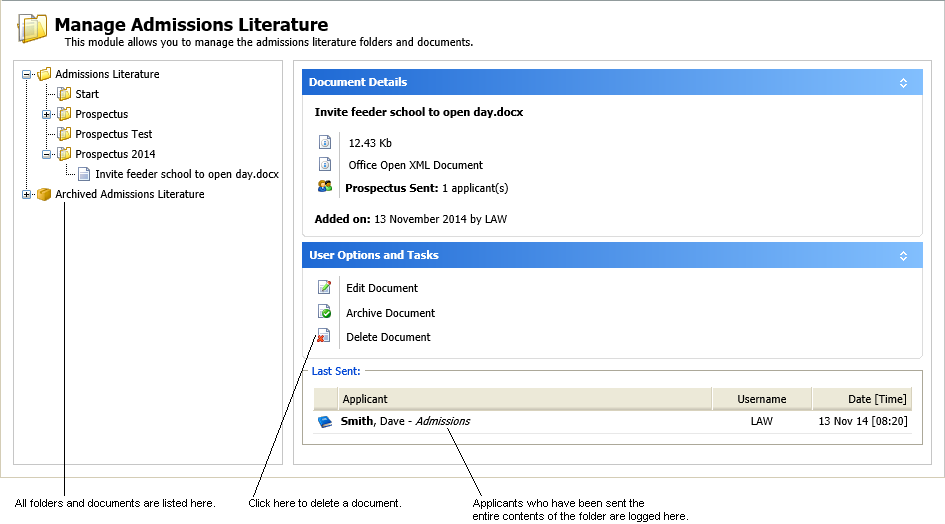
- Click next to the folder that you want to use. All the documents in the folder are displayed.
- Click on the document that you want to delete. The User Options section is displayed.
- Click Delete Document.
You are prompted Are you sure you want to delete this document? - Select Yes.
The document is removed from iSAMS.