
Use the Subject View tab in the Teaching Manager module to print, export or email a form list in your preferred format. This is useful for sending out form lists to users with no access to the Teaching Manager module.
- Print function is available wherever you see the
 icon in the Subject View tab.
 - Export function is available wherever you see the
 icon in the Subject View tab.
Step 1: Print or Export a Form List
To print or export a form list, follow the steps below:
- In the Teaching Manager module, select the Subject View tab:

- Use the drop down lists in the top right of the screen to select the:
- Academic year that you want to work with.
- School divisions that you want to work with.
- Status of the subjects that you want to work with.
- Locate the subject that you want to work with and click Edit Forms.
The Form List screen is displayed: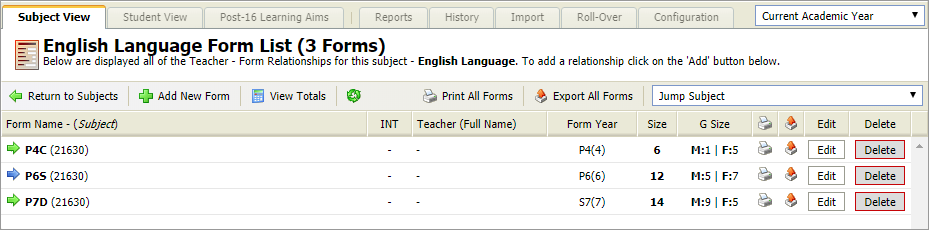
- Click
 Export All Forms in the header bar.
The Form Selection window is displayed: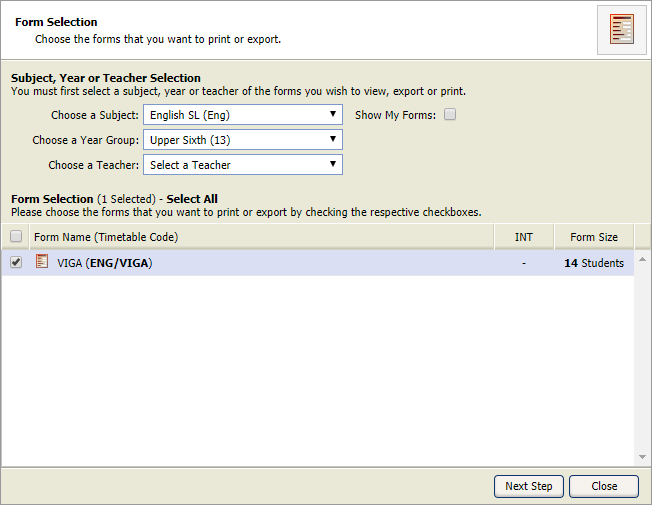
- Use the drop down lists and checkbox to filter the forms displayed:
- Subject. Choose to list forms for a selected subject.
- Year Group. Choose to list forms for a selected year group.
- Teacher. Choose to list forms for a selected teacher.
- Show My Forms. Check this box to list forms that you are teaching.
- Either:
- Use the checkboxes on the left to select forms.
or - Click Select All to select all the forms displayed.
- Use the checkboxes on the left to select forms.
- Click Next Step to move on.
Step 2: Print or Export a Form List
Once you have selected a form list you must select the fields that you want to include. You can then select a format for your export or printed output.
An example of the Field Selection window is displayed below:
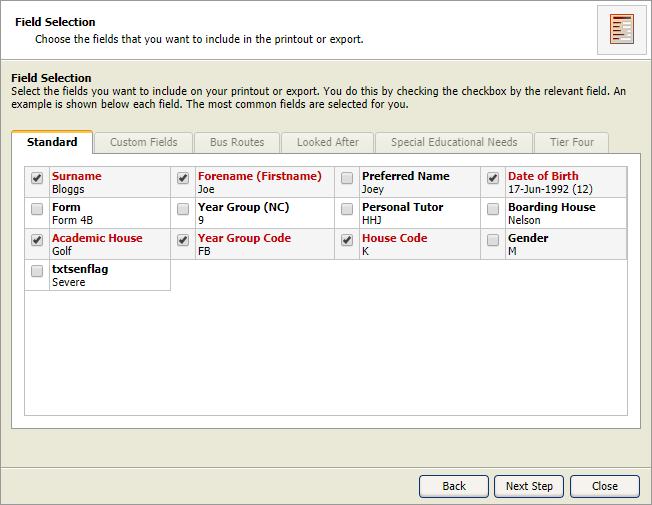
- Work through the tabs available, using the checkboxes to select the fields that you want to include in your form list.
- Click Next Step.
The Format Selection and Email Options window is displayed: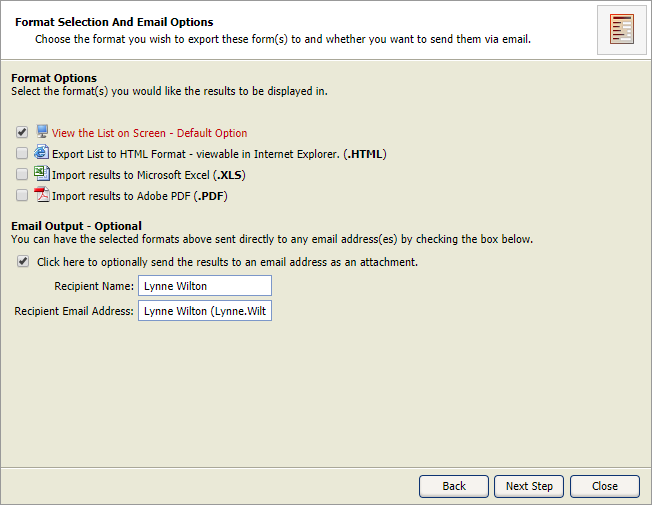
- Check the boxes to select a format for your form list. More than one format can be selected.
- Check the Email Output box if you want to email the form list. This is optional.
- Enter Recipient Name.
- Enter Recipient Email Address.
- Click Next Step.
- Either:
- Your form is displayed, ready for printing.
or
- The Download and View Results window is displayed:

- Click on a link to view the form list in your chosen format.
- Your form is displayed, ready for printing.
- Click Finish to return to the Form List screen.