
Use the Subject View tab in the Teaching Manager module to edit a subject's name or properties. For example, select a subject to be active once it is ready for use. You can also edit the teachers listed for a subject.
Choose to:
- Edit subjects in detail. Use this option if you need to change a subject's properties.
- Edit subjects in bulk. Edit subject names and codes. This is not recommended once you have started to use subjects in your timetable.
- Delete a subject. Remove subjects from iSAMS which are not in use.
- Edit a Head of Department.
- Edit a Head of Subject.
- Edit subject teachers.
Edit Subjects
Edit subjects in detail. Use this option if you need to change a subject's properties or the departments it is allocated to.
To edit a subject, follow the steps below:
- In the Teaching Manager module, select the Subject View tab:

- Use the drop down lists in the top right of the screen to select the:
- Academic year that you want to work with.
- School divisions that you want to work with.
- Status of the subjects that you want to work with.
- Locate the subject that you want to work with and click Edit Subject.
A popup window is displayed: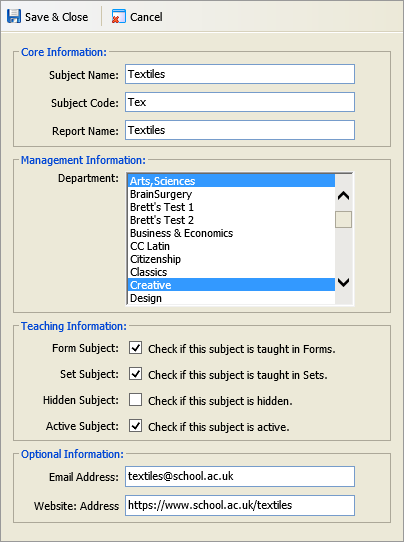
- In the Core Information section edit:
- The Subject Name and Subject Code. Use clear and concise terms. Only edit these if the subject is not yet in use in your timetable.
- The subject's Report Name. This identifies the subject in each pupil's school report.
- Select a department in the Management Information section. Hold Ctrl to select more than one department. The subject is listed under each department you select.
Use the checkboxes in the Teaching Information section to select properties for the subject:
Checkbox
Check to indicate that the subject is...
Form Subject
Taught in form groups.
Set Subject
Taught in teaching sets.
Hidden Subject
This is option is not currently in use.
Active Subject
This is option is not currently in use.
Enter an email and website address for the subject; this is optional. This is useful if the department has a shared email address for correspondence and a URL where users can access subject documentation.
- Click
 Save & Close to return to the Subject List screen.
Group Edit Subjects
Use the Group Edit function in the Teaching Manager module to edit subject names and codes in bulk. This is not recommended once you have started to use subjects in your timetable.
To use the Group Edit function, follow the steps below:
- In the Teaching Manager module, select the Subject View tab.
- Use the drop down lists in the top right of the screen to select the:
- Academic year that you want to work with.
- School divisions that you want to work with.
- Status of the subjects that you want to work with.
- Click
 Group Edit in the header bar.
The Group Edit Subjects window is displayed:
- Select the field that you want edit and change the Subject Name and Subject Code. Tab through the fields and edit, as required.
- Click Save & Close to return to the Subject View screen.
Delete a Subject
Remove subjects from iSAMS which are not in use.
Do not delete subjects which are active and in use. Deleted subjects are removed from all associated timetables. All links to staff and pupils are also deleted.
To delete a subject, follow the steps below:
- In the Teaching Manager module, select the Subject View tab.
- Use the drop down lists in the top right of the screen to select the:
- Academic year that you want to work with.
- School divisions that you want to work with.
- Status of the subjects that you want to work with.
- Locate the subject that you want to work with and click Delete.
You are prompted Are you sure you want to delete this subject and all sets, forms and teachers related to it? - Select OK.
The subject is deleted from iSAMS.