
Use the Cycle View tab in Fees Billing to list all batches of transactions posted to pupil accounts. All charges and discounts posted to pupil accounts are given a batch number. The batch number identifies the date and time of the transaction.
Select the Batch View option from the navigation menu to list all batches. This is useful for auditing purposes, you can view the total amount being billed for each batch of charges and discounts.
Choose to:
An example of the Batch View option is shown below:
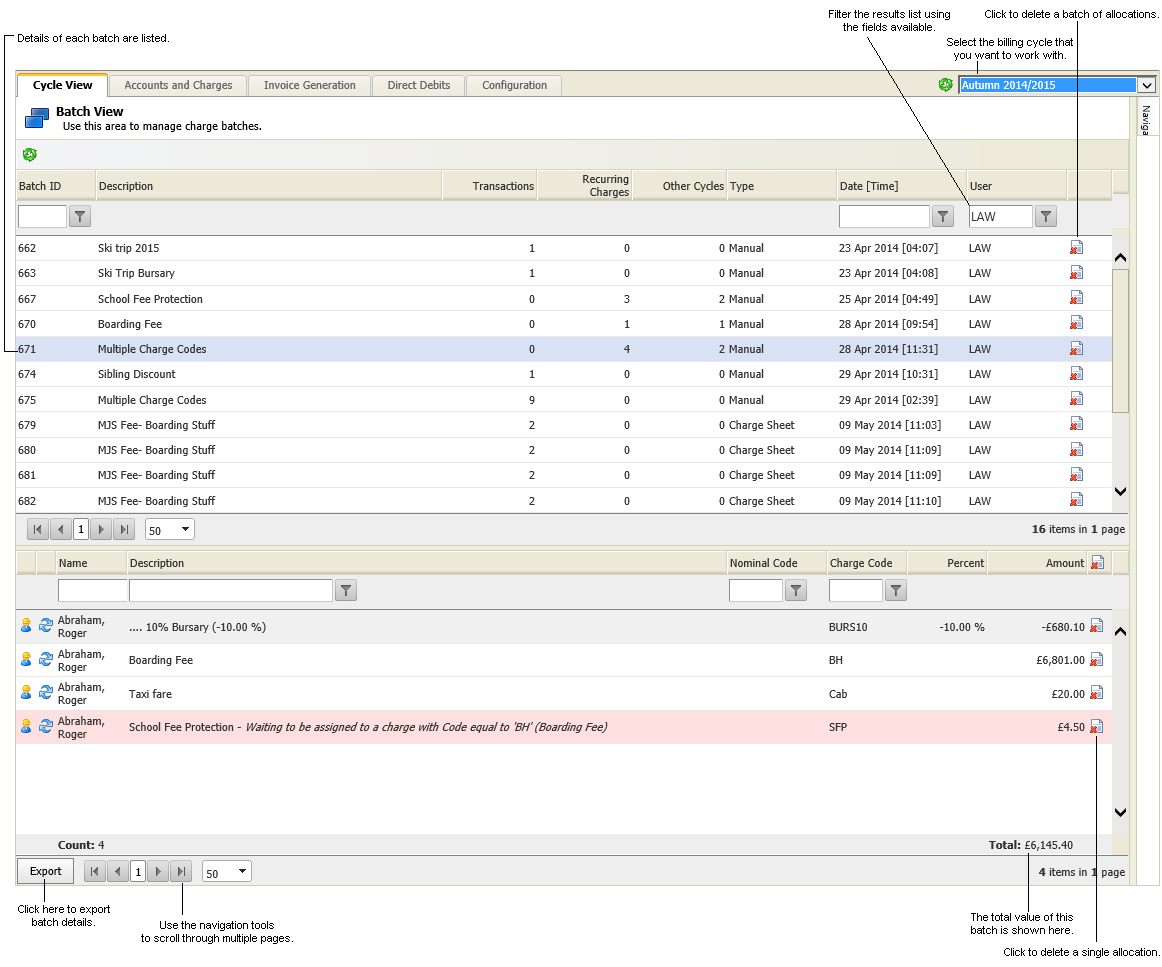
View and Export Batch Details
To view and export batch details, follow the steps below:
- Select the Cycle View tab in Fees Billing and open the Navigation tab displayed on the right of the screen.
- Select Batch View from the Navigation tab to display the Batch View screen.
- Use the drop down list in the top right of the screen to select the billing cycle that you want to work with:

- Use the search filters to refine the list of batches displayed, if required:

This is useful if a high number of batches are listed.- Type in all or part of the field name.
- Click
 and select the filter that you want to apply.
- Click on your selected batch to display all the charge and discount transactions. Transactions are displayed in the bottom half of the screen:
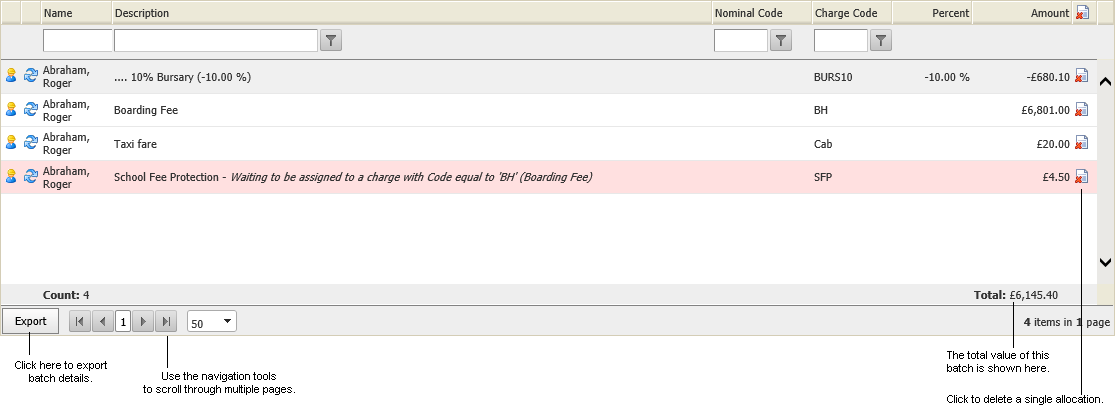
- Use the search filters to refine the list of transactions displayed, if required.
This is useful if a high number of transactions are listed.- Type in all or part of the field name.
- Click and select the filter that you want to apply.
- Click Export in the bottom left of the screen and select an export format.
- Open or Save the file, as required.
Delete a Batch
To delete an entire batch of transactions, follow the steps below:
- Select the Cycle View tab in Fees Billing and open the Navigation tab displayed on the right of the screen.
- Select Batch View from the Navigation tab to display the Batch View screen.
- Use the drop down list in the top right of the screen to select the billing cycle that you want to work with:
- Use the search filters to refine the list of batches displayed, if required:
This is useful if a high number of batches are listed.- Type in all or part of the field name.
- Click and select the filter that you want to apply.
- Locate the batch that you want to delete and click
 .
.
The message displayed varies depending on whether the batch includes recurring charges or not. - Select the appropriate answer to the message displayed.
The batch of transactions is removed from pupil accounts.
Delete a Single Transaction
To delete a single charge or discount from the Batch View option, follow the steps below:
- Select the Cycle View tab in Fees Billing and open the Navigation tab displayed on the right of the screen.
- Select Batch View from the Navigation tab to display the Batch View screen.
- Use the drop down list in the top right of the screen to select the billing cycle that you want to work with:
- Use the search filters to refine the list of batches displayed, if required
This is useful if a high number of batches are listed.- Type in all or part of the field name.
- Click and select the filter that you want to apply.
- Click on your selected batch to display all the charge and discount transactions. Transactions are displayed in the bottom half of the screen.
- Use the search filters to refine the list transactions displayed, if required:

This is useful if a high number of transactions are listed.- Type in all or part of the field name.
- Click and select the filter that you want to apply.
- Locate the transaction that you want to delete and click .
You are prompted Are you sure you want to delete this transaction? - Select OK.
The transaction is removed from the pupil account.