
Tracking User Defaults
This option is not currently in use. See Setup My Model Preferences for help setting up default display options in the Manage Models tab.
Tracking Model Defaults
Setup default features for new Tracking Models to suit you. For example, select the Models Sidebar to be expanded each time you setup a new Tracking Model.
An example of the Tracking Model Defaults option is shown below:

An example of how your Tracking Model Default selections are displayed in the Manage Models tab is shown below:

Use the functions available in the Tracking Model Default screen to:
- Add a Model Default. Choose from a predefined list of features to add as Model Defaults.
- Edit a Model Default. Change the status of your Model Defaults.
- Delete Model Defaults. Remove any Model Defaults you have setup in the module.
- Export Model Defaults. Export all of the Model Defaults save a backup file of the Model Defaults that you use. This is useful if you have to re-install the module at any point. Your Model Defaults have to be setup again following a re-install.
- Import Model Defaults. Import all the Model Defaults from an external source into iSAMS. This is useful when you have had to re-install the Tracking Manager Module. Import the Model Defaults that you have previously exported to a backup file.
Add a Model Default
To add a Model Default, follow the steps below:
1. In the Configuration tab, select Tracking Model Defaults from the right hand menu.
The Tracking Model Defaults screen is displayed.
2. Click  .
.
The Create Model Default window is displayed:
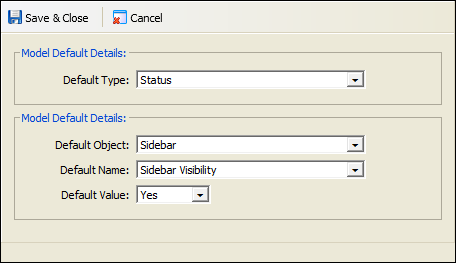
3. Select the Default Type from the drop down list. This is the property or feature available in your Tracking Model.
4. Complete the sections available in the Model Default Details section:
Section | Explanation |
Default Object | Select the feature that you want to work with. |
Default Name | Select a name for the Default Object. |
Default Value | Select Yes for the feature to be available by default when you setup a Tracking Model. Selecting Yes lists the Model Default as 'true' in the Tracking Model Defaults screen. |
5. Click  Save & Close.
Your Model Default is listed in the Tracking Models Default screen.
Edit a Model Default
To edit the status of the Model Default, follow the steps below:
1. Click  in the Model Default you want to edit.
The Edit User Default window is displayed. An example is shown below:

2. Edit the Default Value as required. Select Yes for your selected feature to be available by default when you setup a Tracking Model. Selecting Yes lists the Model Default as 'true' in the Tracking Model Defaults screen.
3. Click Save & Close.
The changes you make are displayed in the Tracking Model Defaults screen.
Delete Model Defaults
Choose to delete one or all of the Model Defaults from the Tracking Manager Module.
To delete Model Defaults, follow the steps below:
Either:
1. Click  in your selected Model Default from the Tracking Model Defaults screen.
You are prompted Are you sure you want to delete this model default?
2. Select Yes.
Your selected Model Default is removed from the module.
or
1. Select  .
.
You are prompted Are you sure you want to delete all the model defaults?
2. Select Yes.
All Model Defaults are removed from the module.
Export Model Defaults
Export all of the Model Defaults to save a backup file of the Model Defaults that you use.
To export Model Defaults, follow the steps below:
1. Select  in the Tracking Model Defaults screen.
You are prompted Do you want to open or save model_defaults.xml...?
2. Open or Save the file as you require. Your Model Defaults are exported as an XML document.
If you have selected to save the file, you are prompted when the download is complete.
Import Model Defaults
Import all the Model Defaults from an external source into iSAMS.
To import Model Defaults, follow the steps below:
1. Select  in the Tracking Model Defaults screen.
The Upload Model Defaults window is displayed. An example is shown below:

2. Click Browse and select the file you want to import. The file you select must be an XML document.
3. Click  .
.
You are prompted when the import is complete.
4. Click OK.
Your imported Model Defaults are listed in the Tracking Model Defaults screen.