
Use the Send SMS Message option to send an SMS message directly from the SMS Gateway applet.
Sending messages from the applet gives you more setting options than sending directly from a module or the shortcut in the wizard menu. For example, you can set a batch category and batch name for the message. This is a useful housekeeping tool.
To use Send SMS Message:
- Select the iSAMS Control Panel from the left hand menu.
- Select the SMS Gateway listed within the applets available.
- Select Send SMS Message from the right hand menu to display this screen:

- Select the Message Details tab and enter the recipient's mobile number and the body of the message.
- Use the Message Settings checkbox if required. A description of this setting is shown on screen. Sending a message as a unicode string reduces the character limit of a message from 140 to 70.
- Select the Message Options tab:
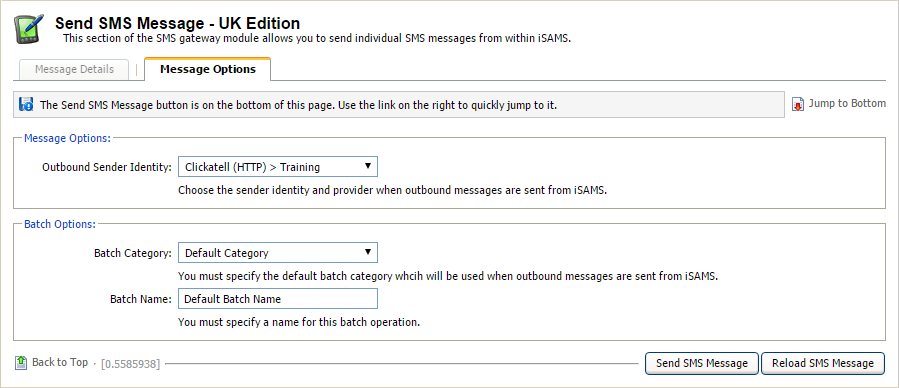
- Set the:
- Outbound Sender Identity. SMS message recipients see the selected Sender Identity as the caller ID. If a virtual number is selected here, the recipient only sees the number in caller ID (the message may need to be clear that it is from your school). Use virtual numbers if you want the recipient of the message to reply.
- Batch Category. All SMS messages are sent in batches which are listed under a category. Select a category here.
- Batch Name. All SMS messages are sent in batches from iSAMS to your outbound provider ready for delivery to recipients. You can add your own batch name here.
- Click Send SMS Message.
A log of the message is kept in Outbound Gateway Logs.