
Use the Week View tab in the Registration module to display registration records by a selected week. The display is similar to a traditional paper based register. You can amend registration records and make future absence entries in this tab.
To use the Week View tab, follow the steps below:
Open the Registration module and select the Week View tab:
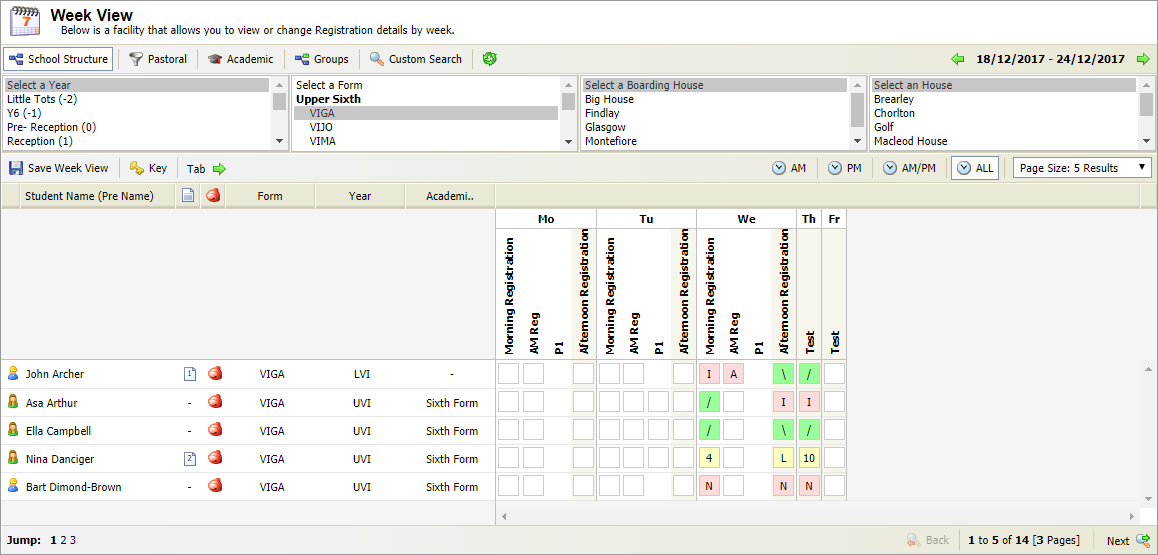
The Week View tab can be set up to suit your school and it may appear different to the example shown.
Use the filters available to select the group of students that you want to work with:

Fewer records on display reduces the time it takes to update any changes made to them.
Select the date and registration period that you want to work with (select a future date if you want to mark future absence):

- Use the Page Size drop down list on the right of the screen to control the number of records displayed on each page. This is optional.
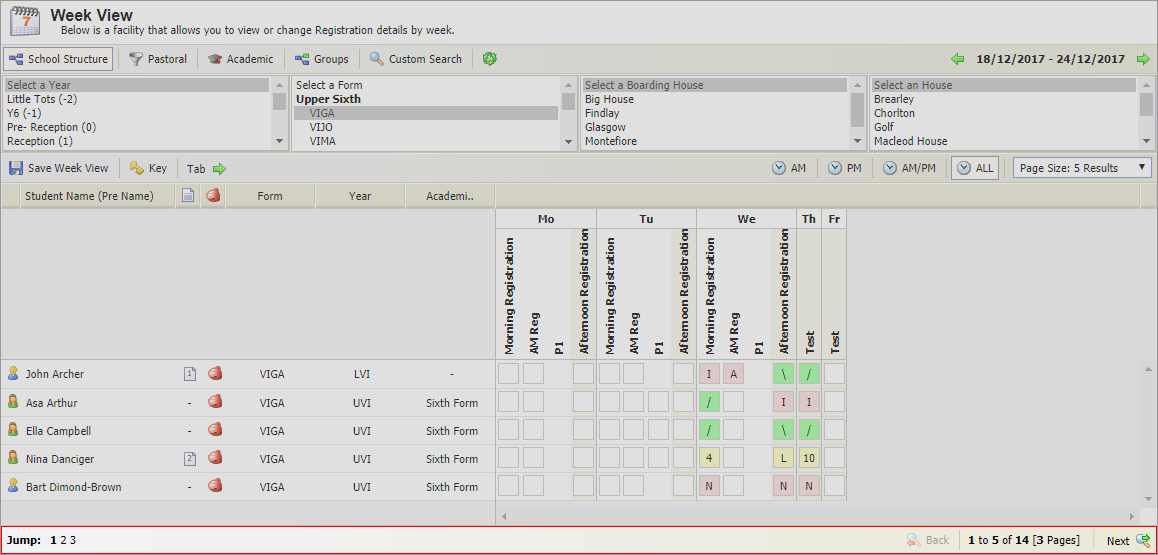
Use the navigation tools to find the record that you want to work with:
- Registration records are listed in alphabetical order.
- Marker boxes for students that have been registered are highlighted a colour to reflect registration status. The colours used are set up in the Configuration tab, in this example:
- Absent = pink.
- Present = green.
- Late = yellow.
- Students marked absent in the Out of School tab are highlighted purple. You cannot change this status.
- Click
 Key to see more information on the colours used in your register.
Choose to:
- Click Tab
 to select the direction you want to move through the marker boxes in the register.
 - Click in your selected marker box and mark the registration status of the student:
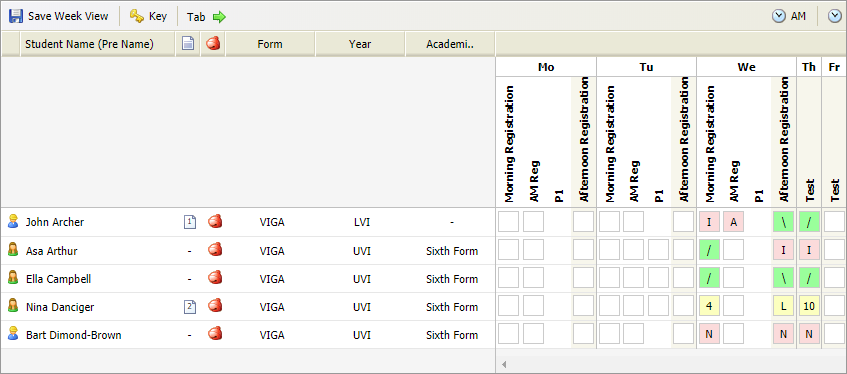
- Either:
- Key / or \ to mark a student present.
or - Enter the number of minutes that a student is late for registration.
or - Use the registration codes set up in the Configuration tab to mark a student absent for more information.
- Key / or \ to mark a student present.
Press the tab key on your keyboard to move to the next marker box and type in the next registration code.
- A warning will pop up in your screen if you use an incorrect registration code or close the tab before saving changes.
- When entering a late a 0 denotes a late with no minutes specified. If the L absent code has been set to be unavailable for this view then an L is shown in the place of the 0.
- Continue to move through the page using your keyboard Tab key until you have completed the changes you want to make on this page. You can only work and save one page on the register at a time.
- Click Save Week View.
- If more that one page of students is available from your selection, use the navigation tools at the bottom of the page to move to the next page of students.
- Continue to mark each student's attendance and save each page.
Click
 in your selected student, where displayed: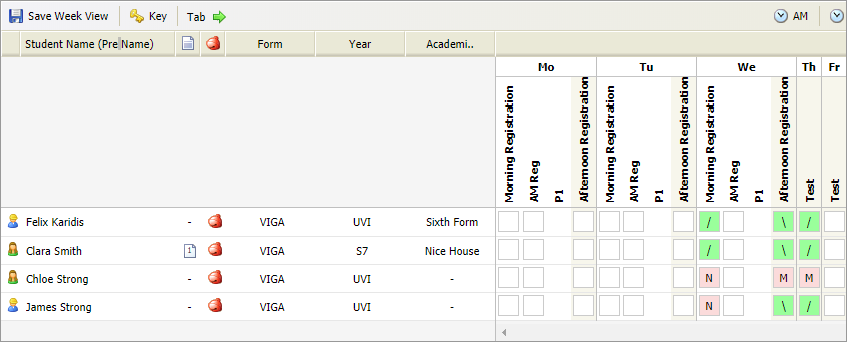
The student note is displayed: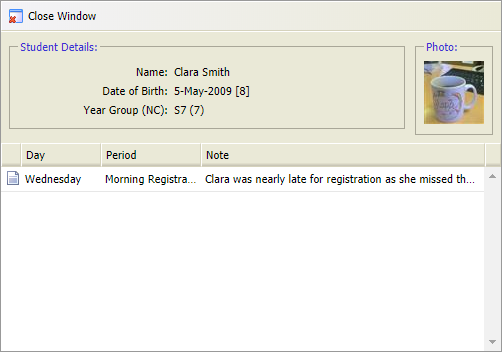
- Notes can be viewed by anyone with access to the register. A note will only display in the register it has been added to. Use this function to communicate to other users, for example the reason why a student is late for registration
- This is different to a Registration Note.
Future absence functions are setup in the Configuration tab.
Mark a student's future absence using either the:
Using the Future Absence Wizard
- Click
 in the student registration record you want to use.
The Create Future Absence window is displayed: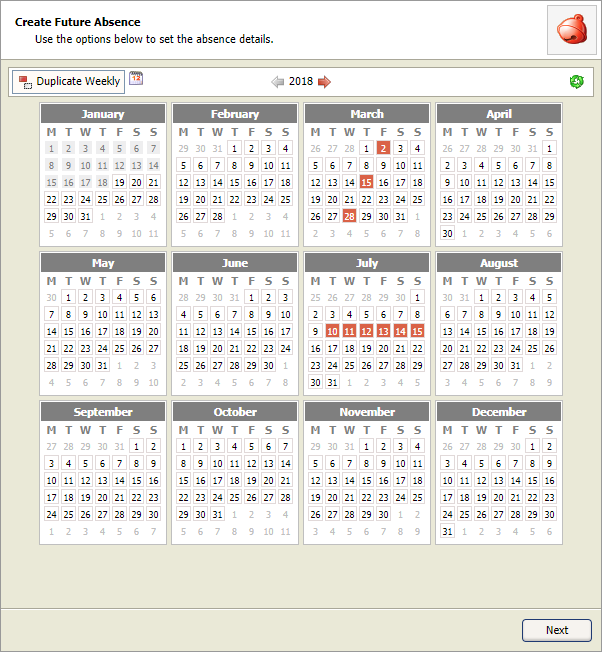
- Use
 to scroll to another year, if required.
 - Select the dates of absence.
Either:- Select individual dates in the window. You can select multiple dates if required.
or - Select multiple dates consecutive dates. Hold down the left mouse button down and scroll over date in the Create Future Absence window.
or - Select the same days each week:
- Click
 .
. - Click
 to select the end date of the duplicated absence.
 - Click the first date of the absence in the Create Future Absence window.
- Click
Click
 to clear the selections made in the Create Future Absence window.
 - Select individual dates in the window. You can select multiple dates if required.
Click Next.
This window is displayed: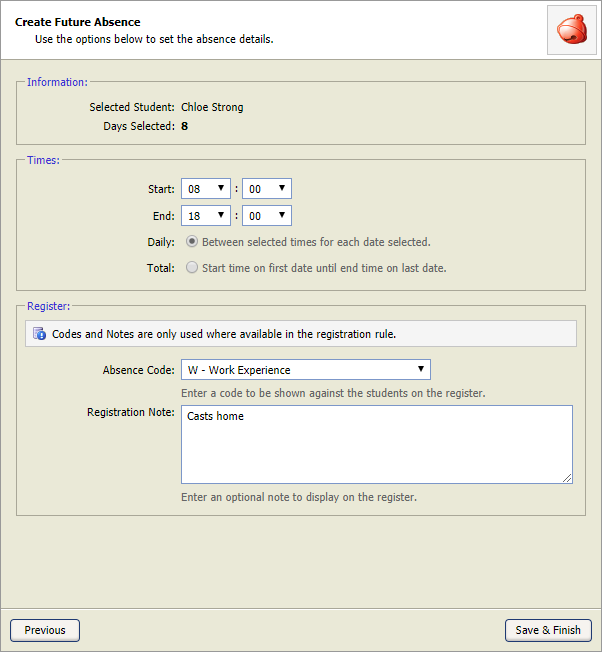
The Information section provides you with details of the records you have selected to mark with future absence.Complete the Times section of the window, as required:
Field
Explanation
Start
Use the drop down boxes to enter the start time of the absence.
End
Use the drop down boxes to enter the end time of the absence.
Time Range
Select whether the absence will occur:
- Daily; at the same start and end time each day. This is useful for recording absence when a student is returning to board each evening. Or when the absences do not follow on from each other, for example, a student will be absent every Monday morning for a month.
- Total; span the total amount of days selected from start time to end time. This is useful when marking time off for a term time holiday.
Complete the Register section of the window, as required:
Field
Explanation
Absence Code
Use the drop down list to select an Absence Code.
Registration Note
Use the free text box to enter a more detailed note about the absence. This note will be seen in each registration period that the student has been marked as absent.
The details provided in the Register section are only seen in registers when Registration Rules and Registration Codes are set up to do so in the Configuration tab.- Click Save & Finish.
The absence is displayed in the Future Absence tab:
An absence marked in the Future Absence tab can be overridden with another registration mark when a register is taken.
Using Registration Marker Boxes
- Check that you have selected the day that you want to work with:
- Click in your selected marker box and mark the student absent using the registration codes set up in the Configuration tab:
- Click Save Day View.
A future absence entry can be overridden with another registration mark when a register is taken. This is only possible for users with full access to the module.- Click Tab