
Use the Configuration tab in the Registration module to customise the display and filter settings for the module to reflect your school.
- Open the Registration module and select the Configuration tab.
Select Customisation from the right hand menu to display this screen:
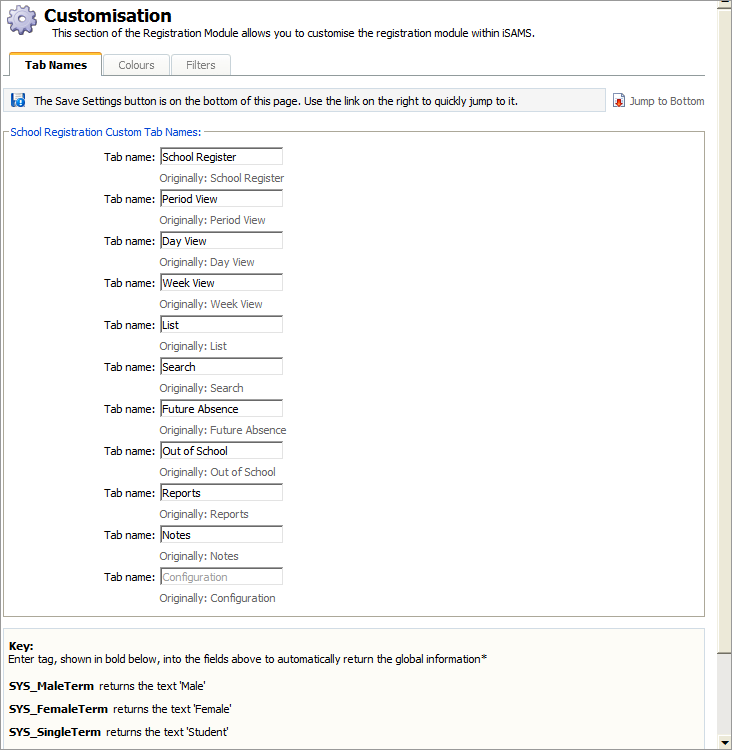
Click on a tab to customise a different feature in the module:

Change the names of the tabs in the module to reflect the terminology used in your school.
For example, if you only want teaching staff to use the School Register tab you can change the name of this tab to Teacher's Register.
- Click through the list of tab names shown and make changes:
The default names remain displayed to assist you. When the details are as required, click Save Settings.
Use the Reload Settings button to cancel any changes you have made to these settings, i.e. reset the values as they were when you first accessed this form. The Reload Settings button only cancels changes if you have not already saved them.
Set the colours used throughout the module to highlight a particular attendance status.
For example, by using a traffic light system of colours it is easier to identify those students whose absence attendance must be addressed.
- Click on a registration status colour and make changes to suit your school as required:
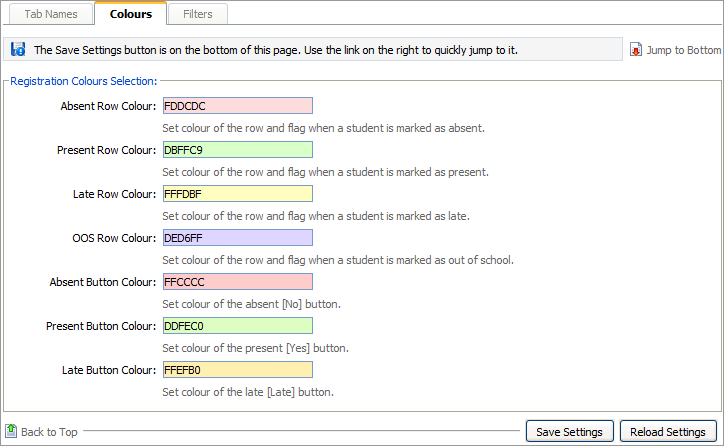
When the details are as required, click Save Settings.
Use the Reload Settings button to cancel any changes you have made to these settings, i.e. reset the values as they were when you first accessed this form. The Reload Settings button only cancels changes if you have not already saved them.
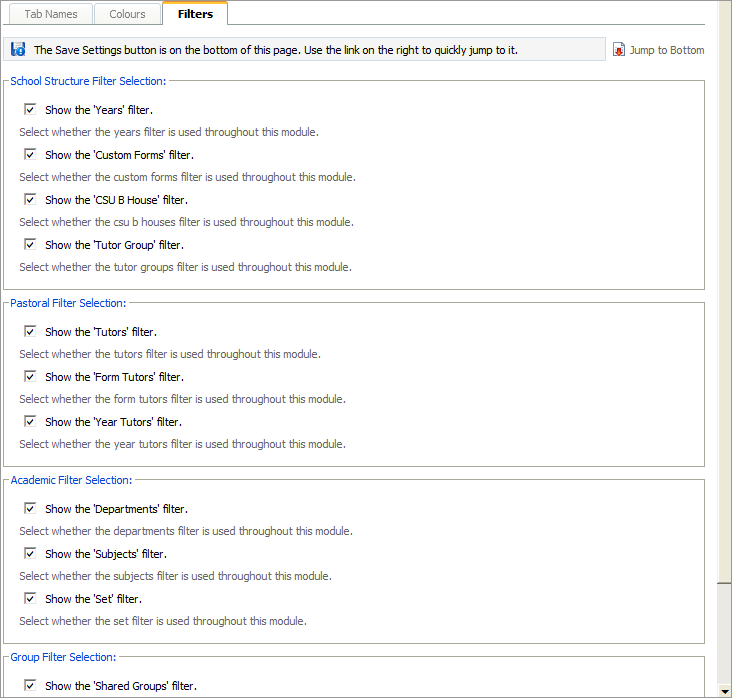
Filters are used to select registration records to display in the module. Select the filters which are relevant to your school. For example, remove the boarding house filter if you only have day students.
This form has a number of settings for you to work through:
Setting
Use the check boxes to select...
School Structure Filter Selection
School structure filters to be used throughout the module. Your school structure is setup in the School Manager module.
Pastoral Filter Selection
Pastoral filters to be used throughout the module. Pastoral filters relate to student tutors. Tutors are setup in the School Manager module.
Academic Filter Selection
Academic filters to be used throughout the module. Academic structure is setup in the Teaching Manager module.
Group Filter Selection
Group filters to be used throughout the module. Groups are setup using the Pupil Manager module. They can be useful for setting up a school trip or assessment groups of students.
When the details are as required, click Save Settings.
Here is an example of how your selections are displayed in the module:
Use the Reload Settings button to cancel any changes you have made to these settings, i.e. reset the values as they were when you first accessed this form. The Reload Settings button only cancels changes if you have not already saved them.
- Click through the list of tab names shown and make changes: