
The Charge View option in the Cycle View tab lists all charges and discounts by nominal code. All the pupil account allocations of each charge/discount are listed here.
Choose to:
Review charges and discounts before generating invoices. Check that allocations and values are as expected for your selected billing cycle.
Review the anticipated income and outgoings for each charge/discount in a selected billing cycle.
- Edit the Charges or Discounts allocated to pupil accounts.
- Delete the Charges and Discounts allocated to pupil accounts.
- Export a List of Charges and Discounts allocated to pupil accounts.
Review Charges
Review individual charges/discounts on pupil accounts and also the anticipated income/expense for charges/discounts:
- Select the Cycle View tab in Fees Billing and open the Navigation tab displayed on the right of the screen.
- Select Charge View from the Navigation tab to display the Charge View screen:
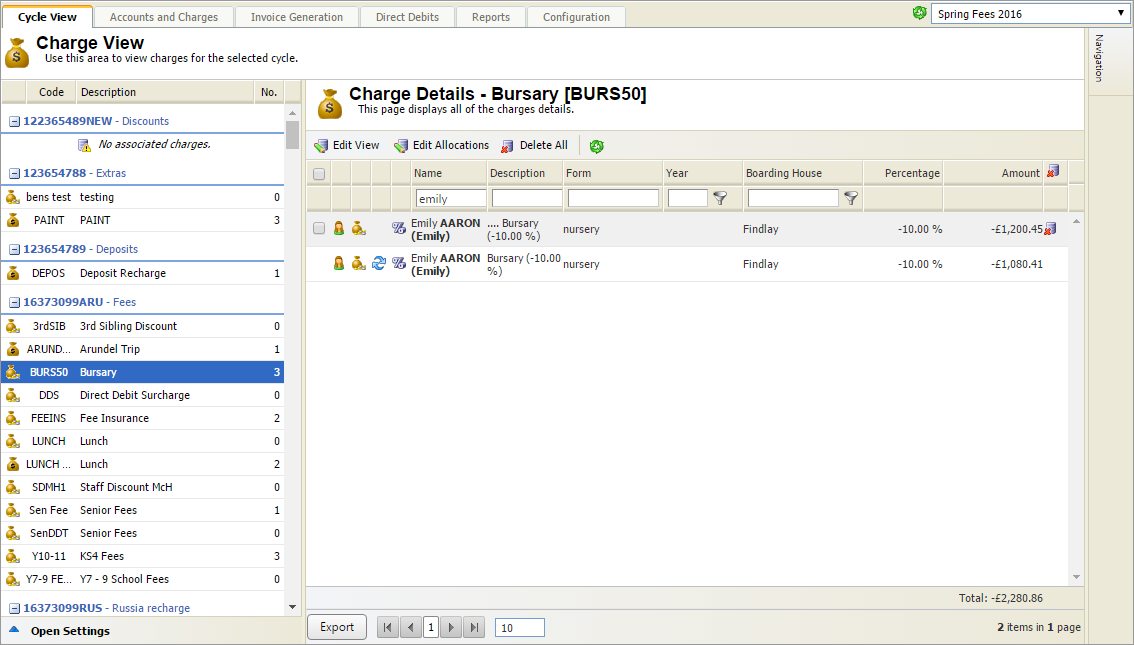
- Use the drop down list in the top right of the screen to select the billing cycle that you want to work with:

- In the left hand menu, select the charge/discount that you want to work with.
- All pupil accounts which have been allocated the selected charge/discount are displayed in the right hand column.
- The total income/expense for the selected charge/discount is shown in the bottom right of the screen.
Edit Charge or Discount Details
Change the value of charges or discounts, if required. This is useful for making amendments before you generate invoices.
- You cannot change the value of a recurring charge/discount from the Charge View option.
- Use Single Pupil View to edit a recurring charge/discount from a pupil account.
To edit a charge or discount, follow the steps below:
- Select the Cycle View tab in Fees Billing and open the Navigation tab displayed on the right of the screen.
- Select Charge View from the Navigation tab to display the Charge View screen:
- Use the drop down list in the top right of the screen to select the billing cycle that you want to work with:
- In the left hand menu, select the charge/discount that you want to work with.
All pupil accounts which have been allocated the selected charge/discount are displayed. - Use the search filters to refine the list of pupil accounts displayed, if required:

This is useful is you only want to amend charges for a selected form group.- Type in all or part of the field name,.
- Click
 and select the filter that you want to apply.
- Choose to make changes on an individual charge or edit charges in bulk. Either:
- Click Edit View for individual changes.
- Edit the values listed as required. Discounts must have a negative value.
or
- Use the checkboxes next to pupil names to select the charges that you want amend.
- Click Edit Allocations for changes in bulk.
- Enter the new value in the popup box displayed. Discounts must have a negative value.
- Click Save & Close.
- Click Save in the header bar.
The amended charge/discount is displayed both in Charge View and the pupil accounts you have amended.
Delete Charges and Discounts
Deleting a charge with a linked parent and child discount will automatically remove the discount from the pupil account.
Delete charges and discounts which have been allocated to pupil accounts in error. This is also useful if the value of a charge has changed. In this case, remove all allocations of the original charge and then allocate the revised charge to pupil accounts.
- You cannot delete the value of a recurring charge/discount from the Charge View option.
- Use Single Pupil View to delete a recurring charge/discount from a pupil account.
To delete charges and discounts, follow the steps below:
- Select the Cycle View tab in Fees Billing and open the Navigation tab displayed on the right of the screen.
- Select Charge View from the Navigation tab to display the Charge View screen:
- Use the drop down list in the top right of the screen to select the billing cycle that you want to work with:
- In the left hand menu, select the charge/discount that you want to work with.
All pupil accounts which have been allocated the selected charge/discount are displayed. - Use the search filters to refine the list of pupil accounts displayed, if required:
This is useful is you only want to amend charges for a selected form group.- Type in all or part of the field name,.
- Click
 and select the filter that you want to apply.
- Either:
- Click Delete All to remove all instances of the charge/discount. You are prompted Are you sure you want to delete all the charges?
- Click Yes.
- Locate the pupil account that you want to delete and click
 . You are prompted Are you sure you want to delete this transaction?
 - Click OK.
Export a List of Charges and Discounts
Export a list of charges or discounts in your preferred format. This is useful for reviewing charges and discounts without accessing Fees Billing. For example, export a list of music lesson charges and forward this to your music administrator to review.
To export a list of charges and discounts, follow the steps below:
- Select the Cycle View tab in Fees Billing and open the Navigation tab displayed on the right of the screen.
- Select Charge View from the Navigation tab to display the Charge View screen:
- Use the drop down list in the top right of the screen to select the billing cycle that you want to work with:
- In the left hand menu, select the charge/discount that you want to work with.
All pupil accounts which have been allocated the selected charge/discount are displayed. - Use the search filters to refine the list of pupil accounts displayed, if required:
This is useful is you only want to amend charges for a selected form group.- Type in all or part of the field name,.
- Click and select the filter that you want to apply.
- Click Export at the bottom of the screen.
- Select the format that you want to export to.
- Open or save the file as required.