
Use the Programme Timetables option in the External Exams Manager module to view and edit exam times and locations for a selected exam programme.
This option is useful for viewing and managing exam programme timetables in bulk.
- Always check that you are working in the correct exam cycle; the BaseData containing exam programme details is specific to each exam cycle.
- Staff can also use the External Exams wizard in the wizard bar to view programme timetables.

To use Programme Timetables:
- Open the External Exams Manager module and select the Timetables tab.
- Select Programme Timetables from the right hand menu to display the Programme Timetables screen:
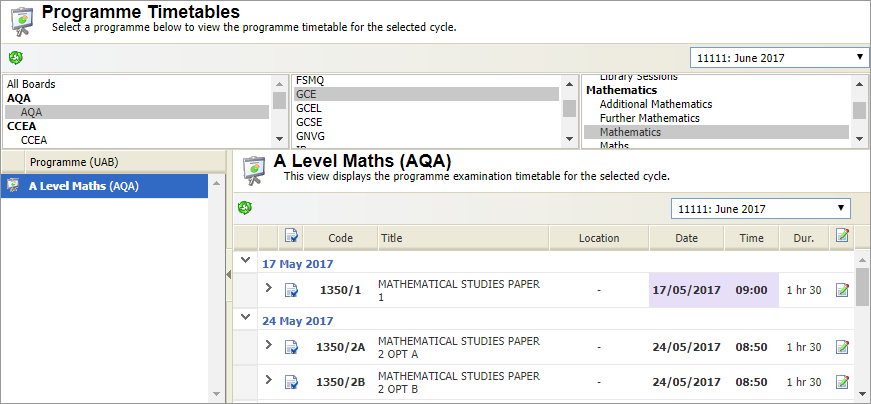
Use the drop down list in the header bar to select the exam cycle that you want to work with.
- Use the filters available to list the programmes that you want to work with:

Your filtered programmes are displayed. Selecting a subject shows all programmes with options linked to that subject. - Scroll to the programme that you want to work with and click to display the exam timetable:
- All exams for the selected programme are listed with the date, time and duration. These are determined by the BaseData and can be changed if necessary.
- Locations are only listed once selected for an exam.
- Any exams which have already been amended are highlighted in purple.
- Expand each date and paper listed to see whether a seating plan has been arranged for the exam:
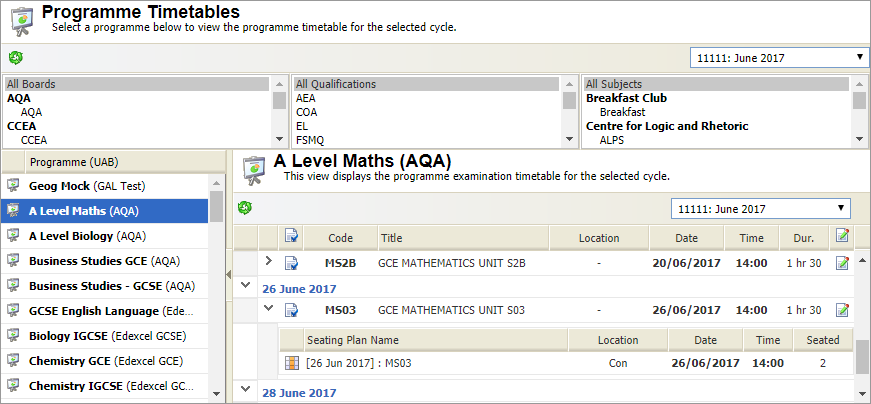
- Click
 in a selected exam if you need to make any changes to the location, date or time of the exam. A popup window is displayed: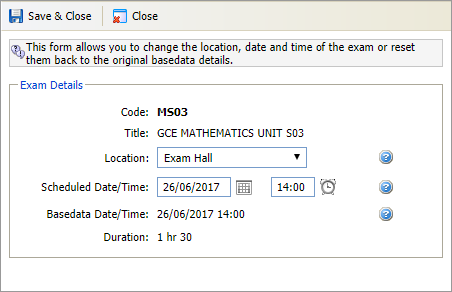
- Select a Location for the exam. Only location rooms with seating plans are available for selection. Click
 , if displayed, if you need to reset the location back to the default.
 - Click the calendar and clock icons to change the Scheduled Date/Time for the exam. Click , if displayed, if you need to reset the date and time back to the default. The BaseData date and time is displayed to help you.
- Click Save & Close. The exam is now highlighted purple to indicate that changes have been made.