
Use the Component Report in the External Exams Manager module to run a report to check candidate coursework marks for a specific exam programme or option in a selected exam cycle.
This is useful for distributing to staff for checking before the EDI coursework file is created.
Staff can also use the External Exams wizard in the wizard bar to check forecast grades for selected options.
To produce a component report:
- Open the External Exams Manager module and select the Coursework tab.
- Select Component Report from the right hand menu to display the Report Wizard window:

- Select the General Options tab and work through the sections displayed:
- Reporting Services. The 'In-Built Report' is preselected and can only be changed by iSAMS HelpDesk.
- Select the exam Cycle that you want to report on.
- Select your preferred Report Format. Recommendations for each format are shown onscreen.
- Select the Candidate Status that you want to report on. Choose from either:
- 'Current'.
- 'Private'. This includes returning candidates.
- 'All' candidates. This is useful if private and returning candidates are sitting exams alongside current candidates.
- Select the Filter Options tab and choose the options that you want to include in the report. Filter by:
- Subject. Select options linked to a selected teaching subject.
- Programme. Select options listed for a selected programme.
- Option Code. Enter a specific option code to run a report for.
- Select the Report Specific Options tab and select the order to display candidates in the report.
- Click Produce Report, an example of an .html report is shown below:
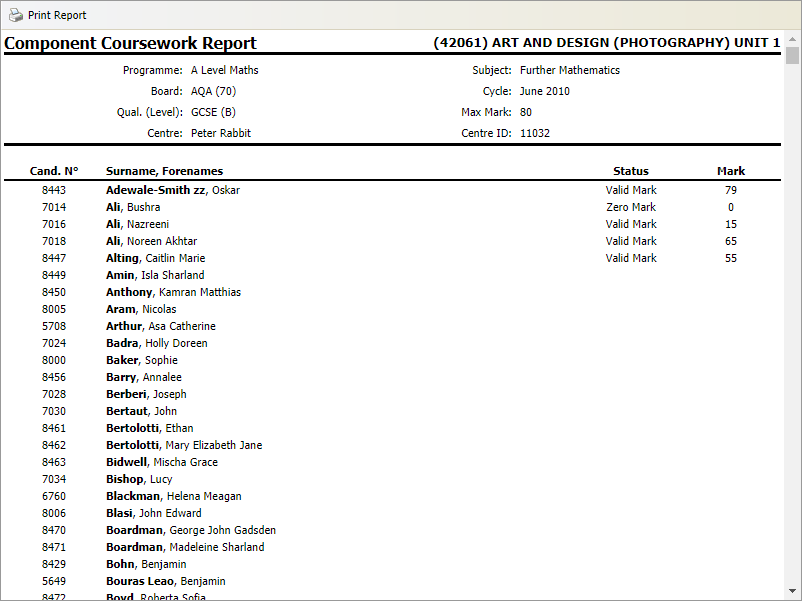
- Scroll through the report to see the coursework marks in each option.
- Choose to print or save the report as required.
- Use the report for staff to check the coursework marks. Any changes can be made by the exam administrator before the coursework marks are created to send to exam boards.