
Print or export event group details from your selected child activity module. This is useful if you want to distribute event information to users with no access to child activity modules.
The details generated includes a list of pupils linked to an event, this could be used as a team sheet for pupils linked to a match.
This function is the same for both single event groups and subgroups.
To print or export event group details:
- Select a child activity module from the module bar:
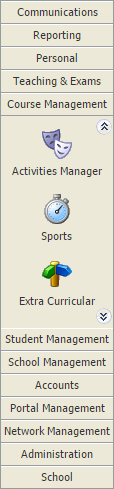
- Select the Activity Overview tab and select an Event Overview option from the right hand menu:

The Activity Events Today/Tomorrow/This Week/Next Week/This Month screen is displayed depending on your selection. All of these options work in the same way. - Two methods are available to you for printing and exporting. Either:
- Click
 or
or  in any date or event.
or
- Use the checkboxes to the left of any event or individual groups/subgroups in an event.
- Select Export Selected or Print Selected from the drop-down list in the header bar:
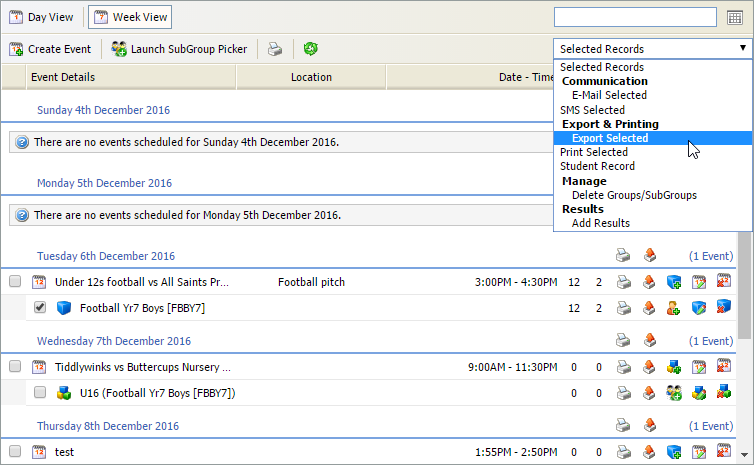

- Click
- Use the filters in the header bar to display the dates that you want to work with:

Select either:- Day View.
- Week View.
or - Use the date picker on the right to select a specific date.
- Select the events, groups or subgroups that you want to print or export and click Next.
Step 2 of the wizard is displayed:
- Use the checkboxes in Field Selection and Custom Fields to select the fields that you want to include (the fields available are configured from each child activity module).
- Select an Order Output By to choose the order that details are displayed and click Next.
Step 3 of the wizard is displayed:
Select the format that you want to use:
Format OptionUse for...On screen - default option Printed event lists. Click here to see an example. Word Amendments and notes can be added into this version. Click here to see an example. Excel Amendments and notes can be added into this version. Click here to see an example. PDF A predefined version of the event list suitable for printing. - Select the Additional Extras that you want to include. Choose to display:
- Only the group/subgroup name.
- Both the event name and the group/subgroup name.
- Check the Additional Formatting Options box if you want to include the staff linked to each group in the list you generate.
- Click Next.
Your activity list is now ready to view, print or download ready to export. - Click Finish to close the wizard window.


