
Use the Student View tab in the Teaching Manager module to add your selected student to a teaching set.
To add a student to a set, follow the steps below:
- In the Teaching Manager module, select the Student View tab:

- Use the drop down list in the top right of the screen to select the academic year that you want to work with.
Use the filters available to display the students you want to work with:
Filter Search by... Pupil Search A selection of fields listed in pupil records.
School Structure - Year.
- Form Group.
- Boarding House.
- Academic House.
Use these filters, for example, to search for Year 10 students from a selected boarding house.
Pastoral - Pastoral Tutor.
- Form Tutor.
- Year Tutor.
Select to display your selected tutor's students.
Academic - Department.
- Subject.
- Set.
Use these filters, for example, to search for students in a selected Art set.
Custom Groups Any custom pupil group. These are configured in the Pupil Manager module. Applicants Applicant enrolment year. - Click on a student's name on the left of the screen to display their academic programme:
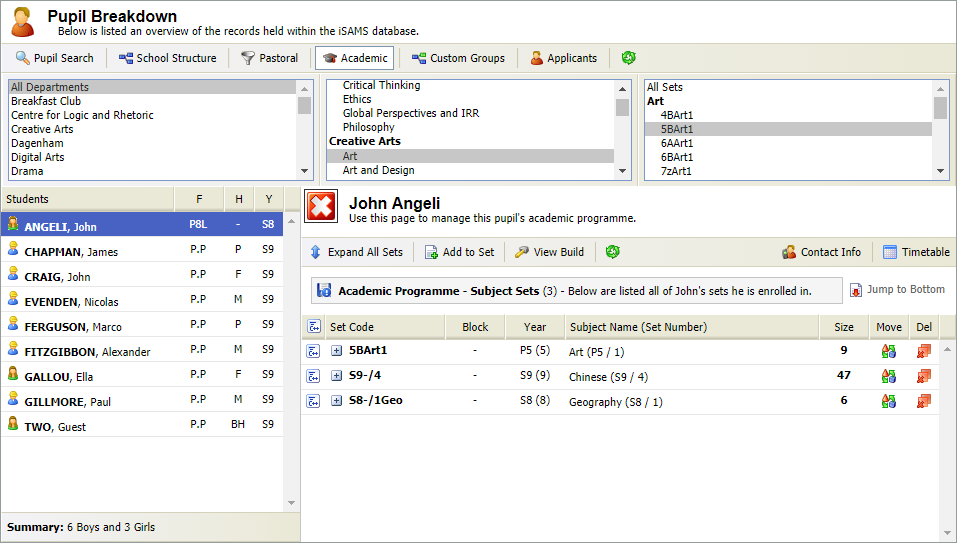
- If you want to add the student to a build set list, click View Build in the record header before selecting Add to Set. Build set lists are not active and can be created for both the current and development academic year.
- Click
 Add to Set.
A popup window is displayed: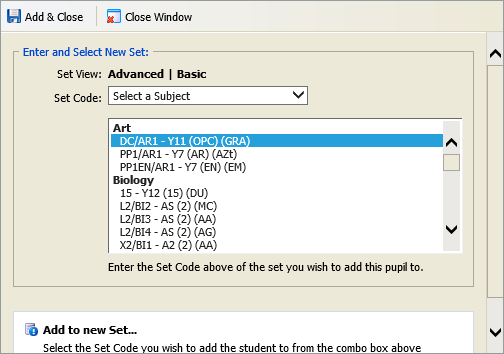
- Either:
- Enter the Set Code, if you know it.
or - Click Basic and select a set from the list displayed. Sets which the student is already in are greyed out.
- Enter the Set Code, if you know it.
- Click
 Add & Close.
The set is displayed in the student's academic programme. - Use the View Build button to switch between active set lists and build set lists for the student.