
Use the Pupil Manager module to add pupils to Custom Pupil Groups. This is a useful time saving shortcut. Custom Pupil Groups are groups of pupil records. Use the groups you create to search for pupil records and forward information regarding school trips, etc.
- Open the Pupil Manager module, select a pupil records tab:

- Use your preferred search method to find the pupil records that you want to work with.
The Pupil Records List is displayed:
- Select pupil records using the checkboxes next to each Pupil's Name. Check the box in the header bar to select all the records displayed.
- Select an option from the pink drop down list. Choose to either:
- Add to NEW Group. Select pupils and add them to a new Custom Pupil Group.
or - Add to PREVIOUS Group. Select pupils and add them to an existing Custom Pupil Group. This is a useful shortcut if you have latecomers for a school trip or new applicants that you want to add to a group.
- Add to NEW Group. Select pupils and add them to a new Custom Pupil Group.
Add Pupils to a New Custom Pupil Group
The Selection Management window is displayed:
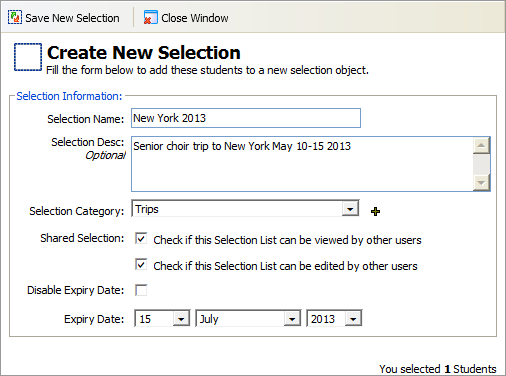
- Enter a name and short description for your Custom Pupil Group in the fields available.
- Choose a Selection Category from the drop down list displayed.
Custom Pupil Groups are listed under categories in the pupil record tabs, making them easier to organise and locate. Click to add a new category to the drop down list available, if required.
 - Use the Shared Selection check boxes to control who can view and edit the Custom Pupil Group.
- Either:
- Check the Disable Expiry Date box and the Custom Pupil Group is set up indefinitely.
or - Uncheck the Disable Expiry Date box and enter an expiry date for the Custom Pupil Group. This is a useful housekeeping tool, once a field trip is complete the Custom Pupil Group is listed as expired.
- Check the Disable Expiry Date box and the Custom Pupil Group is set up indefinitely.
- Click
 Save New Selection.
You are prompted when the group is created. - Click OK to return to the pupil records list.
Add Pupils to an Existing Custom Pupil Group
The Selection Management window is displayed:

- Select a Custom Pupil Group from the drop down list.
- Click Save To Selection.
You are prompted when the group is saved. - Click OK to return to the pupil records list.